Contact Support & Share Logs
If you've tried the troubleshooting steps in our guides and still need help, our support team is here for you.
Table of Contents
Before Contacting Support
Try these common fixes first:
- Restart the app - Fully quit from the system tray (right-click tray icon → Quit), then reopen
- Check your internet connection - The app needs internet to sync with your email provider
- Sign in to your email again - Go to Manage Connections, click Manage on the account, open the Credentials tab, click Sign in with ... (or re-enter the app password), then Save Changes
- Check your printer - Make sure it's turned on, connected, and has paper
How to Access Your Logs
Logs help our support team diagnose issues quickly. Here's how to find them:
Option 1: From the App
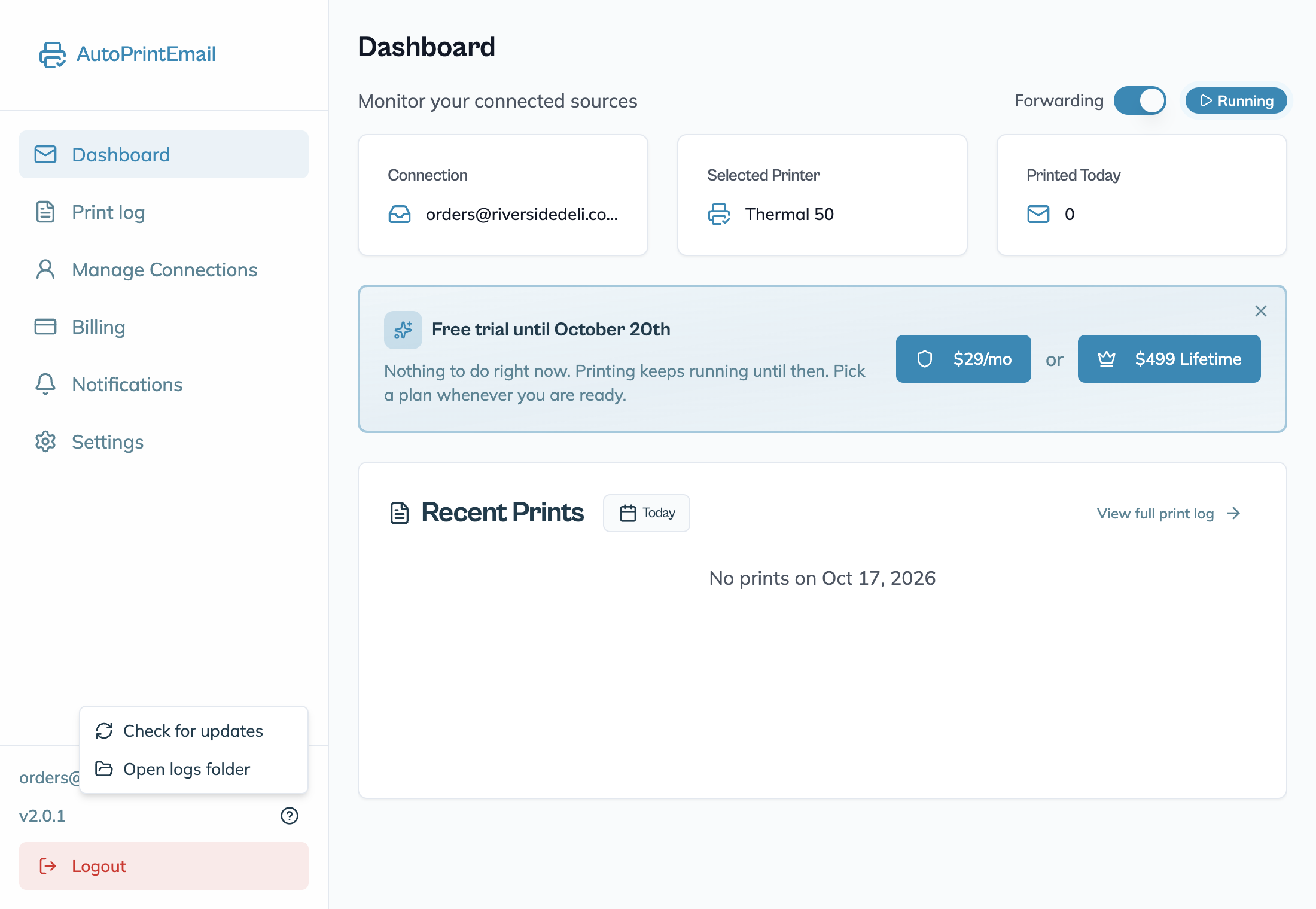
- Click the ? button next to the version number at the bottom of the sidebar
- Click Open logs folder
You can also open Settings and click Open logs folder under Support.
Option 2: Manual Path (if app won't open)
Windows:
- Press
Win + Rto open the Run dialog - Paste this path and press Enter:
Mac:
- Open Finder
- Press
Cmd + Shift + Gto open "Go to Folder" - Paste this path and press Enter:
Log Files
You'll see files like:
main.log- Current log filemain.old.log- The previous log file
main.log has a size limit. When it fills up it is renamed to
main.old.log and a fresh main.log is started, so the file you want
is often the older one. A busy print machine can roll over in a single
day, and if it rolled over since the problem happened, main.log will
contain nothing but the last few minutes.
Contact Support
Email us at support@autoprint.email with:
- A description of the issue - What's happening? What did you expect to happen?
- Steps to reproduce - What were you doing when the issue occurred?
- Your log files attached - Attach both
main.logandmain.old.log. Please send both even if one looks small or old: rotation means the interesting part is frequently inmain.old.log, and sending onlymain.logis the most common reason we have to come back and ask again.
We typically respond within 24 hours on business days.
Tip: The more details you provide, the faster we can help!