Download Invoices and Customize Your Billing Details
This guide shows you how to add your company name, billing address, and tax/VAT ID to your AutoPrintEmail account, and how to download invoice PDFs that include those details. The whole thing is self-service and takes about 2 minutes.
You will need to do this once: future invoices automatically include your updated details, and past invoices regenerate with the new information when you re-download them.
Table of Contents
- Open the billing portal
- Update your company name and billing address
- Add or update your tax ID (VAT number)
- Download an invoice
- What if an invoice was already issued?
- Frequently asked questions
Open the billing portal
Sign in to your AutoPrintEmail dashboard and go to the Billing page. In the top right of that page, click Open Stripe portal. A new tab opens to our secure billing portal (hosted by Stripe).
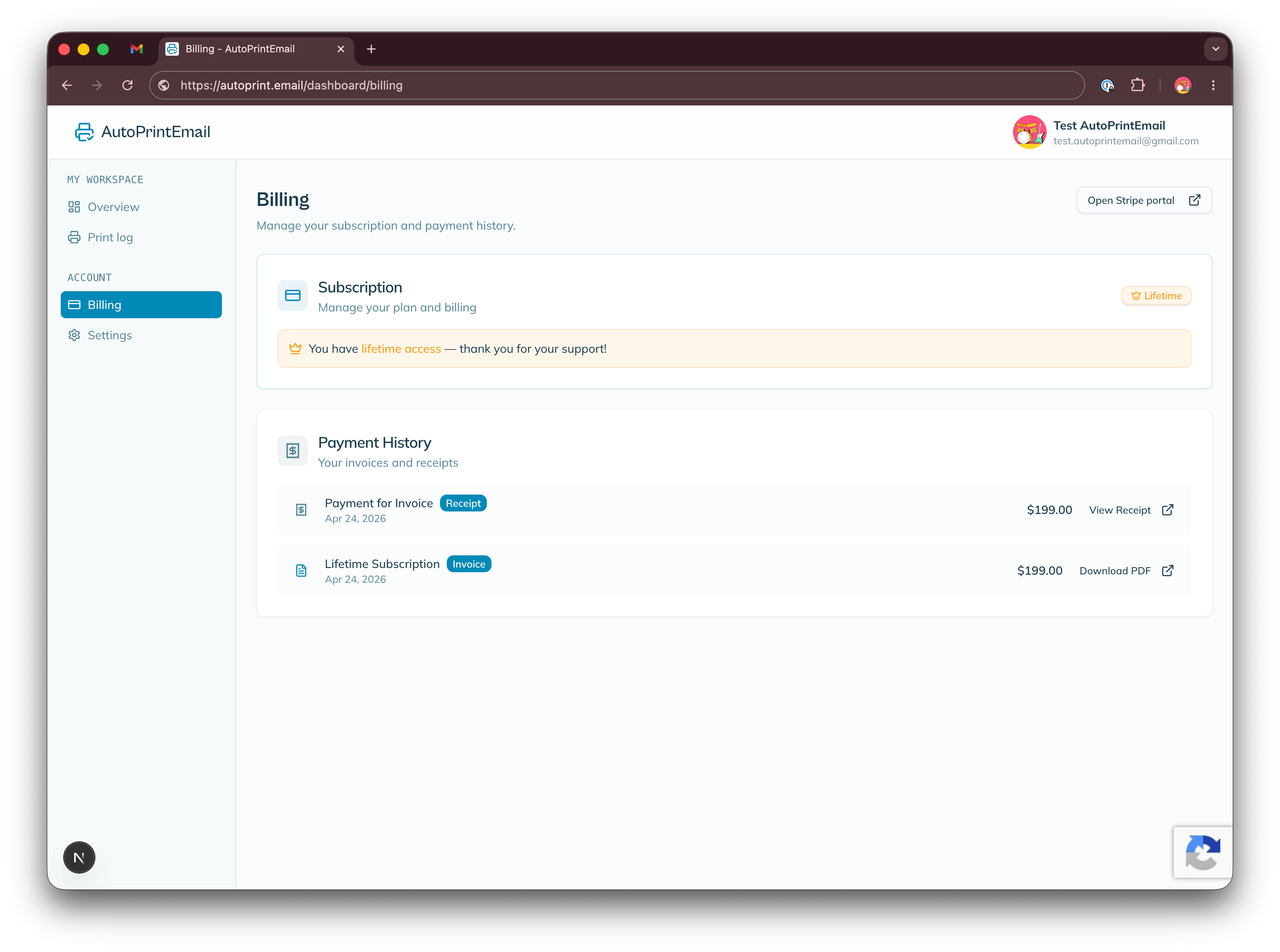
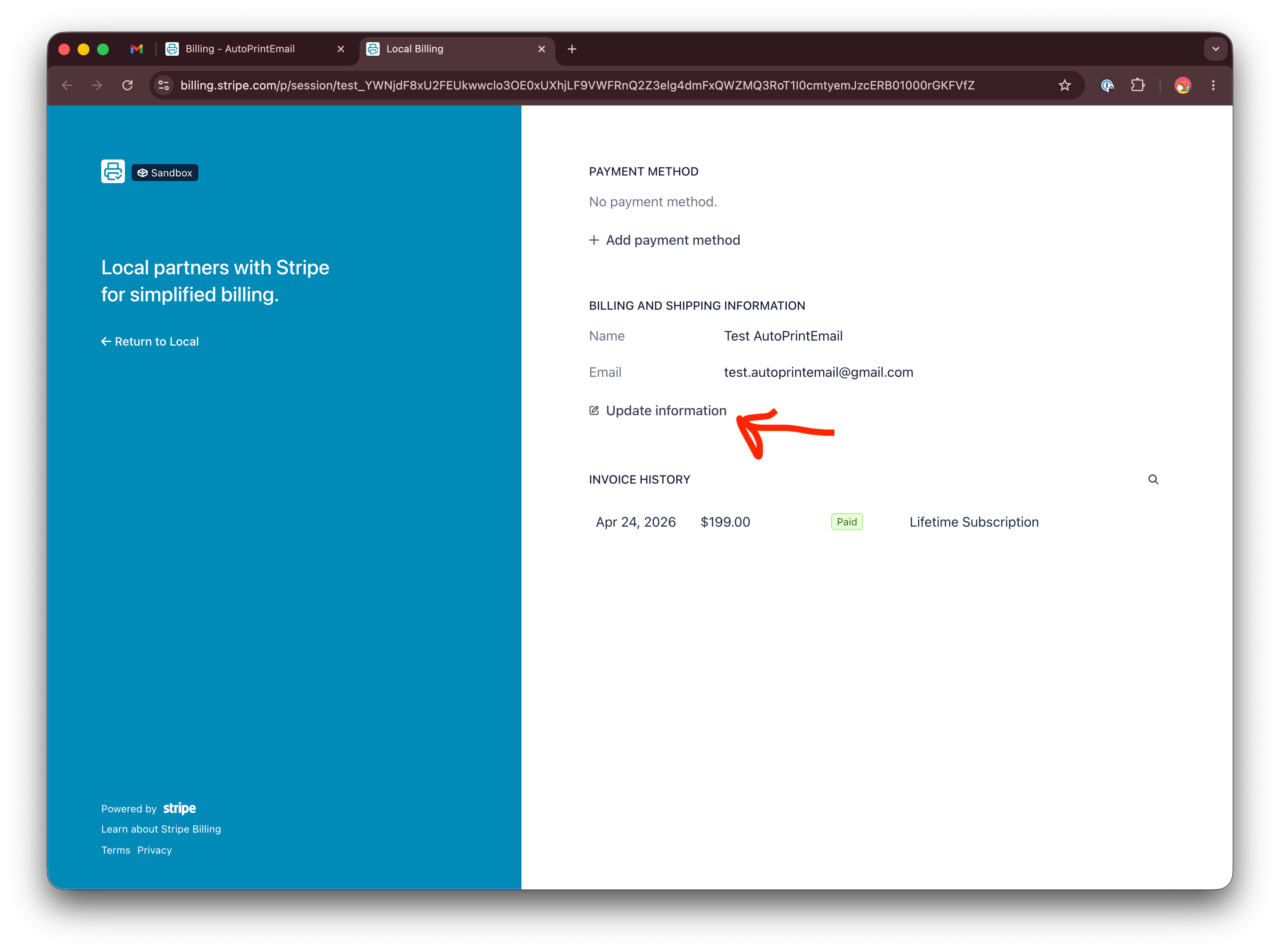
The portal is where you manage everything billing-related: company details, payment methods, tax IDs, and invoice downloads.
Update your company name and billing address
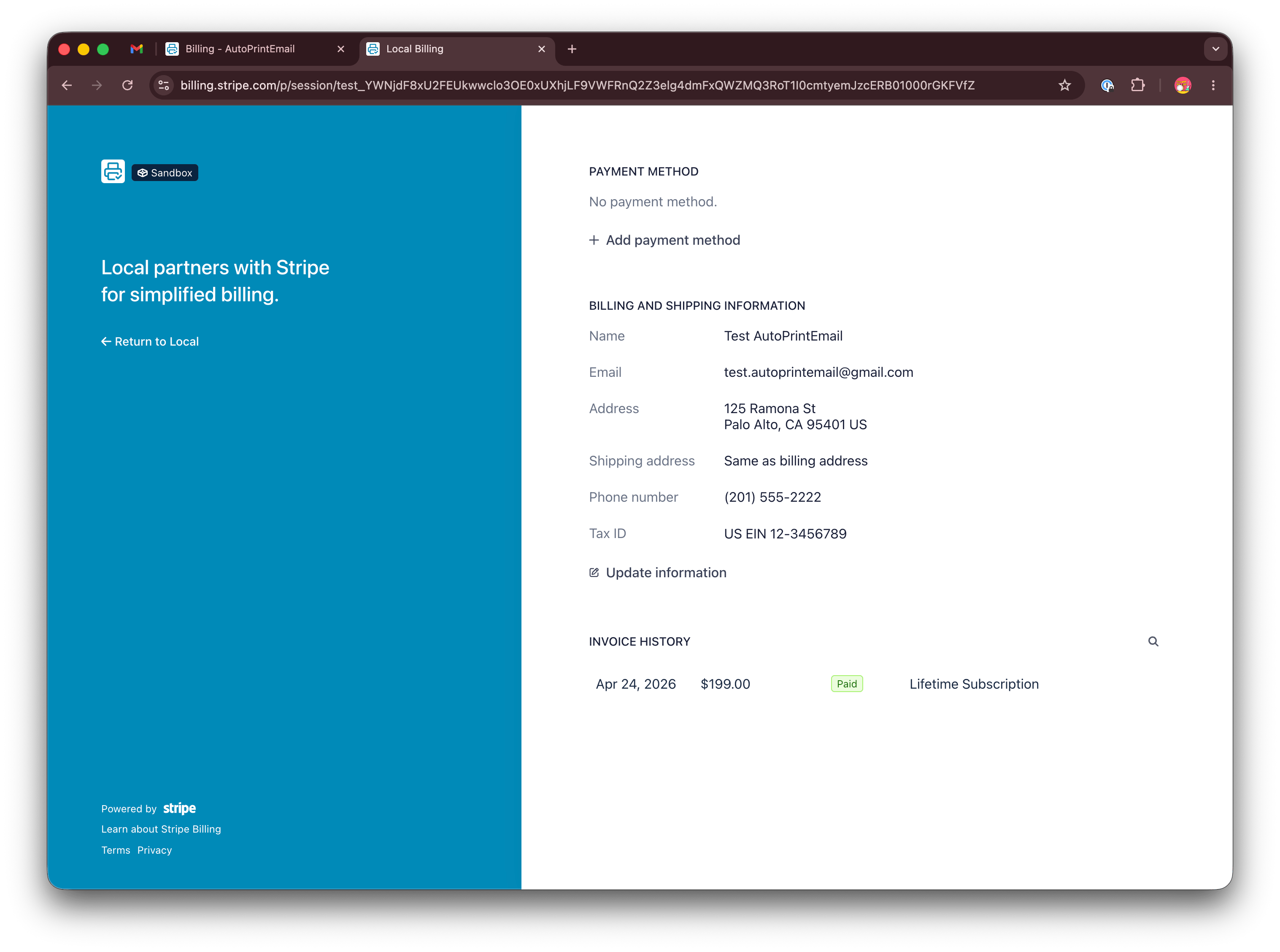
In the billing portal, find the Billing information section and click Update information.
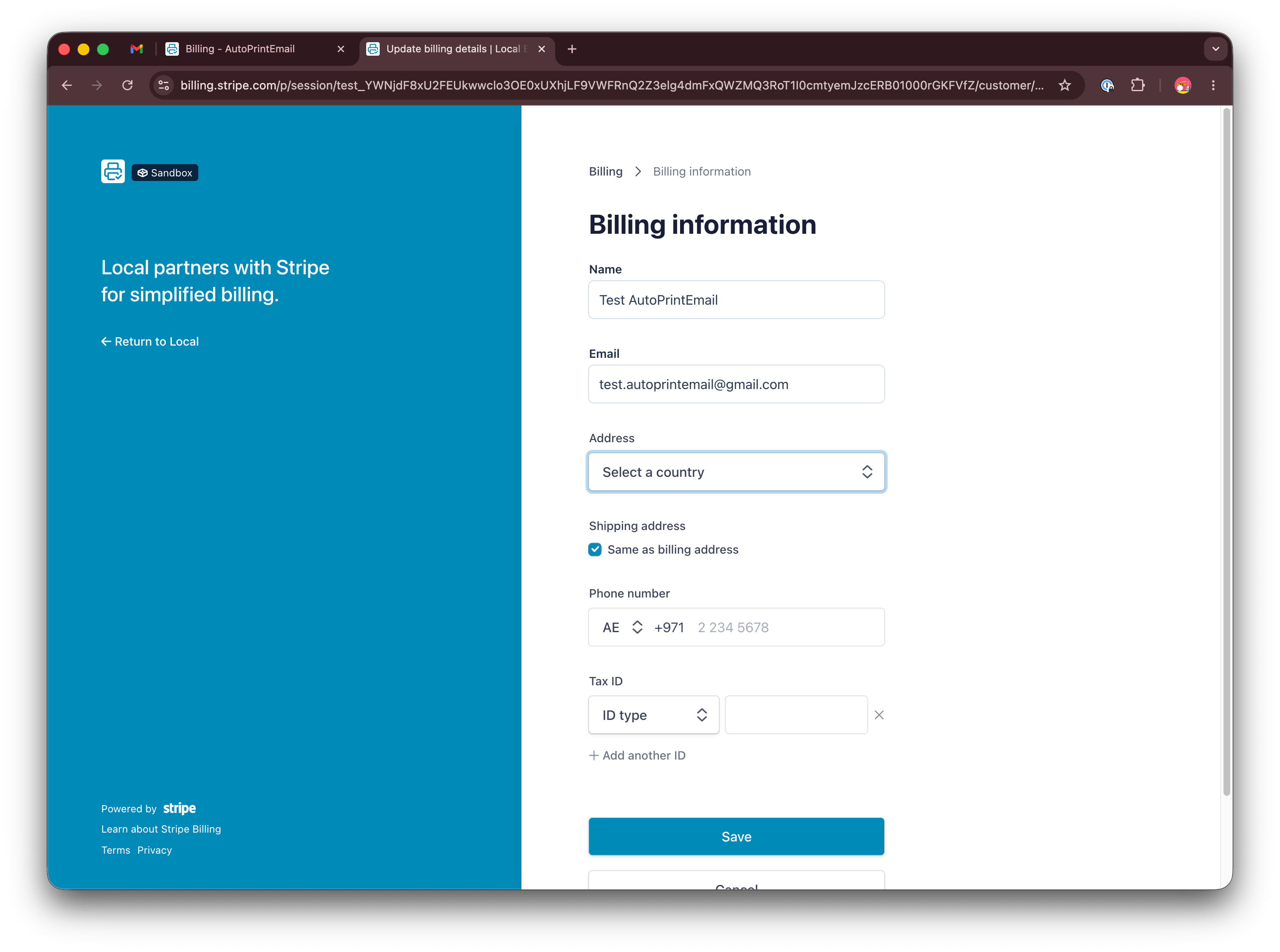
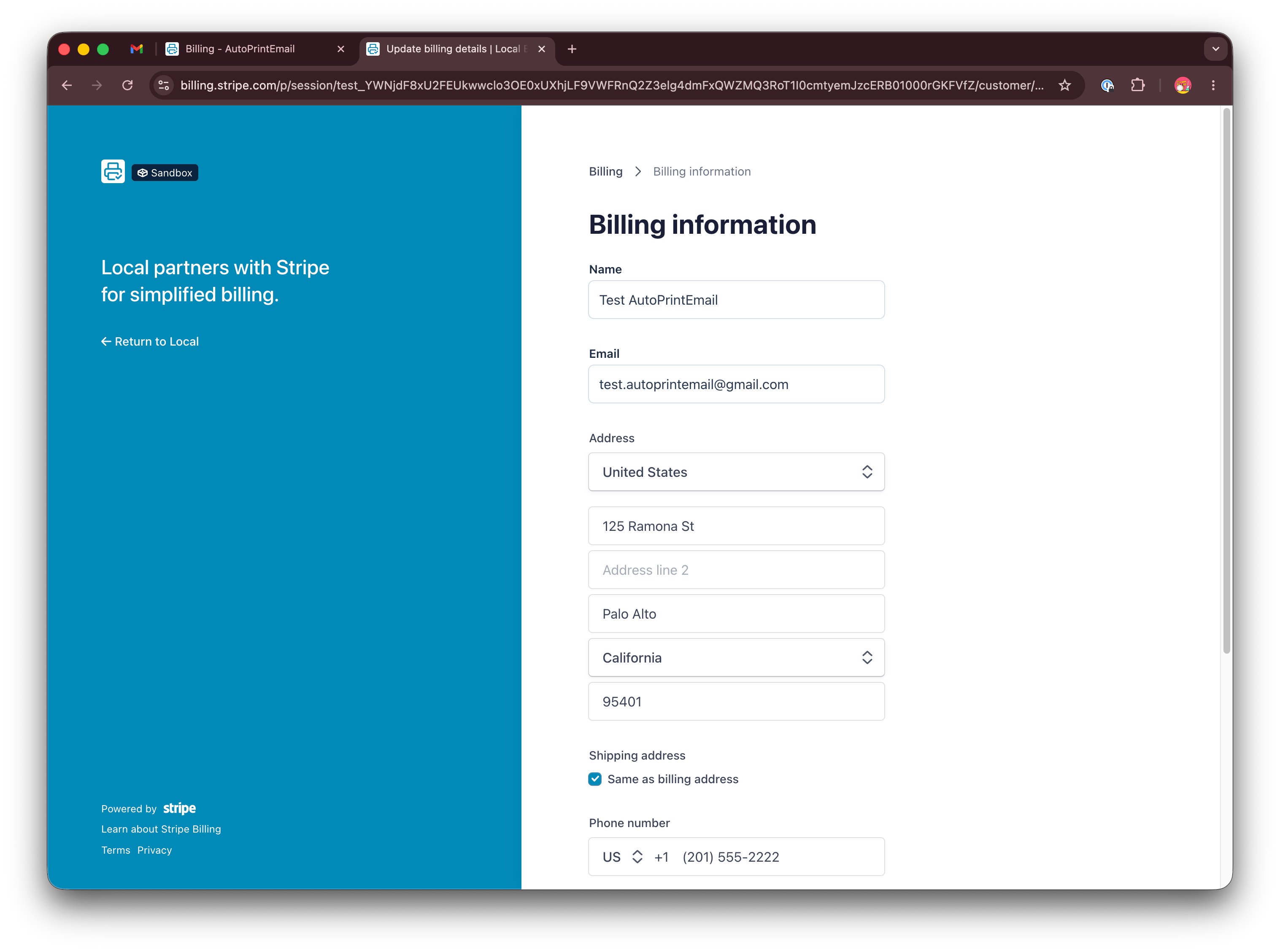
Fill in the fields that apply to you:
- Name - your company name as it should appear on invoices (e.g. "Nadeos Cosmetics BTO GmbH")
- Country - the country of the registered business
- Address line 1 / 2 - your billing address
- City, postal code - the rest of the address
Click Save. Your details are stored immediately and will appear on every future invoice.
Add or update your tax ID (VAT number)
If you need a VAT/tax ID on your invoice (required for most EU B2B customers to reclaim input VAT), scroll to the Tax ID section and click Add tax ID.
- Select the type for your country (e.g.
EU VATfor European VAT numbers,US EINfor US employer identification numbers,GB VATfor UK VAT, etc.) - Enter your tax ID exactly as registered (including the country prefix where applicable, e.g.
ATU76091514for Austria) - Click Save
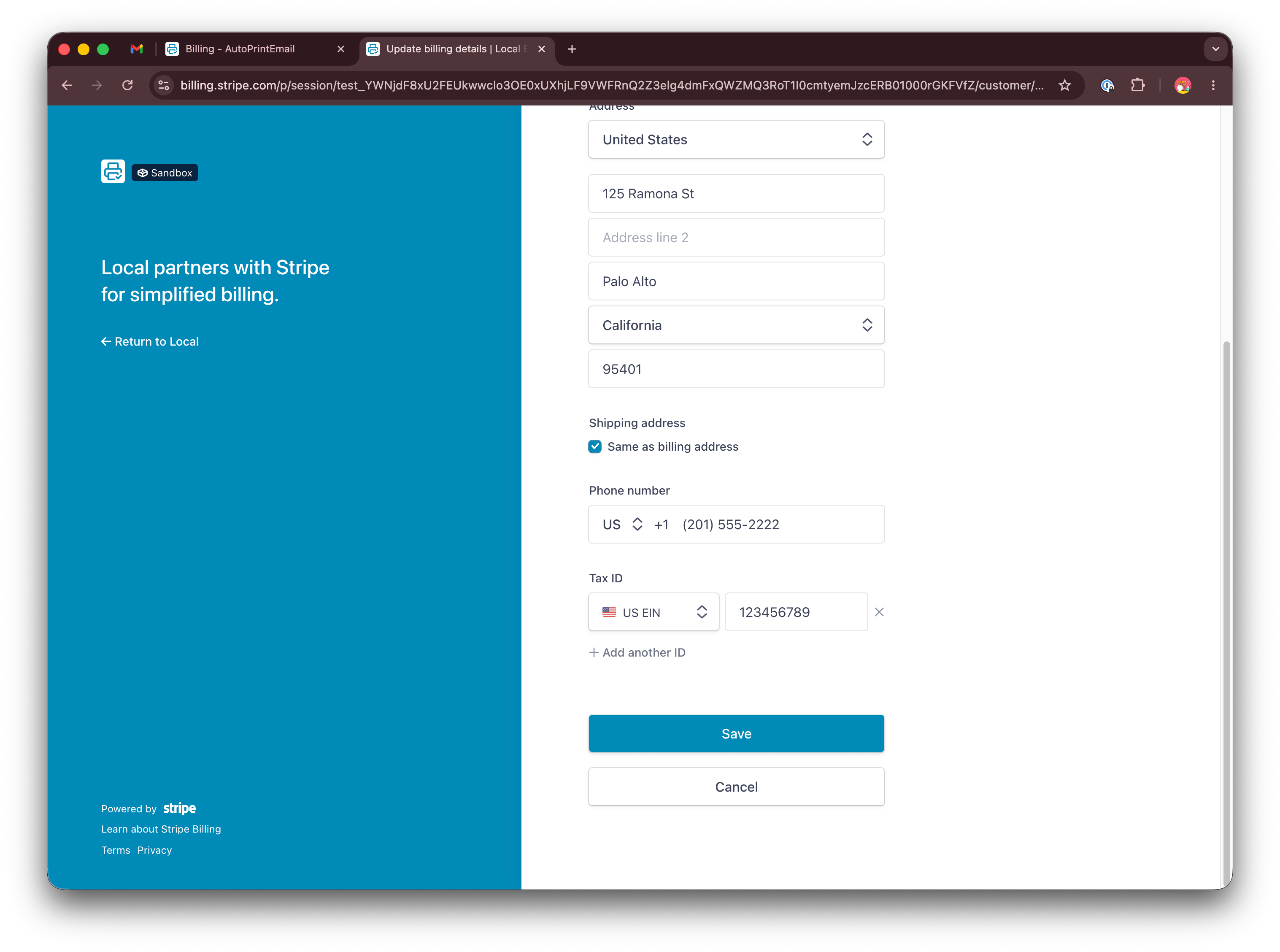
The tax ID is validated automatically against the relevant government database (VIES for EU VAT numbers, similar services for other regions). If it is not accepted, double-check that the prefix and digits match the format your tax authority uses.
Download an invoice
In the billing portal, scroll down to the Invoice history section. Each row is one invoice; click the download icon on the right to get the PDF.
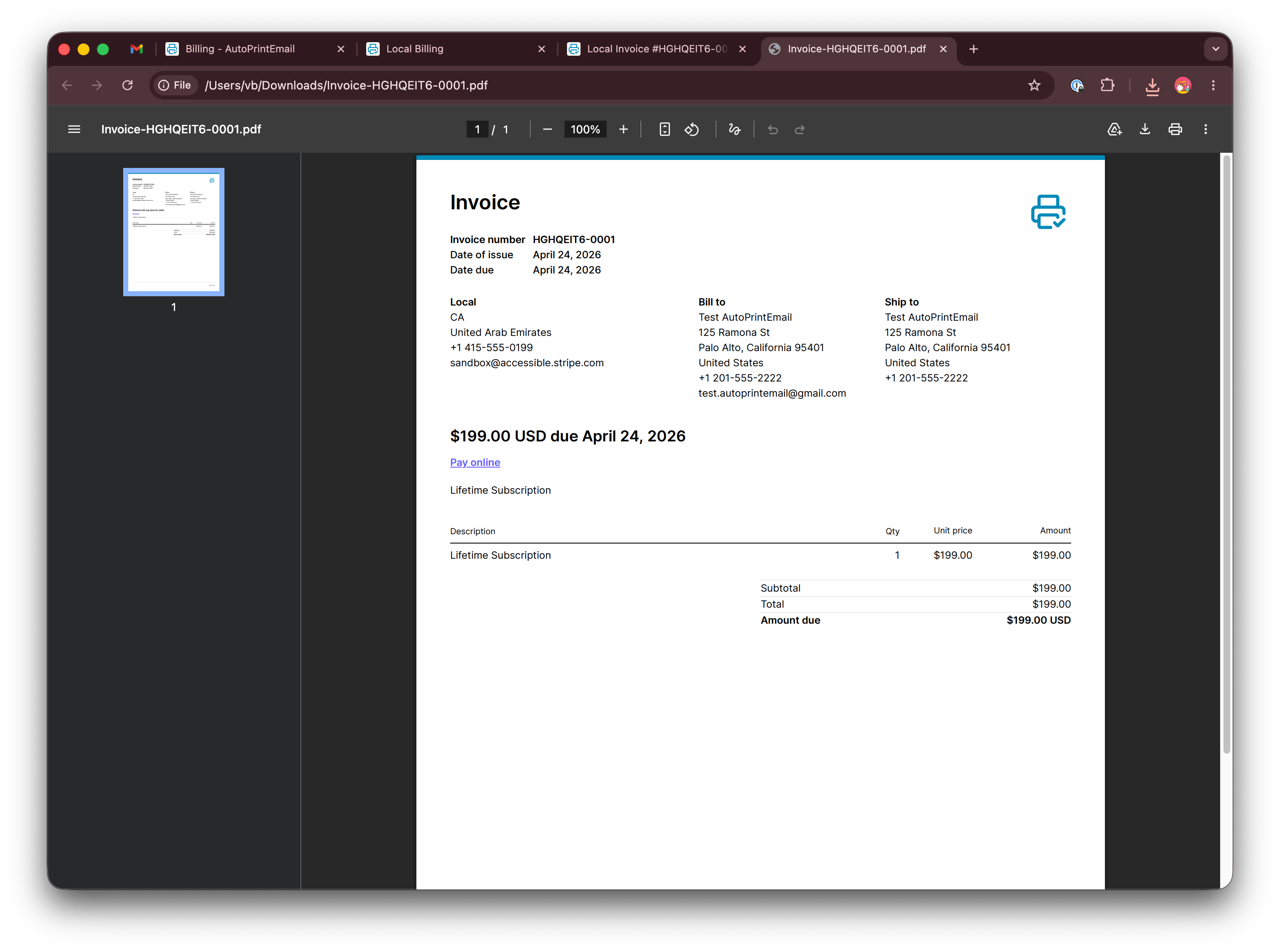
The downloaded PDF includes your current billing details (company name, address, tax ID) at the top, so it is ready to hand to your accountant.
What if an invoice was already issued?
If you received an invoice before adding your company details, that is fine - just follow the steps above and re-download the same invoice. The PDF regenerates with your current details every time you download it, so the file you save will have your company name, address, and tax ID even though the invoice number is the same.
You do not need to contact support or wait for us to reissue anything. The invoice number stays the same; only the customer-info block at the top updates.
Frequently asked questions
Do I have to do this every month?
No. You only update your details once. Every future invoice automatically uses the saved company name, address, and tax ID. The only time you would update them again is if your company moves, changes name, or your tax registration changes.
My country needs a tax ID type that is not listed - what do I do?
The portal supports tax ID types for most countries with VAT/GST regimes. If yours is not in the dropdown, contact us with your country and the type of tax ID you need, and we will check whether it can be added.
Can I add multiple tax IDs?
Yes. Some businesses are registered in multiple jurisdictions (e.g. an EU company with a separate UK VAT number after Brexit). Add each one in the Tax ID section; the relevant one will appear on each invoice based on the billing context.
My VAT number was rejected as invalid.
Two common causes: (1) wrong prefix - EU VAT numbers must start with the two-letter country code (e.g. DE, FR, IT, AT); (2) the VIES system is occasionally unavailable - try again in a few minutes. If neither helps, double-check the number against your tax authority's portal and contact us if it still fails.
Can my accountant access the portal directly?
The portal is tied to the email address you signed up with. If your accountant needs direct access, the simplest option is to download the invoices and email them across. If you need shared portal access for an accountant on a Teams plan, contact us and we can set it up.
I cannot see the Open Stripe portal button.
The button only appears once you have at least one paid invoice on your account (i.e. you have completed checkout at least once). If you are still on the free trial, the button will appear after your first successful payment.