Alerts When Printing Stops: Telegram, Discord, Email
The worst kind of printing problem is the silent one. The printer ran out of paper at 9am, nobody noticed, and at 4pm someone asks where the orders went.
Turn on alerts and AutoPrintEmail tells you instead. It takes two minutes.
Table of Contents
- What you can be told about
- Where to set it up
- Telegram (best for instant alerts)
- Discord
- Good to know
What you can be told about
- Immediate failure alerts: a print job failed, with the reason.
- Connection & printer alerts: a mailbox needs signing in again, or a printer went offline. Printing has stopped until someone fixes it.
- Daily stats digest: a once-a-day summary of what printed.
Each one is a separate switch, per destination.
Where to set it up
On the web, sign in at autoprint.email/dashboard/settings. You'll see Email Notifications, Telegram Notifications and Discord Notifications. Use as many as you like.
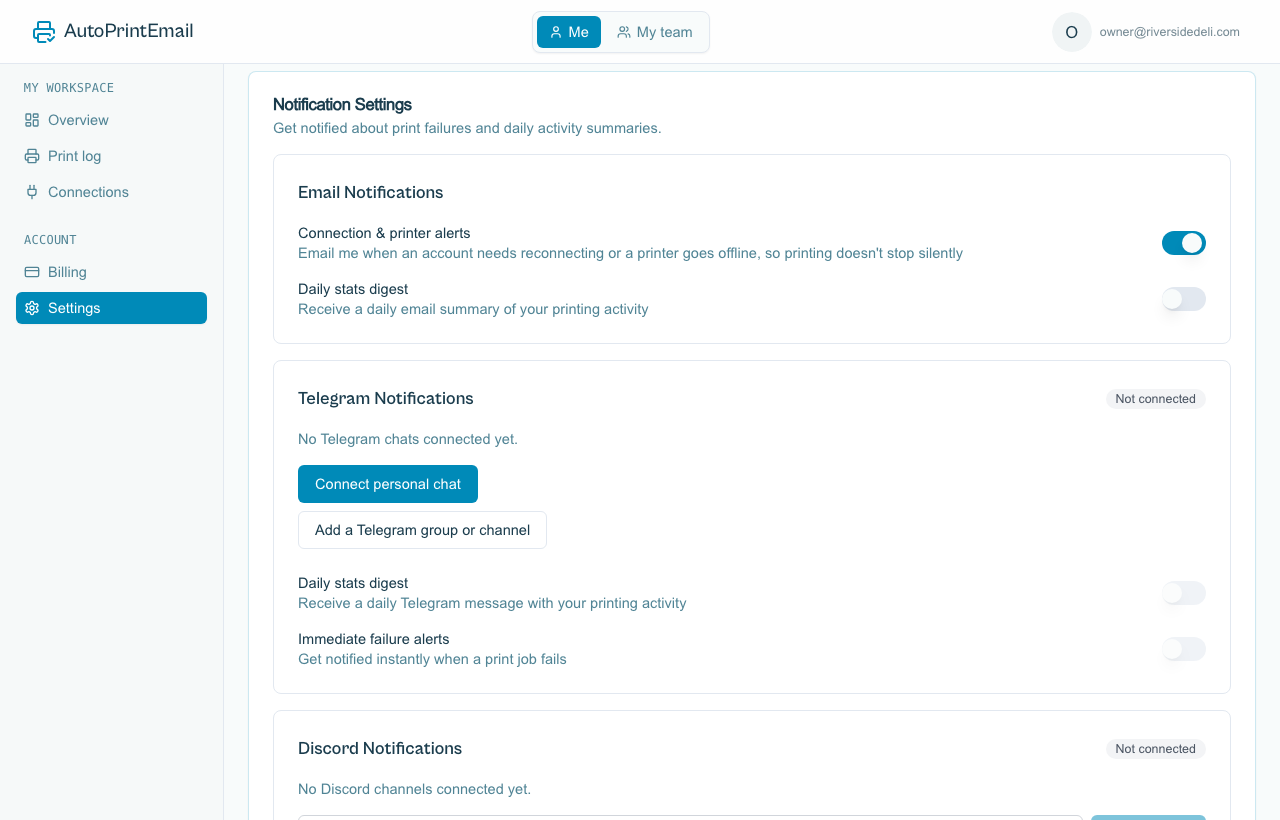
Already set up for the address you signed in with. Connection & printer alerts is on from the start. Switch on Daily stats digest if you want a daily summary too. Instant print-failure alerts go to Telegram or Discord, not email, so a busy day doesn't flood your inbox.
Telegram (best for instant alerts)
On your own phone:
- Under Telegram Notifications, click Connect personal chat.
- Click the link to open Telegram and tap Start.
- Back on the page it shows Connected. Pick the alerts you want.
In a group or channel (so the whole team sees it):
- Click Add a Telegram group or channel.
- Add the AutoPrintEmail bot to the group, as the page shows. For a channel, add it as an admin.
- Send the
/connectcommand the page gives you in that chat, then click Check now.
The command stays valid for 15 minutes and refreshes on its own while the page is open.
Discord
- In your Discord server, open Server Settings > Integrations > Webhooks > New Webhook, pick the channel, and copy the webhook URL.
- Paste it under Discord Notifications and click Add channel.
- Pick the alerts you want.