Printing Office and CSV Attachments
Most printers print PDFs and images out of the box. Office files like Word, Excel, PowerPoint - and now CSV - are different. Your printer can't open them directly, so AutoPrintEmail has to convert them to PDF first.
Table of Contents
- What gets converted
- How conversion works
- How to enable it
- What "Off" means
- What if I don't see a CSV being printed?
What gets converted
These attachment types route through the converter:
- Word:
.docx,.doc,.odt - Excel / spreadsheets:
.xlsx,.xls,.ods,.csv - PowerPoint:
.pptx,.ppt,.odp
PDFs, images (JPEG, PNG, TIFF), and plain-text attachments don't need conversion - they print directly without leaving your computer.
How conversion works
When the converter is on:
- The desktop app uploads the attachment to our server.
- The server converts it to PDF (we use LibreOffice headlessly, which handles all of the formats above).
- The PDF is downloaded back to your computer.
- The file is deleted from our servers.
- Your printer prints the PDF.
Nothing about the attachment is retained on our side. The whole round-trip usually takes a few seconds per file.
How to enable it
Open Settings in the desktop app and look for Convert Office documents to PDF for printing:
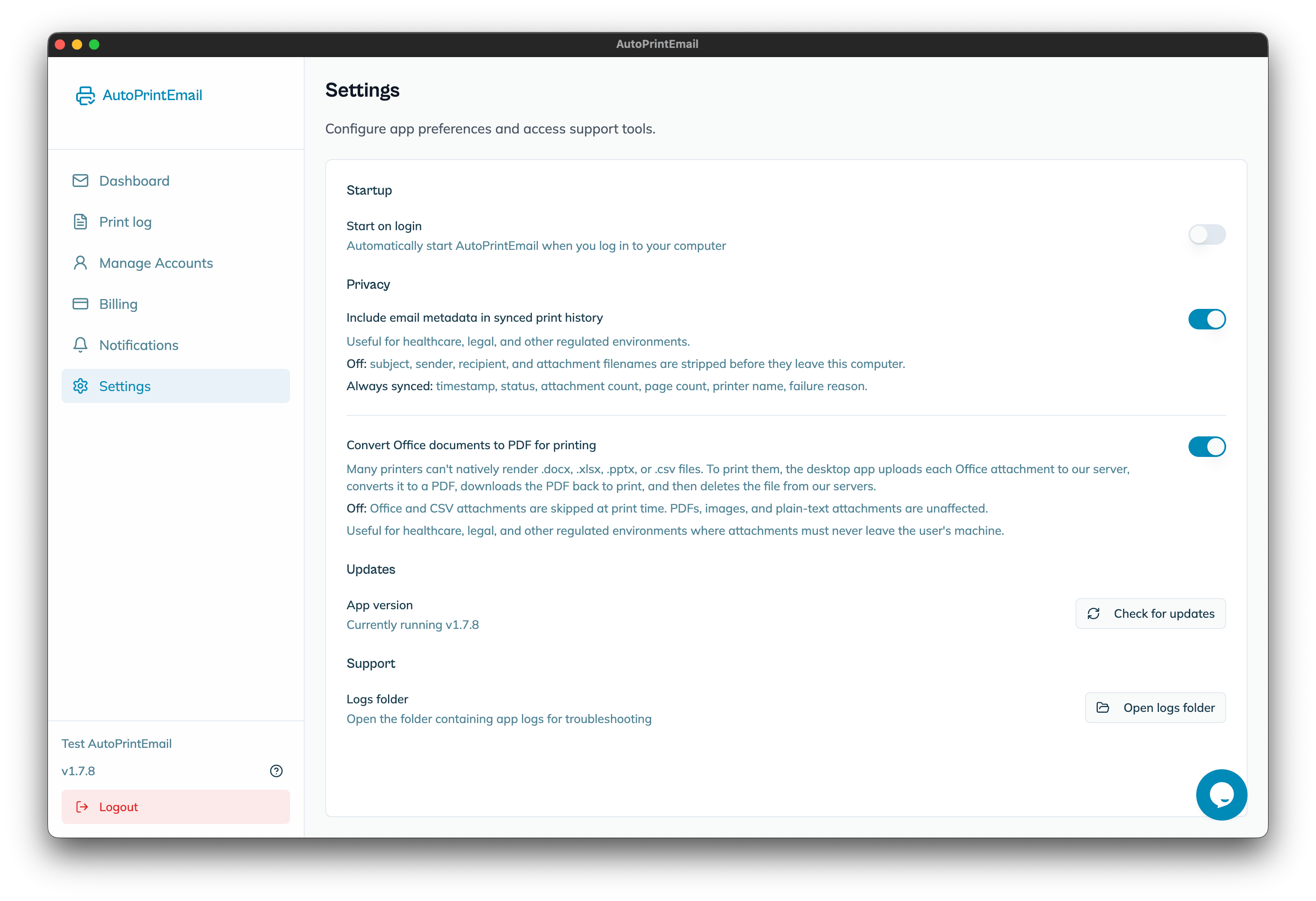
Flip the toggle on. That's it - the next time an email with an Office or CSV attachment arrives, the attachment will print.
What "Off" means
If you turn the toggle off, Office and CSV attachments are skipped at print time. The email body still prints, but those attachments are flagged in the print log with a warning so you know they were intentionally not printed.
PDFs, images, and text attachments are unaffected - those always print, regardless of this setting.
This is the right setting if you're in healthcare, legal, or another regulated environment where attachments must never leave the user's machine.
What if I don't see a CSV being printed?
Two quick checks:
- Is the toggle on? CSV needs the same toggle as Word and Excel files.
- Did the email actually arrive? Open the Print log in the sidebar and look for the row matching that email. If the row shows "Completed - 1 issue" with a warning that mentions the CSV was skipped, the toggle is off. If the row isn't there at all, the email hasn't synced yet.
If you've checked both and the CSV still doesn't print, reach out to support and we'll take a look.