Auto-Print QuickBooks Invoices to Your Office Printer
QuickBooks Online emails invoices the moment you click Send — to the customer, to your billing email if you BCC, with a PDF attached. It does not print anything to your office printer. There's no setting for that.
The fix is a 5-minute auto-print setup that watches the BCC'd copy and sends the PDF to your office printer.
Table of Contents
- Step 1: Tell QuickBooks to BCC Your Billing Inbox
- Step 2: Install AutoPrintEmail
- Step 3: Connect Your Billing Inbox
- Step 4: Filter Rule + Printer
- Step 5: Test
- Why Auto-Print QuickBooks Invoices?
- The "Print on Send" Alternative
- For Practices With Multiple QuickBooks Files
- Pricing
- TL;DR
Step 1: Tell QuickBooks to BCC Your Billing Inbox
In QuickBooks Online:
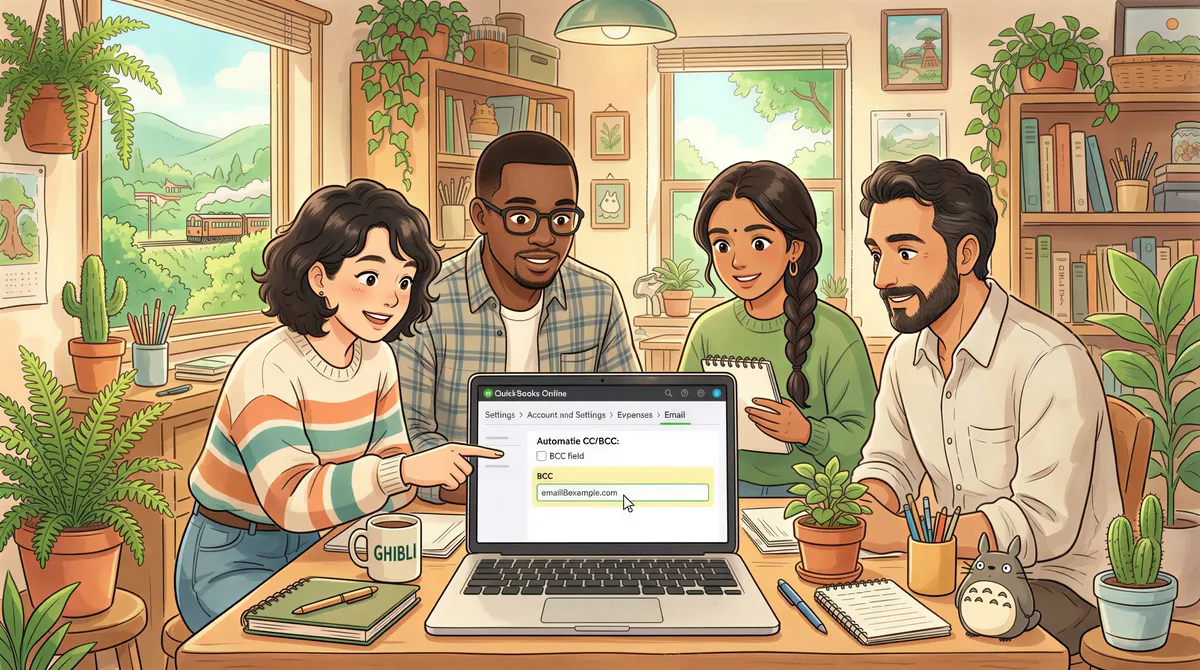
- Settings (gear icon) → Account and settings → Sales → Messages.
- Scroll to "Email options."
- Add your internal billing email (e.g.,
billing@yourcompany.com) to the BCC field. - Save.
Every invoice you email from QuickBooks now also lands in that billing inbox.
For QuickBooks Desktop:
- Edit → Preferences → Send Forms.
- Configure your email server settings.
- Add your BCC address in the email template.
(Desktop's path varies slightly by version, but the BCC concept is the same.)
Step 2: Install AutoPrintEmail
Download for your OS. Free 3-day trial. Sign in.
Step 3: Connect Your Billing Inbox
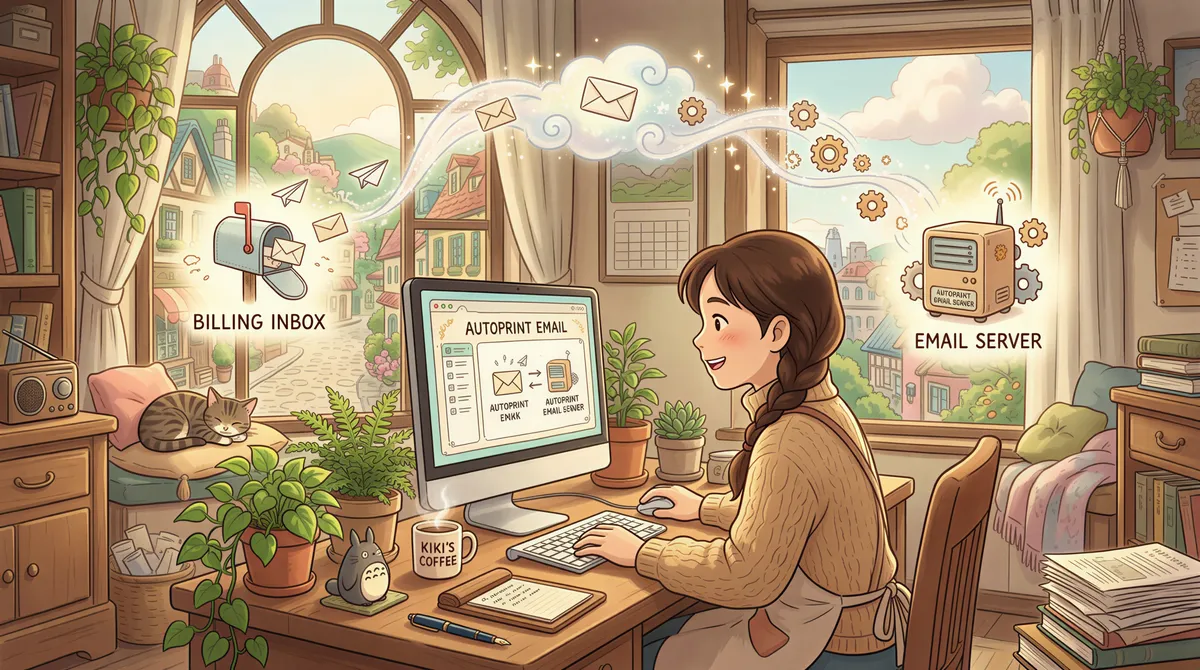
Add Account → connect via Gmail/Outlook OAuth or IMAP.
Pick Inbox as the folder to monitor.
Step 4: Filter Rule + Printer
The filter:
- From contains:
quickbooks.intuit.comorintuit.com - Has attachment: yes (QuickBooks always attaches the invoice PDF)
- Action: Print attachment to [your invoice printer]
If you also want estimates, sales receipts, and credit memos auto-printed (not just invoices):
- From contains:
quickbooksorintuit.com - Subject contains:
invoice,estimate,receipt,credit memo - Has attachment: yes
- Action: Print attachment
Pick the printer you want output on. AutoPrintEmail respects whatever printers your OS already has installed.

Step 5: Test
Send a test invoice from QuickBooks (to yourself if you don't have a test customer). Within a minute, the printer should run.
If it doesn't, the dashboard log shows what happened to the email — printed, skipped, or failed.
Why Auto-Print QuickBooks Invoices?
A few common reasons:
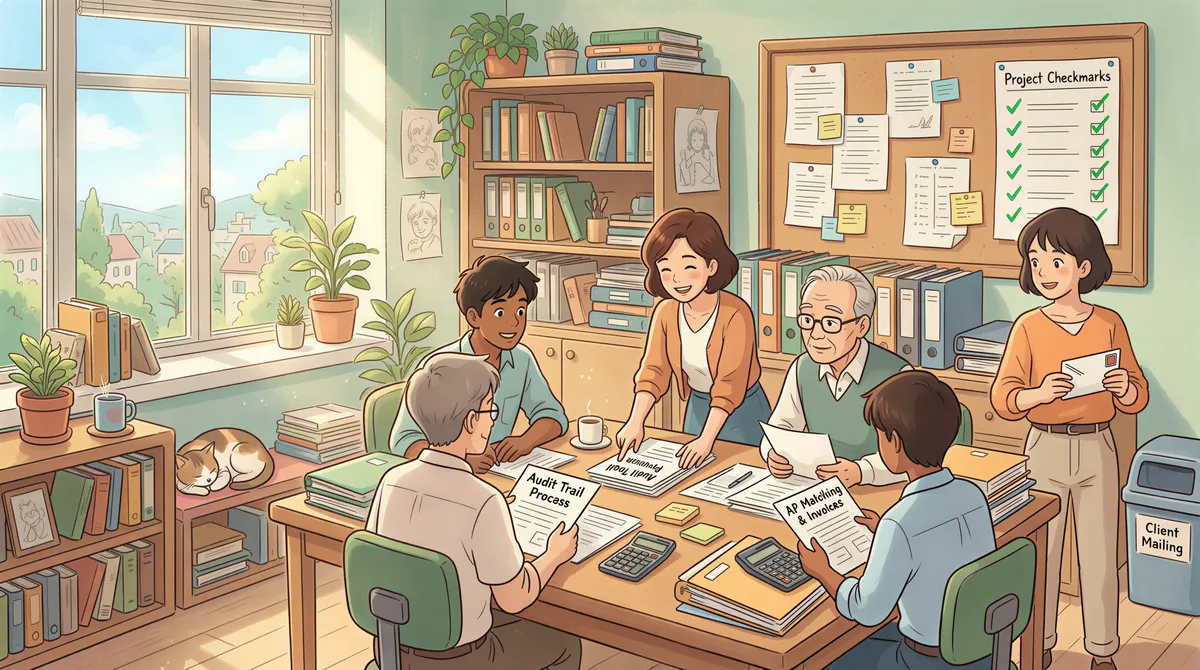
- AP matching. Bookkeeper matches printed invoice against the GL entry on paper.
- Audit trail. Year-end review by your CPA goes faster with paper invoice copies in the file.
- Client mailing. For clients who want physical invoices, you have a printed copy ready to mail without going back to QuickBooks.
- Two-step verification. Some practices print every invoice as a paper trail check that the right invoice went to the right customer with the right amount.
If you don't need any of those, you don't need this. If you need any, manual printing every invoice gets old fast — at 50+ invoices a month it becomes the bookkeeper's most-hated task.
The "Print on Send" Alternative
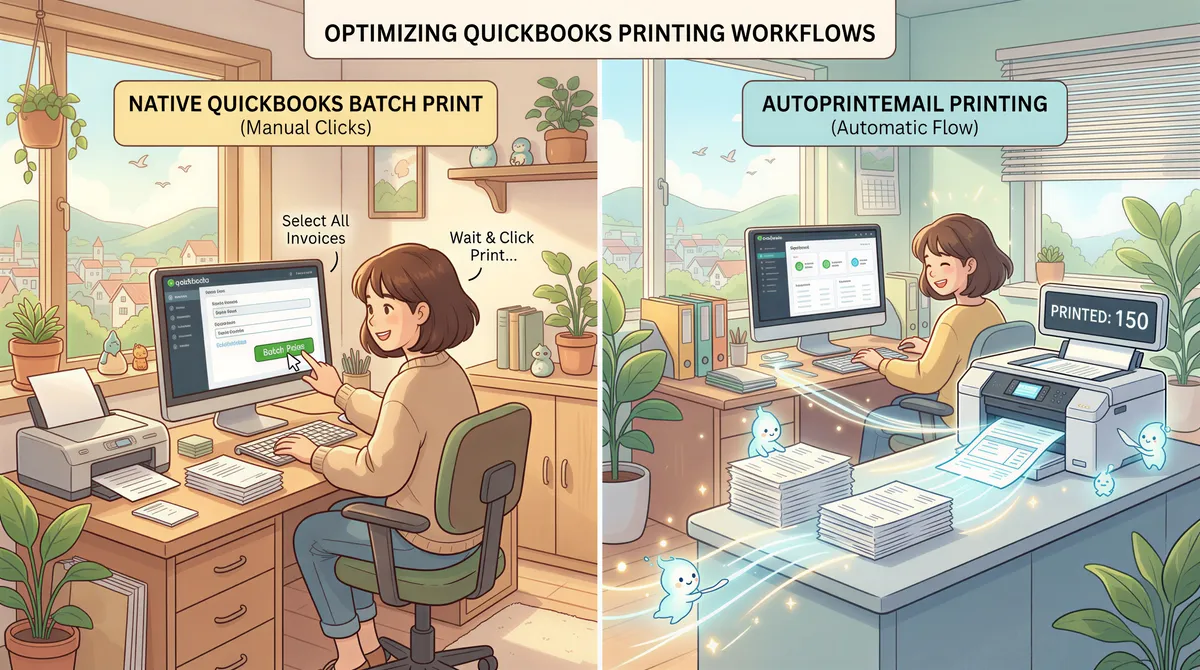
QuickBooks Desktop has a "Print invoices marked as 'to be printed'" feature that batch-prints invoices when you check a box. Different workflow:
- Native QuickBooks batch print: prints when you click the button. Manual.
- AutoPrintEmail: prints automatically when QuickBooks emails the invoice. Zero clicks.
For practices already used to the batch-print workflow, AutoPrintEmail removes the "click batch print at end of day" step entirely.
For Practices With Multiple QuickBooks Files
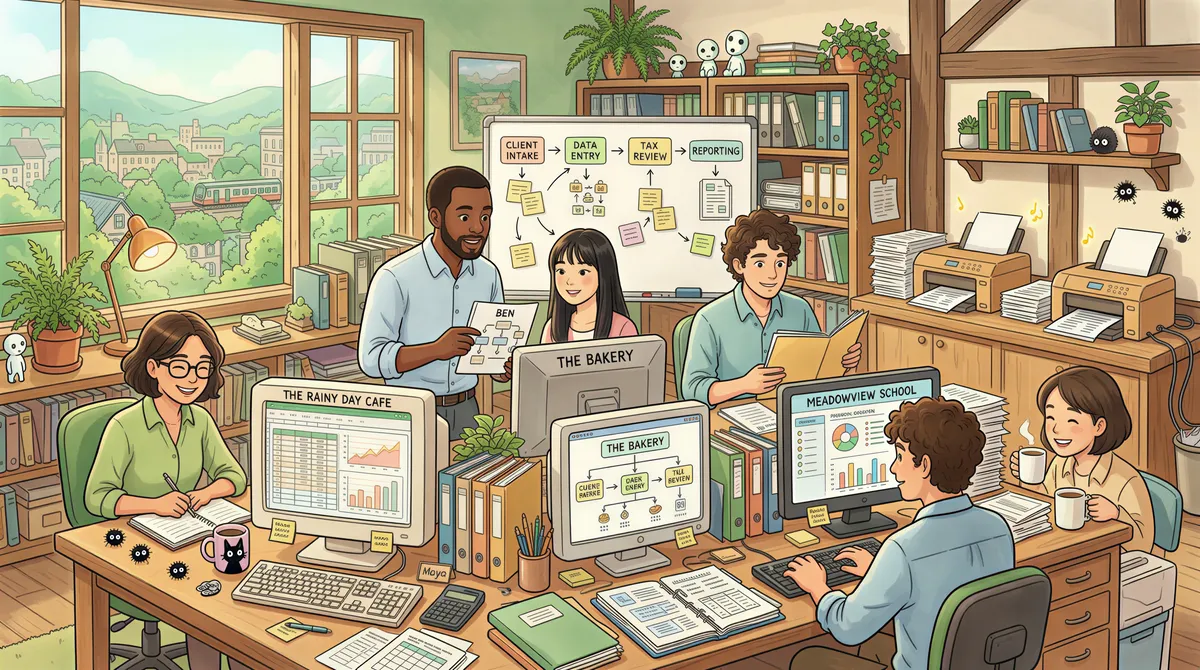
If you're an accounting firm running QuickBooks for multiple clients, point AutoPrintEmail at the master billing inbox. Filter by sender domain (@quickbooks.intuit.com for all of them) plus subject content (specific client names if needed) to route different clients' invoices to different printers.
For multi-user accounting practices, the team plan gives you centralized billing, an admin dashboard with print analytics per user, and license reassignment when staff change.
Pricing
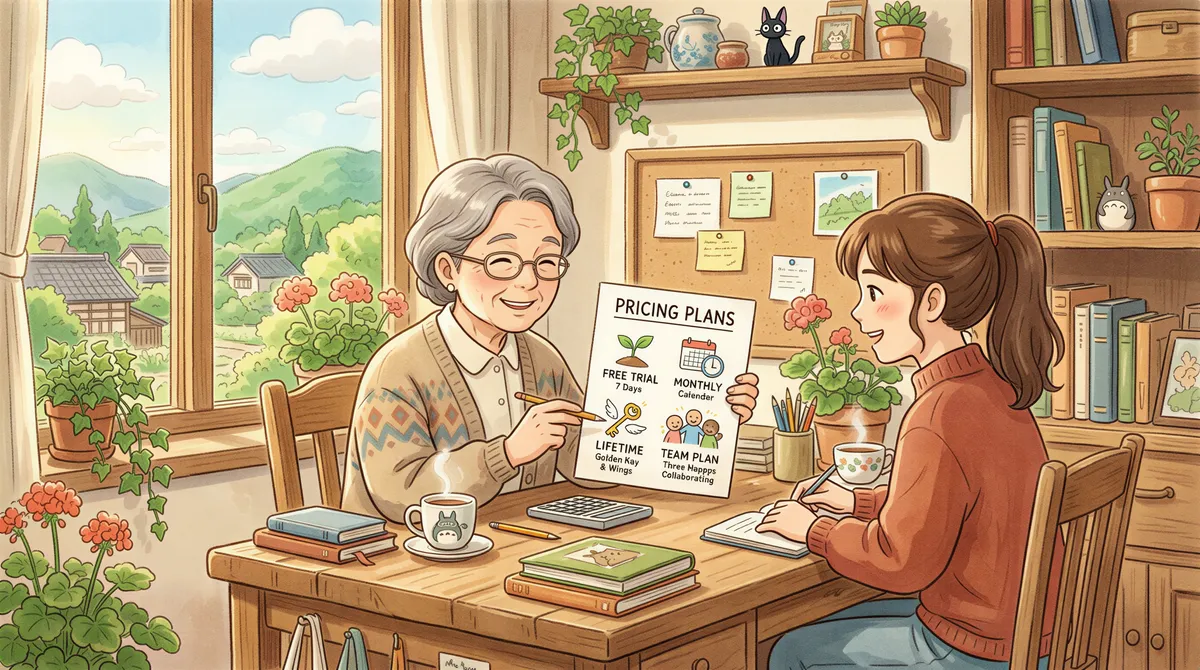
- Free 3-day trial. Full features.
- Monthly: $29/month.
- Lifetime: $499 one-time.
- Team plan: for multi-user accounting practices.
TL;DR
- QuickBooks → Settings → Sales → Email Options → add billing@ as BCC on invoices.
- Install AutoPrintEmail.
- Connect billing inbox.
- Filter: From contains
quickbooks.intuit.com, action: Print attachment. - Test.
5 minutes start to finish. Every QuickBooks invoice prints automatically from now on.
For broader auto-print across QuickBooks + Xero + FreshBooks + every other tool you use, see the QuickBooks, Xero and FreshBooks auto-print setup. Same pattern, just more rules.
Ready to get started?
Start printing your emails today.
Nearly 90,000 emails have printed themselves so far — no one opening an inbox, no one clicking print.