Auto-Print DocuSign Contracts the Moment They're Signed
DocuSign emails the signed PDF the moment all parties have signed an envelope. For most businesses that's the trigger for "this contract is real now" — and the trigger to file a paper copy.
Here's the auto-print setup that gets signed contracts onto the partner's desk the second they're executed.
Table of Contents
- What DocuSign Sends
- Step 1: Install AutoPrintEmail
- Step 2: Connect the Inbox Receiving DocuSign Notifications
- Step 3: Filter Rule + Printer
- Step 4: Test
- Common Workflows
- Multi-Tenant DocuSign Routing
- The Compliance Story
- Multi-User Setup
- Common Issues
- Pricing
- TL;DR
What DocuSign Sends
When an envelope is fully signed:
- DocuSign emails a "Completed: [envelope name]" message to every signer.
- The email includes the signed PDF as an attachment, plus a link to the audit trail.
- Sender gets an additional "All parties have completed [envelope name]" notification.
That's the email auto-print catches.

Step 1: Install AutoPrintEmail
Download for your OS. Free 3-day trial.

Step 2: Connect the Inbox Receiving DocuSign Notifications
Add Account → Gmail/Outlook OAuth or any IMAP provider.
Most setups: monitor the Inbox of whoever sent the envelope.
For multi-user setups (real estate office, law firm) where multiple people send DocuSign envelopes, route notifications to a shared contracts@yourfirm.com inbox and watch that.

Step 3: Filter Rule + Printer
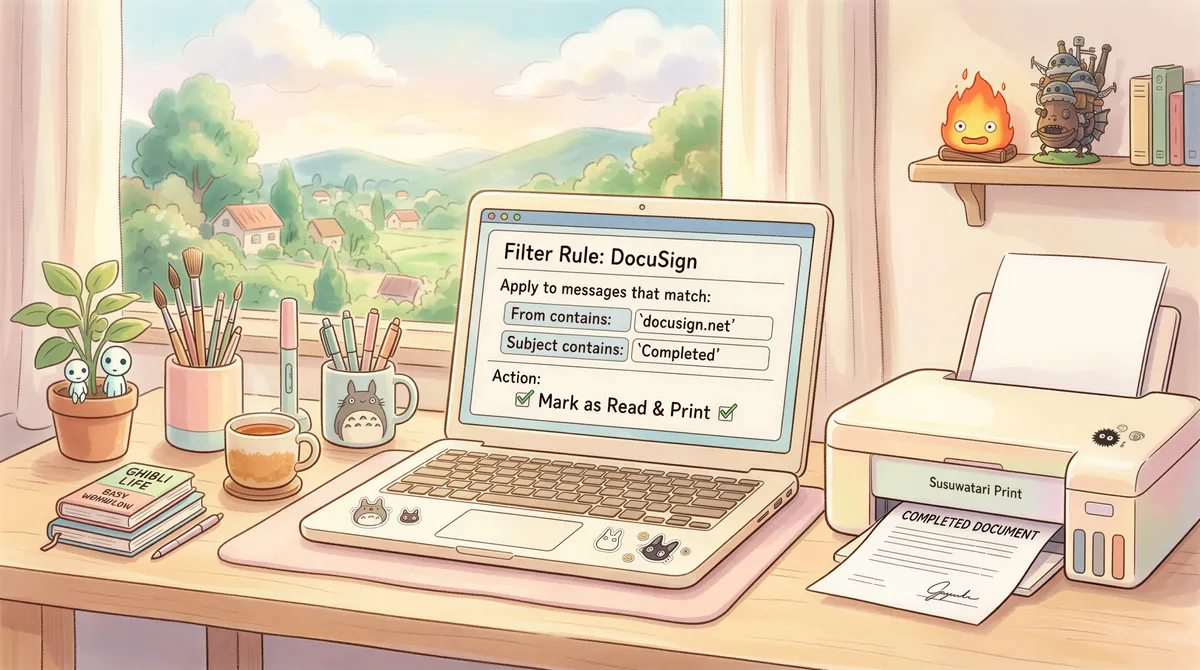
The reliable DocuSign filter:
- From contains:
docusign.netordse.docusign.net - Subject contains:
Completed:orAll parties have completed - Has attachment: yes
- Action: Print attachment to [your contracts printer]
If you also want to print the in-progress notifications (envelope sent, signer viewed, etc.), add separate rules — but most firms only want the final completed PDF, since the rest is noise.
Step 4: Test
Send yourself a one-signer test envelope, sign it. Within a minute of completion, the signed PDF should print.
The dashboard log shows every DocuSign email seen and what AutoPrintEmail did with it.

Common Workflows
Real estate brokerages
Listing agreements, buyer broker agreements, purchase contracts, addenda — all signed via DocuSign, all needing physical copies for the brokerage's transaction file. Auto-print routes them to a "transaction file" printer at the front desk.
See real estate agents auto-print contracts for the broader workflow.

Law firms
Engagement letters, fee agreements, settlement releases. Same pattern — when fully signed, print for the matter file.

Accounting firms
Engagement letters, IRS Form 8879 (e-file authorization), client representation letters. Especially during tax season, the volume is enough to justify auto-print on its own.

HR / employee onboarding
Offer letters, NDAs, IP assignment agreements, benefits enrollment. Print for the employee's HR file the moment the new hire signs.

Vendor and partner contracts
NDAs and MSAs with vendors. Auto-print to the legal team's printer for the contract registry.
Multi-Tenant DocuSign Routing
If your firm uses DocuSign for multiple clients (e.g., an accounting firm sending engagement letters on behalf of multiple business clients), all signed envelopes flow back to the firm's inbox. Use the subject content or the envelope name to route different clients to different printers:
- Subject contains:
Client A→ print to printer A - Subject contains:
Client B→ print to printer B
Or the simpler approach: route everything to one "contracts" printer and have the front desk staple by client manually.
The Compliance Story
DocuSign envelopes contain confidential client/customer information by definition. AutoPrintEmail's compliance posture:
- Email content (the signed PDF) processed locally — sent directly from the user's machine to the local printer.
- No content leaves the machine. Structural metadata only (timestamps, page counts, status).
- The Office-conversion exception doesn't apply here — DocuSign always sends PDFs, never .docx/.xlsx.
For regulated industries (legal, healthcare, financial services), this satisfies most data-handling reviews without further configuration.
Multi-User Setup
For practices where multiple lawyers / agents / partners send DocuSign envelopes, the team plan gives you:
- One invoice for the whole firm.
- Admin dashboard with print analytics per user.
- License reassignment when staff change.
For solo practitioners or small offices, individual lifetime ($499) is fine.
Common Issues
DocuSign sends the email twice
Sometimes DocuSign sends multiple notifications (one to the sender, one to each signer). Auto-print prints once per filter match — if you're getting duplicate prints, check whether your filter is too loose. Tighten to "Subject starts with 'Completed:'" to print only the canonical completion email.
Encrypted DocuSign PDFs
By default, DocuSign PDFs are unencrypted. If your account has document-level encryption enabled (some enterprise setups), you'll need to disable it for auto-print to work — AutoPrintEmail can't unlock encrypted PDFs.
Time-zone shenanigans
DocuSign timestamps in the audit trail use UTC. If you compare auto-printed copies to the printed audit log, the timestamps will differ by your local UTC offset. This isn't a real problem, just a thing to know.
Pricing
- Free 3-day trial. Full features.
- Monthly: $29/month.
- Lifetime: $499 one-time.
- Team plan: for multi-user firms.
TL;DR
- Install AutoPrintEmail.
- Connect inbox receiving DocuSign notifications.
- Filter: From contains
docusign.net, Subject containsCompleted:, Action: Print attachment. - Test with a self-signed envelope.
Five minutes. From now on, every signed contract prints automatically. The "is this signed yet?" check disappears — if there's a paper copy on the desk, it's signed.
Ready to get started?
Start printing your emails today.
Nearly 90,000 emails have printed themselves so far — no one opening an inbox, no one clicking print.