Auto-Print Calendly Bookings to Your Office Printer
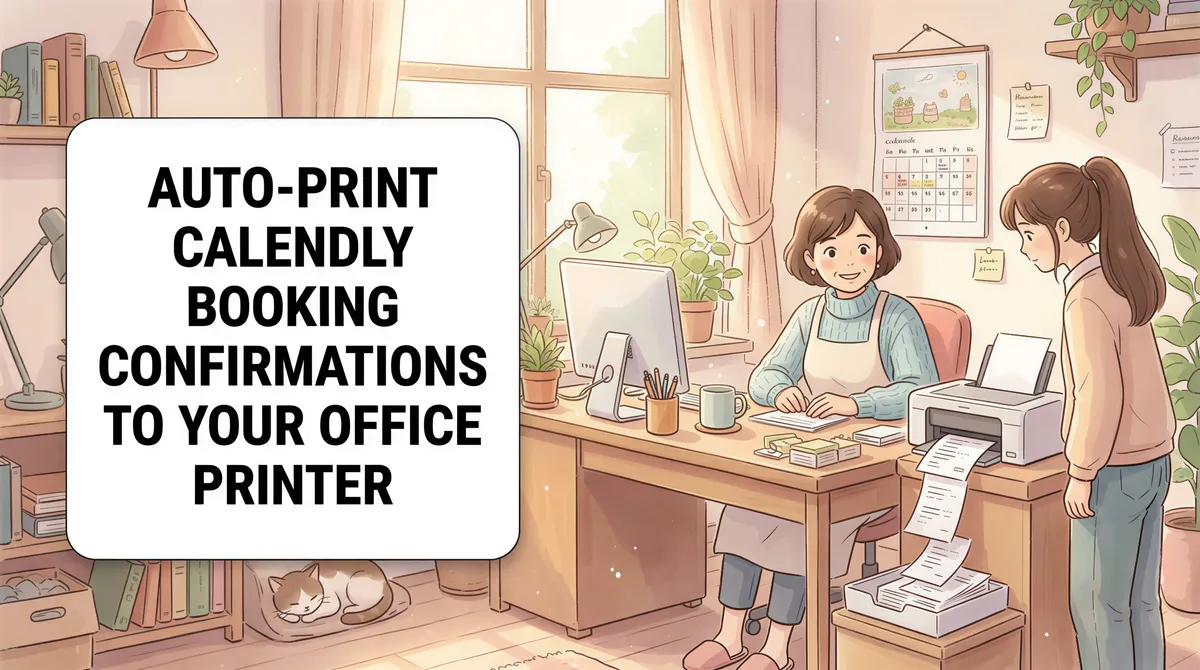
When someone books a meeting via Calendly, you (and they) get a confirmation email with the meeting details — date, time, attendee, agenda, calendar invite.
Some businesses want those bookings on paper: dispatch boards for service techs, prep sheets for the morning rounds at a clinic, day-of-appointment lists at the front desk. Auto-print does it.
Table of Contents
- What Calendly Sends
- Step 1: Install AutoPrintEmail
- Step 2: Connect Your Inbox
- Step 3: Filter Rule
- Step 4: Pick a Printer + Tray
- Step 5: Test
- Common Workflows
- Multi-User Calendly Setups
- Edge Cases
- Why Print Calendly Bookings?
- Pricing
- TL;DR
What Calendly Sends
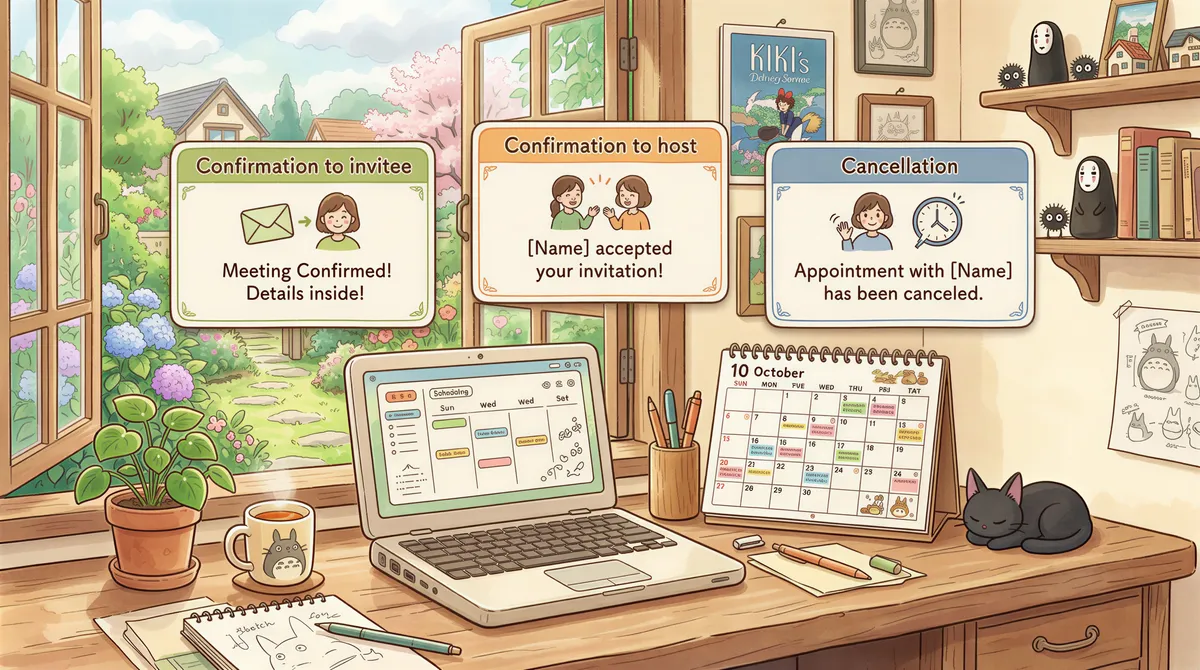
Calendly emails three notifications per booking:
- Confirmation to the invitee (your customer/client).
- Confirmation to you (the host).
- Cancellation/reschedule notifications if anyone changes the booking.
For auto-print, you want #2 (your confirmation copy) routed to your office printer.
Step 1: Install AutoPrintEmail
Download for your OS. Free 3-day trial.

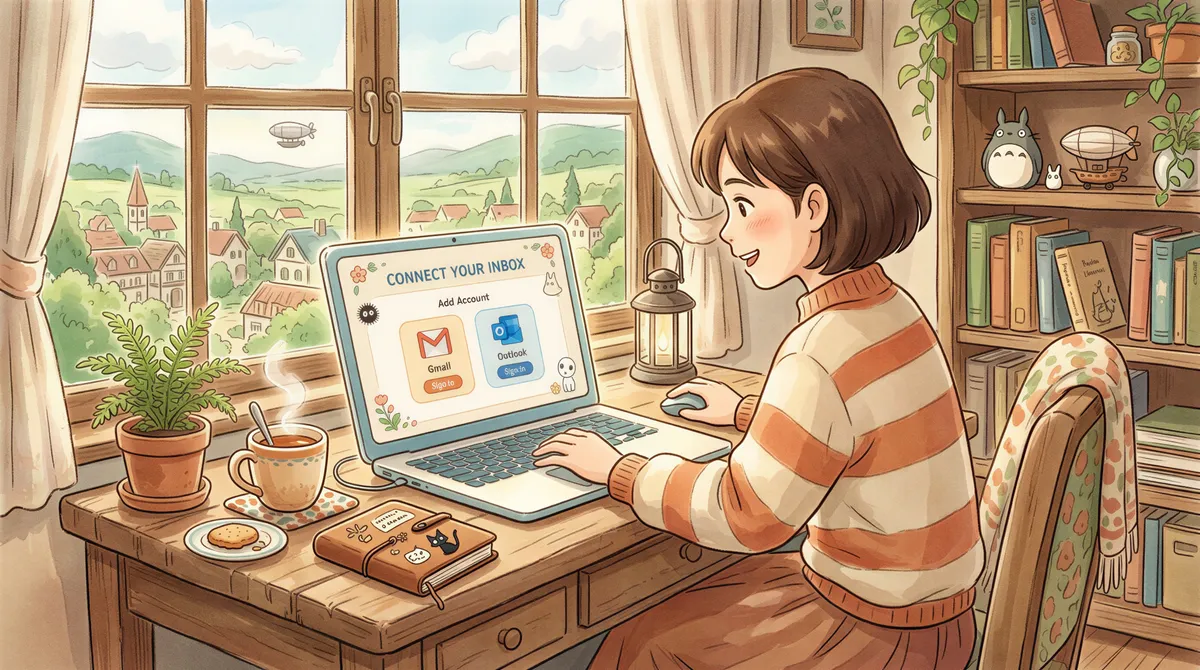
Step 2: Connect Your Inbox
Add Account → Gmail/Outlook OAuth or any IMAP provider.
Pick Inbox to monitor Calendly notifications.
Step 3: Filter Rule
The reliable Calendly filter:
- From contains:
calendly.comornotifications@calendly.com - Subject contains:
New eventorConfirmedor just leave empty for all - Has attachment: no (Calendly email bodies have the meeting details inline)
- Action: Print email body to [your printer]
If you only want the calendar invite (.ics attachment) printed:
- Has attachment: yes
- Action: Print attachment
But honestly, the body has the details you actually want — name, time, agenda, any custom form fields the invitee filled in. Print body, not attachment.

Step 4: Pick a Printer + Tray
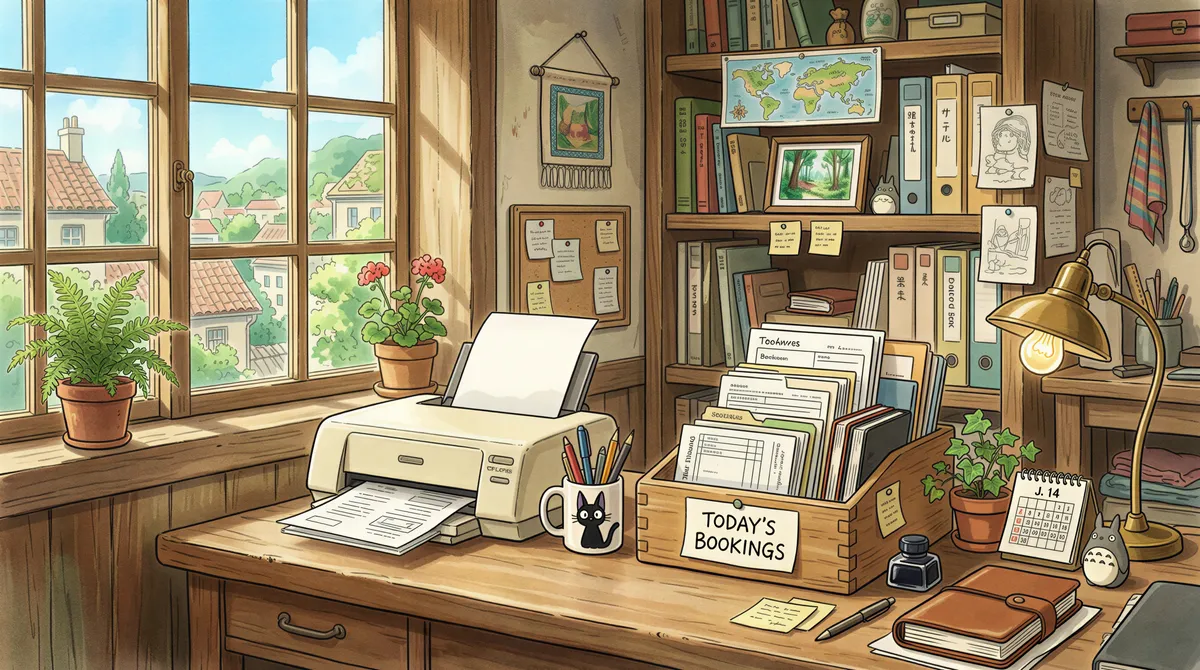
For dispatch / appointment workflows, dedicate a "today's bookings" tray. As bookings come in throughout the day, they print to this tray; the office manager picks them up and posts to the wall board, the dispatch board, or whatever.
Step 5: Test
Book a test slot in your own Calendly (use a personal email or test account). Within a minute, the confirmation should print.

Common Workflows
Service businesses (HVAC, plumbing, lawn care)
Customers book service appointments via Calendly. Bookings auto-print at the dispatch desk, get added to the route plan for the day.
Healthcare and dental practices
Clinic uses Calendly for prospective new-patient consultations. Each booking auto-prints at the front desk so the admin can pre-pull paperwork before the appointment.
Coaching, consulting, therapy
Clients book sessions; auto-print the session info for the coach's daily prep — name, time, any context they wrote in the booking form.
Sales teams
Demos booked via Calendly auto-print at the SDR's printer for warm prep sheets. Less common in modern sales (most teams prefer Salesforce-driven prep), but still useful for offices that want a paper morning standup.
Multi-User Calendly Setups
For teams where multiple people each have their own Calendly account routing to a shared inbox: filter by recipient or subject content to route different team members' bookings to different printers.
For team-managed Calendly (Calendly Teams), the host's email is in the notification body — filter by that to route.
The team plan provides centralized billing and admin dashboard if you're running this across 5+ team members.
Edge Cases
Calendly Workflows (their automation feature)
If you have Calendly Workflows set up to send custom emails on booking, you can change the From or Subject to make the auto-print filter even cleaner. E.g., custom subject [NEW BOOKING] {{Invitee.Name}} filters tightly without false positives.
Cancellations
Cancellation emails come from calendly.com too. Default filter would print them. To skip cancellations, add a negative subject filter:
- Subject does NOT contain:
CanceledorRescheduled
Or send cancellation emails to a separate folder via Gmail/Outlook rules and don't monitor that folder.
Spam-folder bookings
Calendly emails sometimes route to spam at first (especially with new email addresses). AutoPrintEmail by default doesn't watch the spam folder; if a booking lands in spam, it won't print until someone moves it back to inbox.
Why Print Calendly Bookings?
A few reasons we hear:
- Wall-mounted day schedules that staff reference without looking at a screen.
- Dispatch / route planning for field service workflows.
- Pre-appointment prep sheets so receptionists can pull paperwork before the patient arrives.
- Backup record for businesses where the calendar source-of-truth is paper-based.
If you don't have any of these workflows, you don't need to auto-print Calendly. Otherwise, the manual version is a daily drag.
Pricing
- Free 3-day trial. Full features.
- Monthly: $29/month.
- Lifetime: $499 one-time.
- Team plan: for multi-user setups.
TL;DR
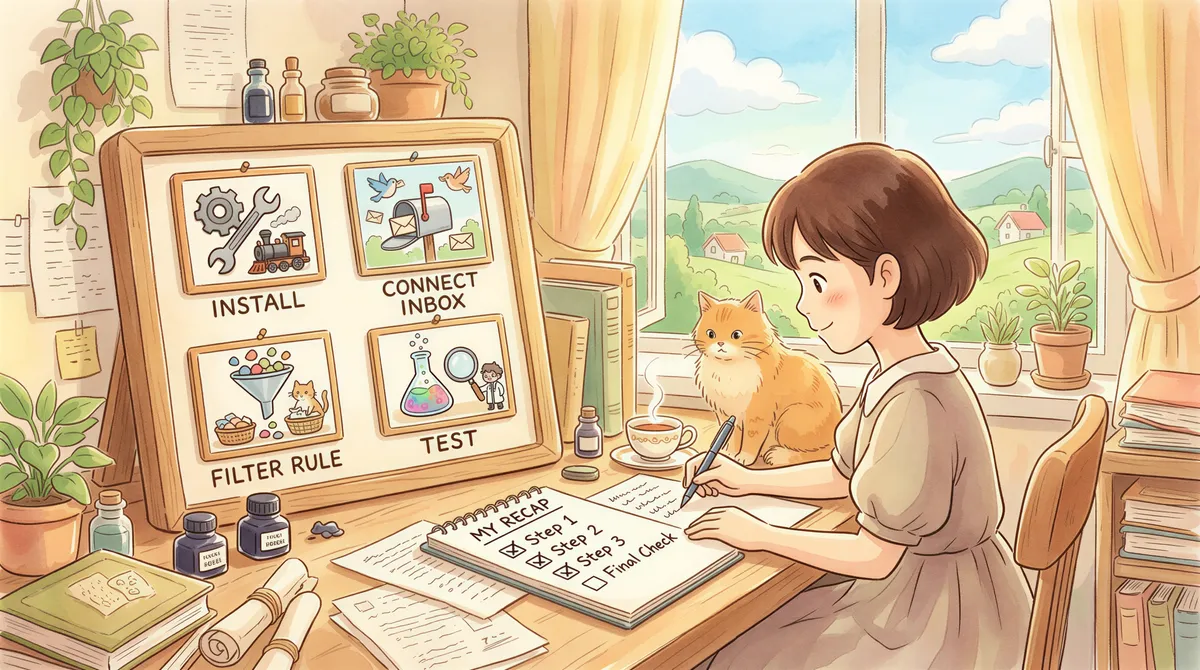
- Install AutoPrintEmail.
- Connect the inbox receiving Calendly notifications.
- Filter: From contains
calendly.com, Action: Print body. - Test with one booking.
Bookings flow from Calendly → email → automatic print onto the day's appointment tray. Paper schedules without anyone manually clicking print.
Ready to get started?
Start printing your emails today.
Nearly 90,000 emails have printed themselves so far — no one opening an inbox, no one clicking print.