Auto-Print Invoices from QuickBooks, Xero, and FreshBooks
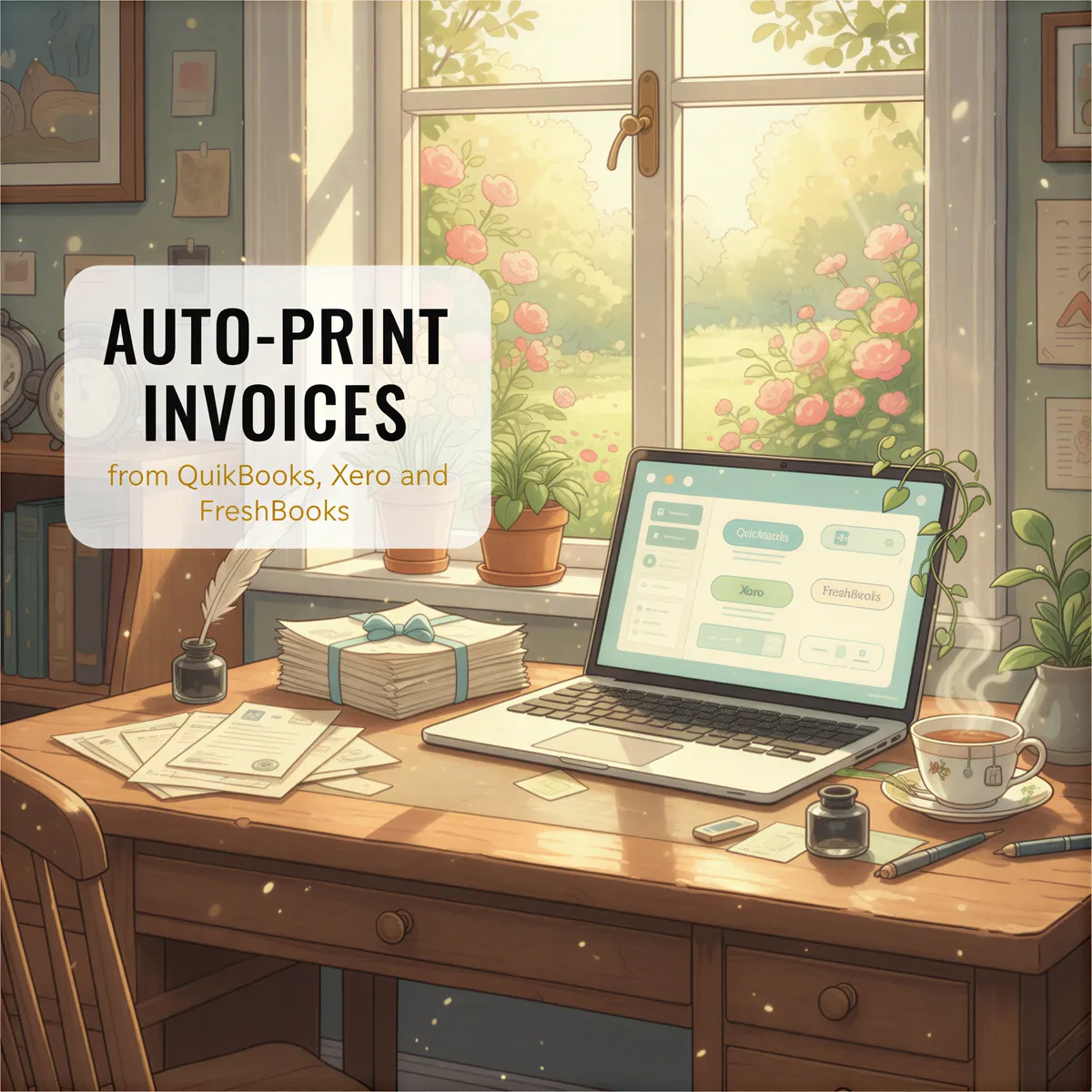
Your accountant wants paper copies of every invoice.
Your bookkeeper needs receipts in a physical folder.
Your tax preparer asked for "the actual documents."
You've got 347 invoices in QuickBooks. The thought of downloading and printing each one makes you want to cry.
What if they just printed themselves?
Table of Contents
- The Invoice Printing Problem
- How Accounting Software Sends Invoices
- Auto-Print Every Invoice
- Setup for QuickBooks
- Setup for Xero
- Setup for FreshBooks
- The Paper Trail Benefit
- Works with Other Accounting Software Too
- TL;DR
The Invoice Printing Problem
Modern accounting is digital. QuickBooks, Xero, FreshBooks — everything lives in the cloud.
But some things still need paper:
- Tax preparation — accountants want source documents
- Audits — auditors want physical records
- Backup — digital isn't the only backup
- Filing — some businesses still need paper files
- Compliance — certain industries require physical records
The problem? Printing 50 invoices means clicking 50 times. Times 12 months. That's 600 clicks a year just for monthly invoice printing.

How Accounting Software Sends Invoices
Here's what most people don't realize:
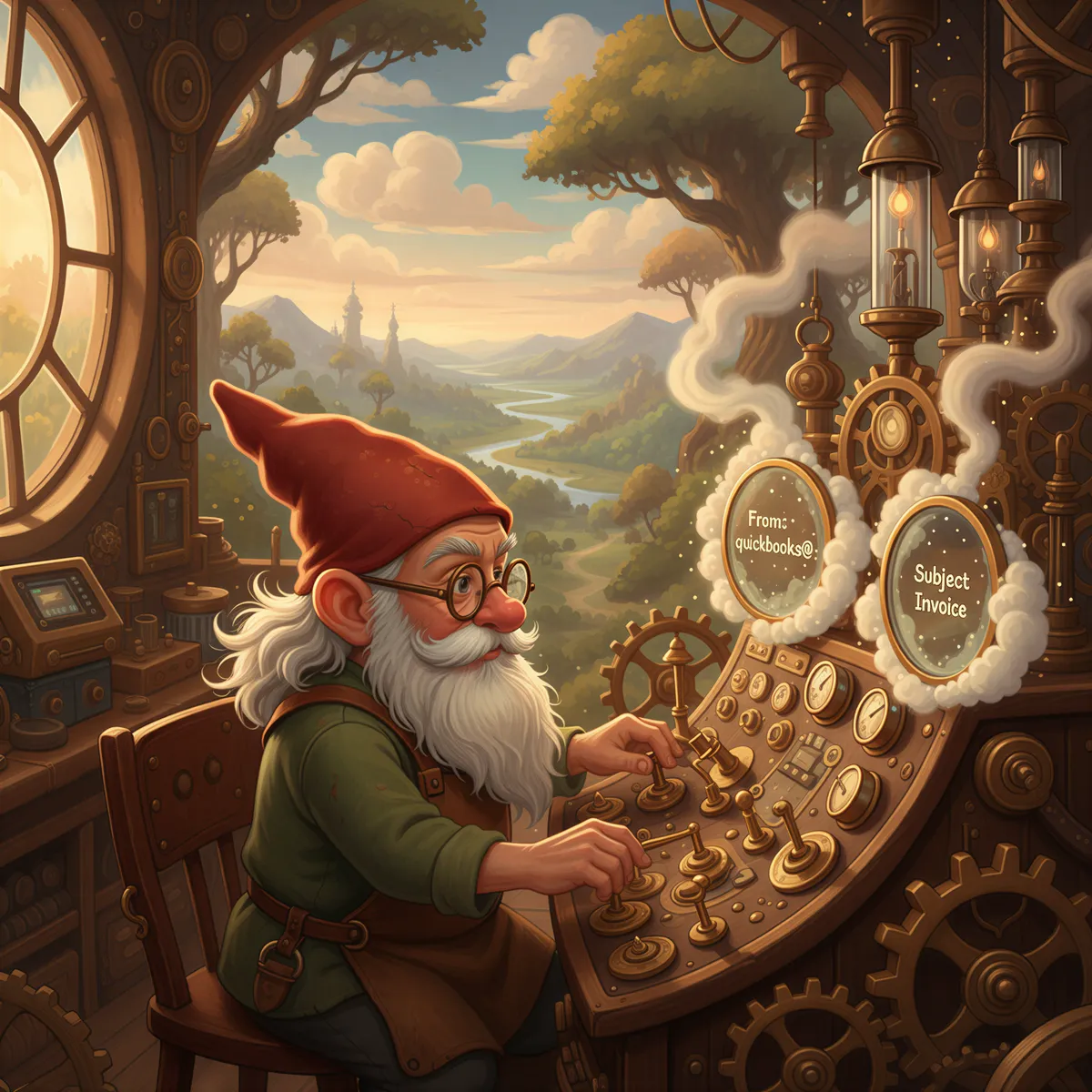
When you create an invoice in QuickBooks/Xero/FreshBooks and send it to a customer, a copy goes to your email too.
- QuickBooks: CC's your email by default
- Xero: Sends notifications for sent invoices
- FreshBooks: Copies you on customer invoices
That email contains the invoice. PDF attached.
You're already getting the documents. You're just not printing them automatically.

Auto-Print Every Invoice
With AutoPrintEmail:
- Create invoice in your accounting software
- Send to customer
- Copy arrives in your email
- AutoPrintEmail prints it automatically
Your paper file builds itself. Every invoice, every receipt, every financial document — printed the moment it's sent.
Our invoice automation solution was built for exactly this workflow.
Setup for QuickBooks
Step 1: Enable email copies
In QuickBooks Online:
- Go to Settings → Account and Settings
- Under Sales → Messages, ensure "Send me a copy" is enabled
Step 2: Configure AutoPrintEmail
Create a filter:
Step 3: Test
Send a test invoice. It should print within seconds.
Bonus: Also filter for:
from:quickbooks@notification.intuit.com subject:Payment— prints payment confirmationsfrom:quickbooks@notification.intuit.com subject:Estimate— prints estimates
Setup for Xero
Step 1: Enable notifications
In Xero:
- Go to Settings → General Settings
- Under Email Settings, enable invoice notifications
Step 2: Configure AutoPrintEmail
Create a filter:
Step 3: Test
Create and send a test invoice. Watch it print.
Bonus filters:
from:noreply@xero.com subject:Bill— prints bills receivedfrom:noreply@xero.com subject:Quote— prints quotes
Setup for FreshBooks
Step 1: Enable email copies
In FreshBooks:
- Account Settings → Emails
- Enable "Send me a copy of client emails"
Step 2: Configure AutoPrintEmail
Create a filter:
Step 3: Test
Send a test invoice and verify printing.
Bonus filters:
from:mail@freshbooks.com subject:Payment— prints payment receiptsfrom:mail@freshbooks.com subject:Estimate— prints estimates
The Paper Trail Benefit
Once set up, you get:
Automatic backup Every financial document exists in two places: cloud and paper.
Audit readiness Tax time? Hand over the folder. It's already complete.
Easy retrieval Need last month's invoices? Check the printer tray.
Zero effort You're not doing anything extra. The system handles it.
Works with Other Accounting Software Too
The same approach works for:
- Wave — free accounting software
- Zoho Books — part of Zoho suite
- Sage — enterprise accounting
- Bill.com — AP/AR automation
If it sends email notifications, AutoPrintEmail can print them. Connect via Gmail, Outlook, or any IMAP-compatible provider.
TL;DR
Your accounting software already emails copies of invoices.
AutoPrintEmail turns those emails into automatic prints — building your paper trail with zero effort.
| Software | Filter From Address |
|---|---|
| QuickBooks | quickbooks@notification.intuit.com |
| Xero | noreply@xero.com |
| FreshBooks | mail@freshbooks.com |
Just $499 for lifetime access. Check out our invoice automation solution or read our complete automation guide.
Invoices create themselves.
Let your paper trail do the same.
Ready to get started?
Let the printer open the inbox.
90,000+ emails have printed themselves so far. Nobody opened an inbox. Nobody clicked print.