Batch Print Outlook Emails: The New Outlook Fix
You just updated to the New Outlook. You select 20 emails, right-click, and... no batch print option.

Welcome to the club.
New Outlook doesn't support printing several emails at once. If you print dozens (or hundreds) of emails a day, that adds up fast.
Let's fix it.
Table of Contents
- What's Different in New Outlook
- Why Isn't Batch Printing in New Outlook?
- The Fix: Automatic Email Printing
- How It Works
- Batch Printing vs Auto Printing
- Example Use Cases
- What About Workarounds?
- Get Started
What's Different in New Outlook
The "New Outlook" (the redesigned app that's replacing classic Outlook on Windows) handles a few things differently from classic Outlook:
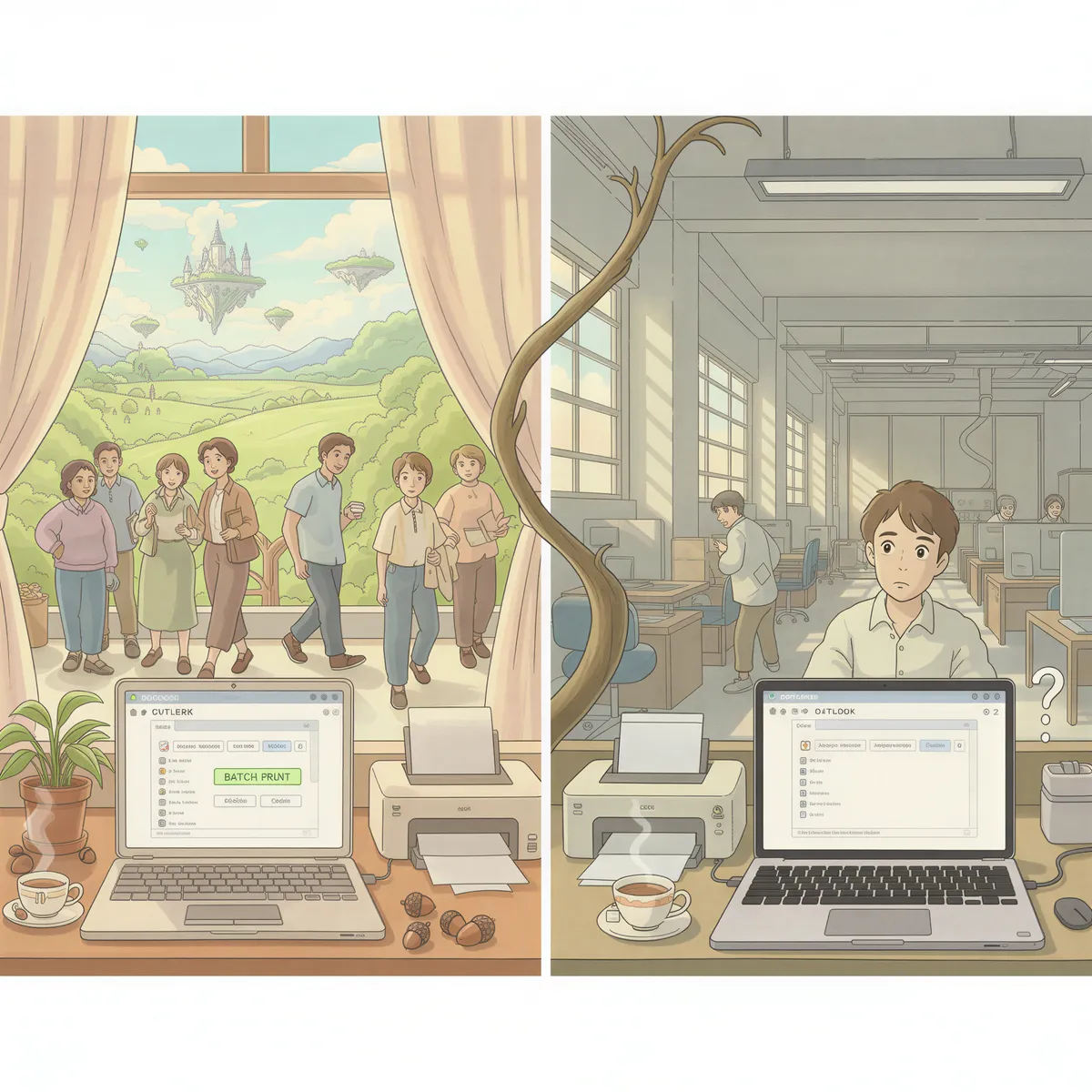
- Batch printing: you can't select multiple emails and print them all at once
- Rules: only server-side rules run, so classic's client-side rule actions like "print" aren't available
- COM add-ins: Microsoft lists these as not supported in new Outlook (it points people to web add-ins instead)
If you're in logistics, legal, healthcare, or any industry where printing emails is part of the workflow, this is a real problem. You're now stuck opening each email one by one and hitting Ctrl+P. For 50 emails, that's 50 open-print-close cycles.
Why Isn't Batch Printing in New Outlook?
New Outlook is built on the same web foundation as Outlook.com, and Microsoft's feature comparison shows that not every classic feature has made the move yet.
You could stick with Classic Outlook for now. Microsoft says it'll be supported until at least 2029. Microsoft hasn't said whether multi-select print is coming to new Outlook.
The Fix: Automatic Email Printing
Here's the thing — batch printing is actually a halfway solution. You still have to:
- Open Outlook
- Select the emails
- Click print
- Wait
- Repeat tomorrow
What if the emails just... printed themselves?
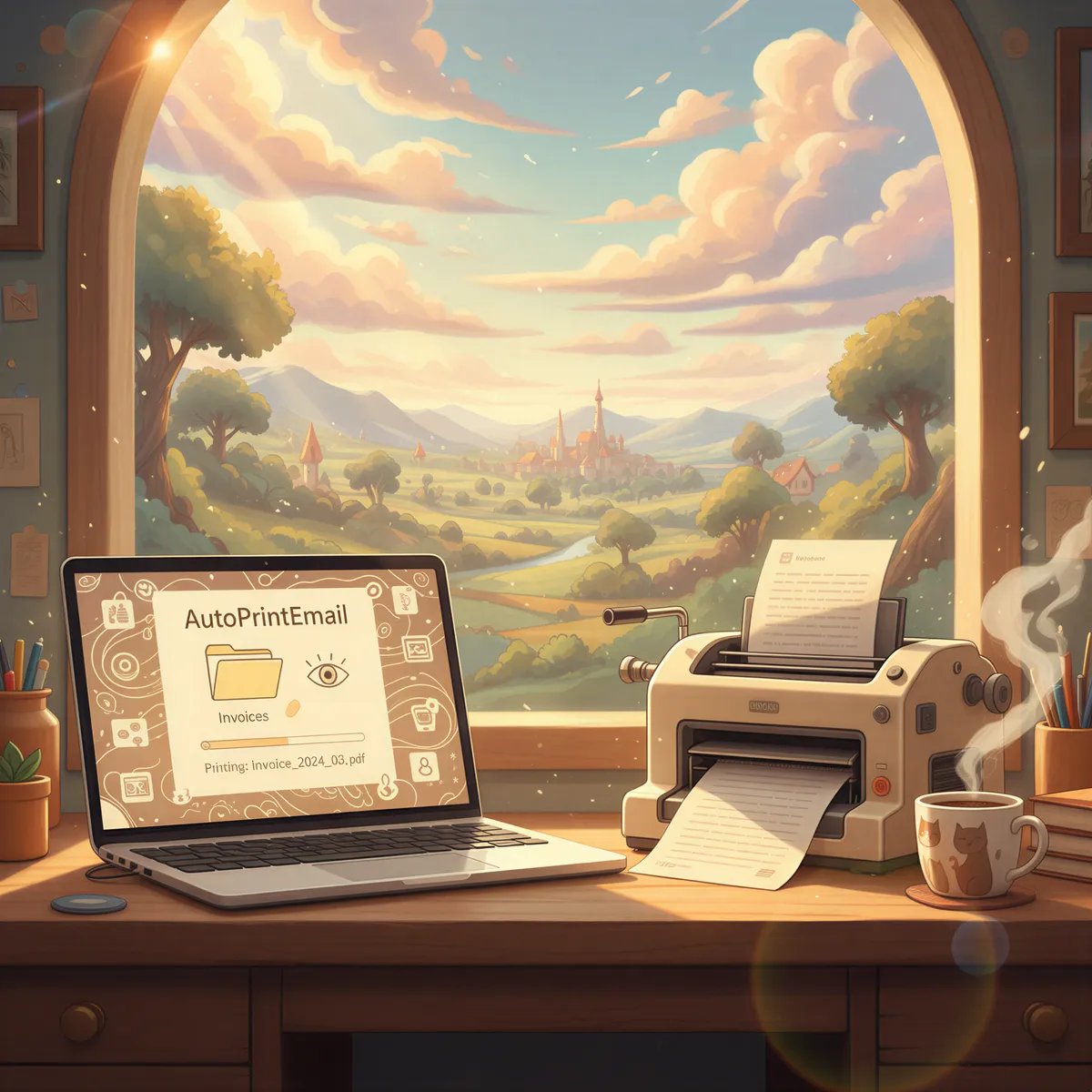
That's what AutoPrintEmail does. You tell it which folder to watch (like "Invoices" or "Orders"), and every email that lands there prints automatically. No selecting. No clicking. No opening Outlook at all.
How It Works
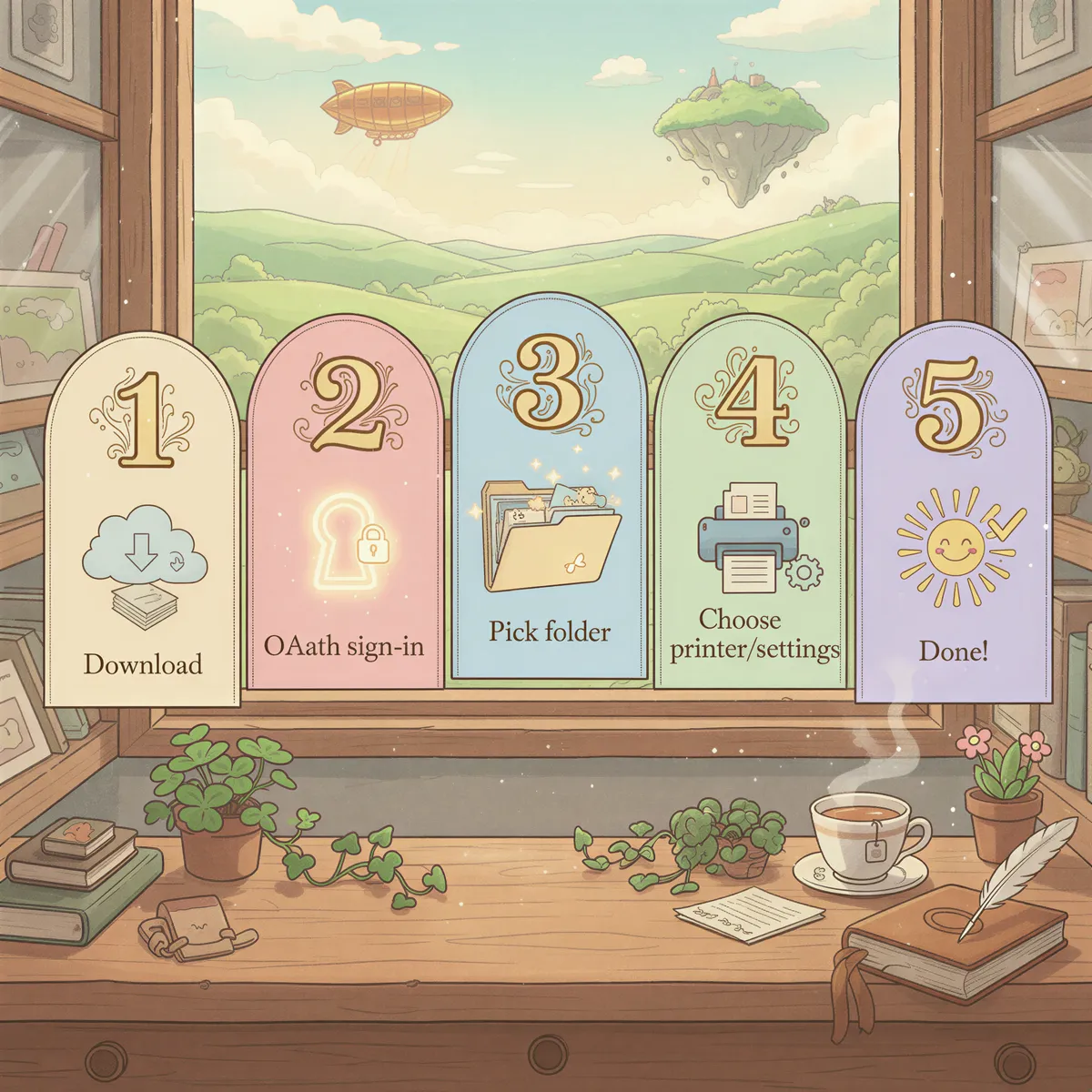
- Download AutoPrintEmail (Windows, Mac, or Linux)
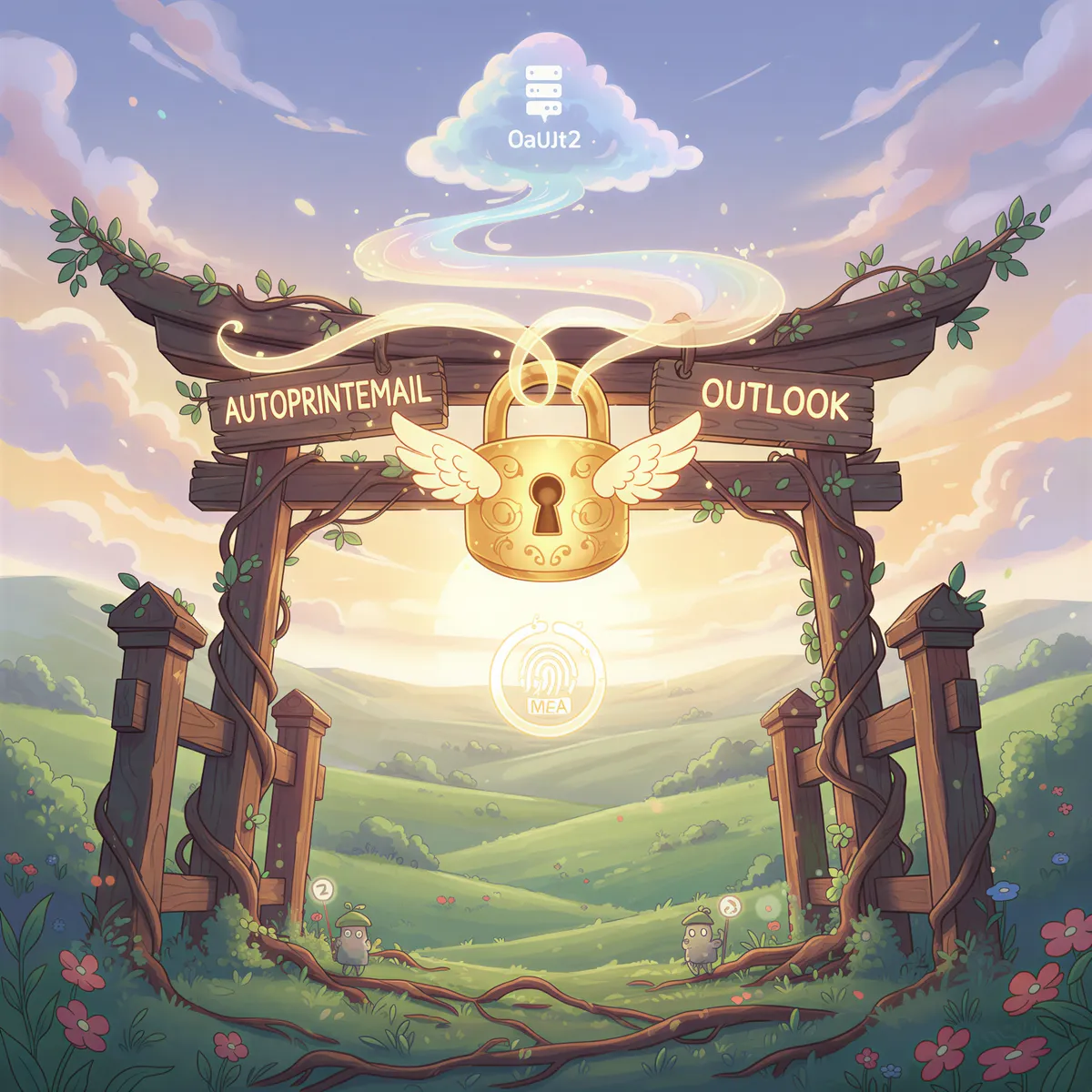
- Connect your Outlook/Office 365 account via secure OAuth sign-in
- Pick a folder to watch (e.g., "Invoices", "Print Queue", or your entire inbox)
- Choose your printer and print settings (duplex, grayscale, copies)
- Done. Emails print as they arrive. 24/7. Even when Outlook is closed.
It connects directly to Microsoft's servers using OAuth2 Modern Authentication, so it works with MFA and doesn't need app passwords (Microsoft has retired basic authentication for Exchange Online).
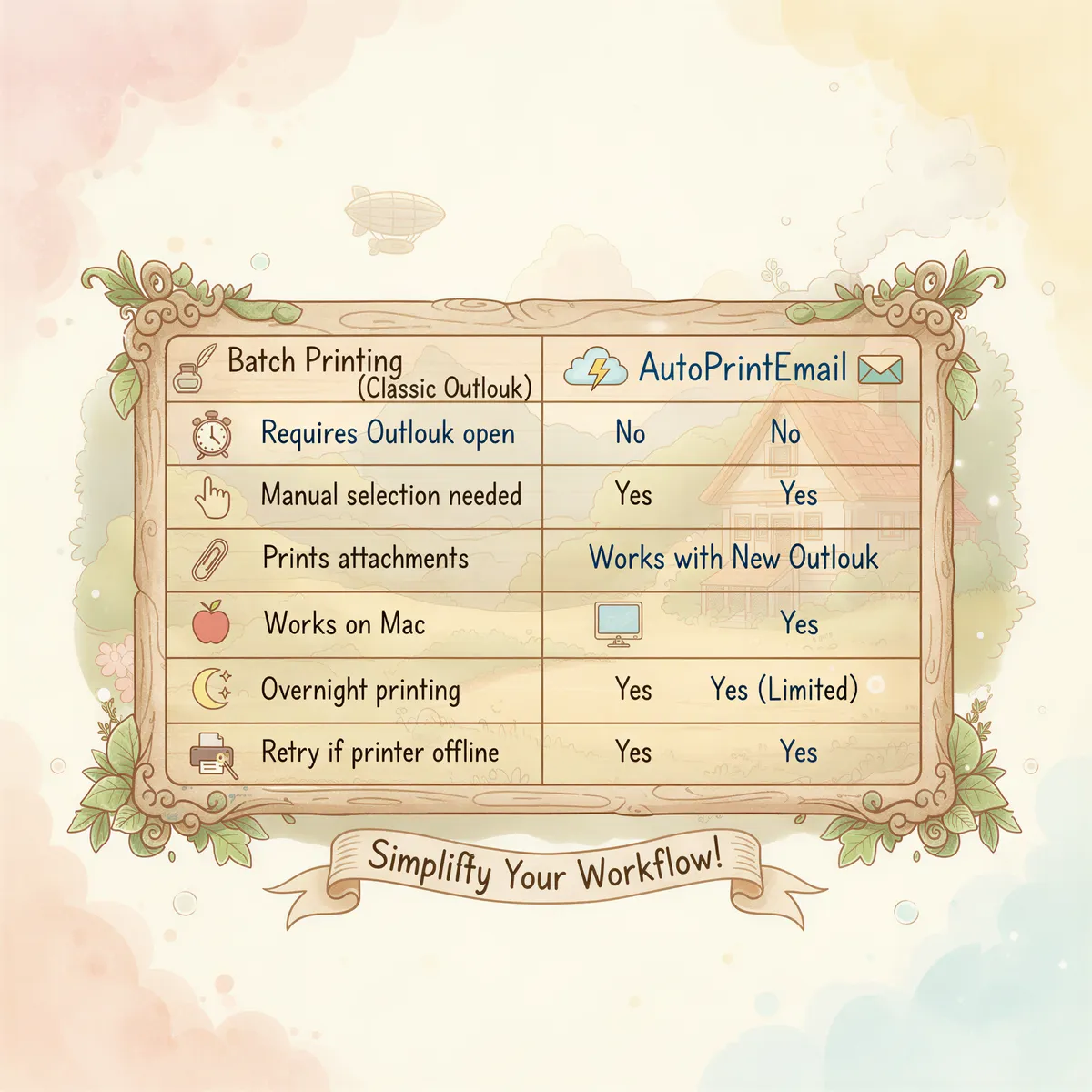
Batch Printing vs Auto Printing
| Batch Printing (Classic Outlook) | AutoPrintEmail | |
|---|---|---|
| Requires Outlook open | Yes | No |
| Manual selection needed | Yes — every time | No — fully automatic |
| Prints attachments | Yes, default printer only | Yes (PDFs, Word, Excel) |
| Works with New Outlook | No | Yes |
| Works on Mac | No (classic is Windows-only) | Yes |
| Overnight printing | No | Yes |
| Retry if printer offline | No | Yes |
Auto printing doesn't just replace batch printing — it eliminates the need for it entirely.
Example Use Cases
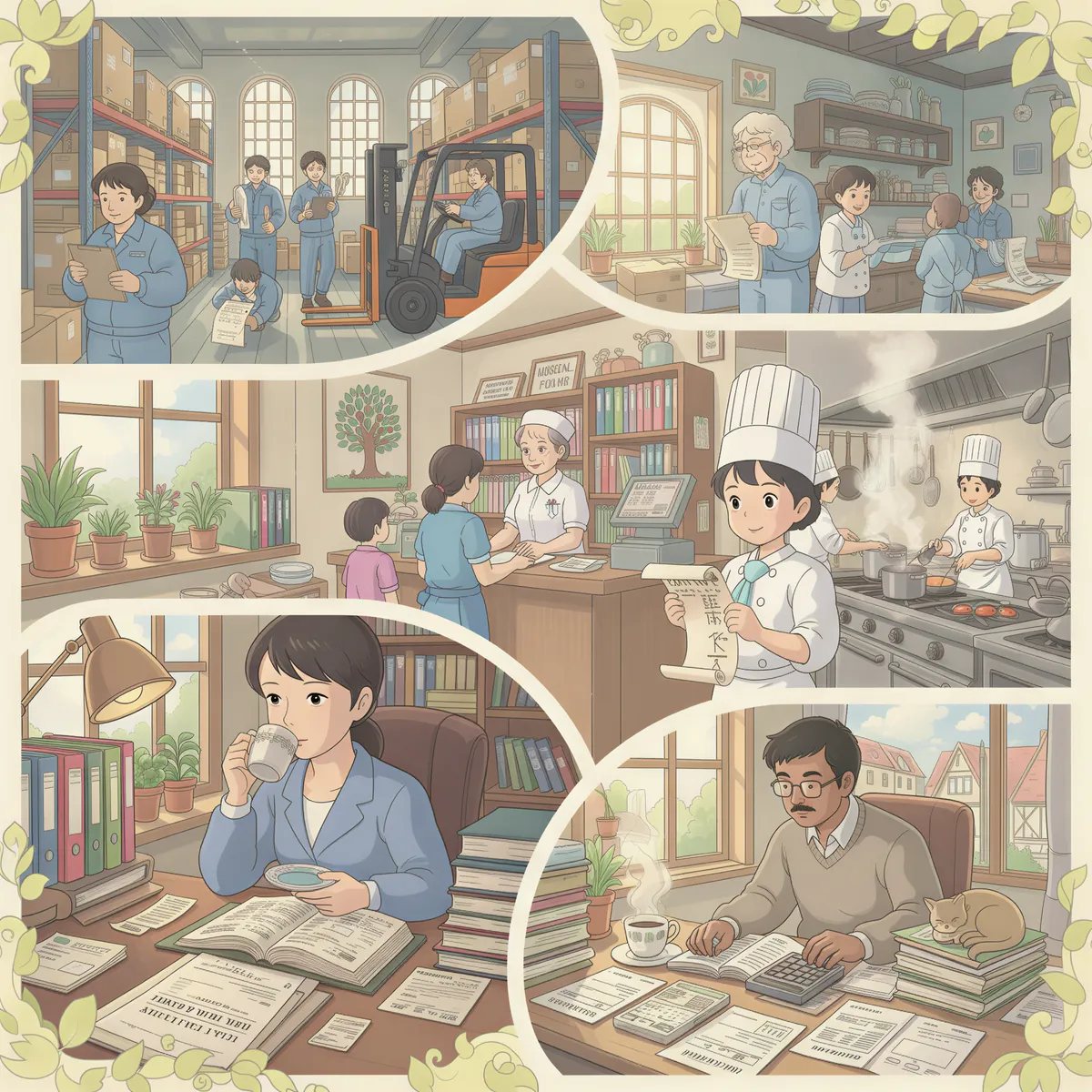
Warehouses and logistics: Shipping manifests and delivery confirmations arrive by email. They need to print immediately, not wait for someone to batch-select them at 4pm.
Legal offices: Contracts, court filings, and client correspondence need paper copies. Dozens of emails per day, each with PDF attachments.
Healthcare: Patient forms, insurance documents, and lab results sent via email need to be printed for physical records.
Restaurants: Online order confirmations from Shopify, UberEats, or DoorDash need to hit the kitchen printer the second they arrive.
Accounting: Invoices from Stripe, QuickBooks, or Xero arrive by email and need printed copies for filing.
In all of these cases, batch printing was never the right solution — it was just the best one available. Auto printing is what they actually needed.
What About Workarounds?
You might've seen these suggestions online:
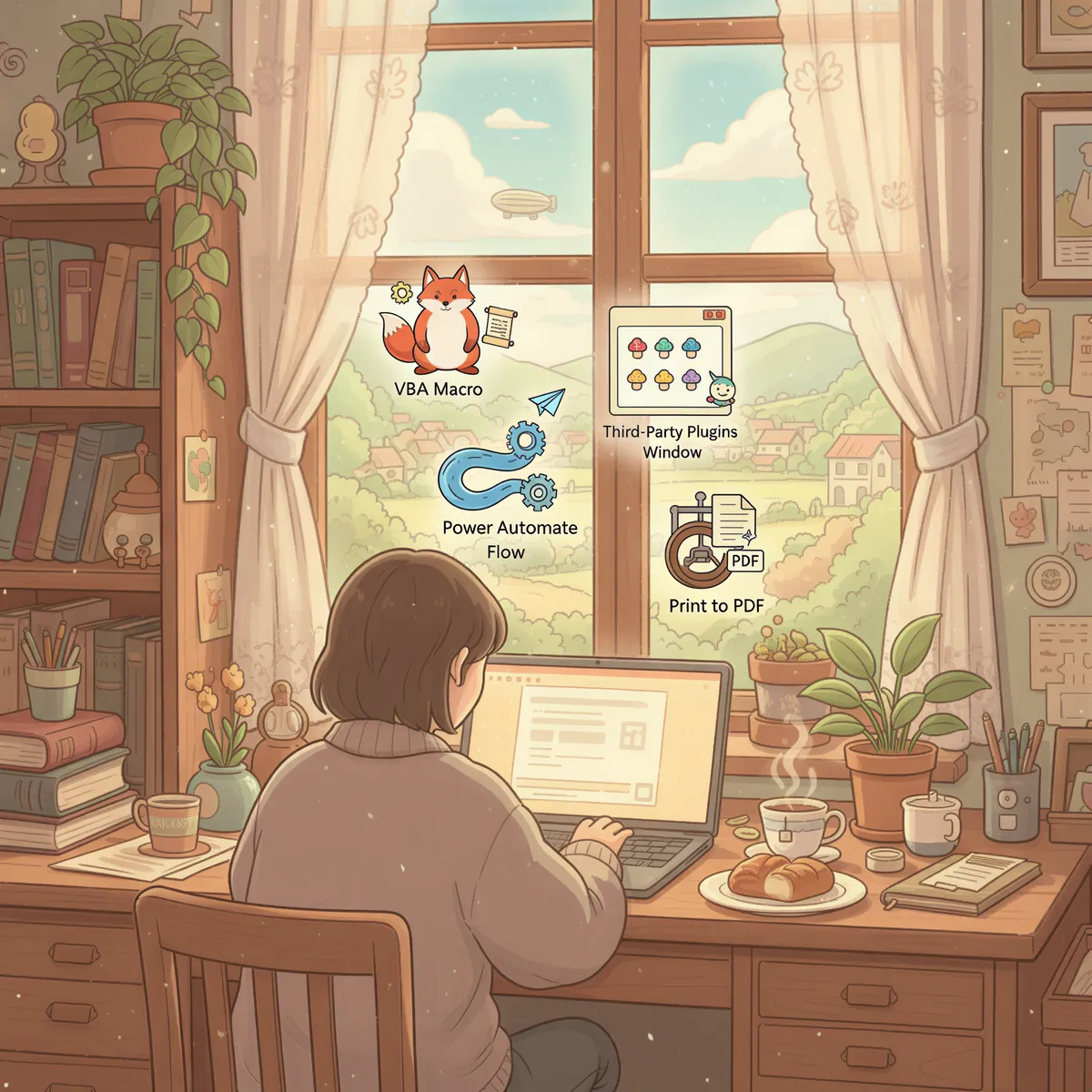
- VBA macros: only run in Classic Outlook and need someone comfortable writing code
- Power Automate: its cloud flows have no local-printer action. Printing needs a desktop flow running on a PC, which is a Premium feature ($15/user/month)
- COM add-ins: only run in Classic Outlook (Microsoft lists COM add-ins as not supported in new Outlook), and Outlook has to be open
- Print to PDF then batch print PDFs: multiple extra steps, still manual
Each of these either ties you to Classic Outlook or keeps a manual step in the loop.
Get Started
AutoPrintEmail comes with a free 3-day trial. No credit card required. No limits. Cancel anytime.
After that, it's $29/month or $499 lifetime.
Download AutoPrintEmail and let your emails print themselves.
For a full overview of how automated email printing works, read our automated email printing guide.
Because your emails should print themselves.

Ready to get started?
Let the printer open the inbox.
90,000+ emails have printed themselves so far. Nobody opened an inbox. Nobody clicked print.