Click-and-Collect Printer Setup: What You Actually Need
Here's a sentence that saves you a few hundred dollars: the right printer for click-and-collect is almost certainly the one already sitting in your back office.
We talk to small shops setting up pickup ordering every week, and there's a recurring pattern — before the first order has even been placed, someone's got a cart full of POS hardware "to do it properly." Then the gear sits half-configured while orders pile up in an inbox nobody watches, which was the actual problem all along.
So this is the anti-shopping-list. What each printer type is genuinely for, when a second printer earns its place, and how orders get to paper without a human pressing Ctrl+P.
Table of Contents
- Do You Need to Buy Anything at All?
- A4 Laser or Thermal Receipt Printer: Which Should Print Orders?
- What About Label Printers?
- When Should You Add a Second Printer?
- How Do Orders Reach the Printer Automatically?
- What's the Sensible Buying Order?
Do You Need to Buy Anything at All?
Run this checklist before opening a single product page:
- Is there a working A4 or letter printer anywhere in the shop? Laser or inkjet, old is fine. If yes, your hardware budget is $0.
- Is there a Windows or Mac computer it connects to? The till machine, the office laptop, whatever does the bookkeeping. If yes, that's your print station.
- Do you get fewer than about 30 pickup orders a day? For most shops starting out, the honest answer is "we'd be thrilled to have that problem."
Three yeses means you're done: skip to the auto-printing section. The complete assembly — storefront, payments, order emails, printing, pickup shelf — is in the click-and-collect recipe for small shops, and hardware is genuinely the shortest chapter.

A4 Laser or Thermal Receipt Printer: Which Should Print Orders?
The two serious candidates, honestly compared.
The A4/letter laser printer prints the storefront's order email as a full page: customer name, every line item, quantities, amount paid. That one page is simultaneously your pick list (walk the shop, tick lines with a pen), your packing slip (goes in the bag), and your shelf label (staple it facing out, name visible). Toner cost per slip is pennies. The downside is speed and ceremony — a laser wakes up, warms up, and delivers a full page for what might be a two-item order.
The thermal receipt printer — the little POS units from the likes of Epson and Star Micronics — prints narrow tickets, fast, with no ink or toner ever. Tickets clip neatly to a bag or basket, and at a busy counter the speed genuinely matters. The downside: a full-page order email routed to an 80mm ticket comes out as a shrunken ribbon of confetti unless the document is formatted for it, and buying one just for pickups is premature at low volume.
The rule of thumb we give in the main guide: under roughly 30 orders a day, the laser you own wins on cost and simplicity. Above that, put a thermal at the counter for pickup tickets and keep the laser for full slips and end-of-day paperwork.

What About Label Printers?
A thermal label printer — the Rollo is the small-shop favorite at $199.99 for USB or $279.99 wireless (per Rollo's own shop, July 2026) — is shipping hardware. It exists to print 4x6 courier labels.
For pure click-and-collect there is no courier, so there's no label. The customer is the courier. Add a label printer the week customers start asking you to post things, and not before. If that week arrives, it slots into the same auto-printing pipeline as everything else — but that's a different article, and honestly a different business model with its own cost math.
When Should You Add a Second Printer?
Signals that one printer is no longer enough, in the order they usually show up:
- Staff walk to collect slips. If the only printer is in the back office and every order means a trip, either move the printer to the counter or add a cheap second one where the picking starts. Foot-journeys per order is the metric that quietly kills pickup speed.
- Two documents, two jobs. At volume you want a short ticket at the counter (customer name, item count, shelf position) and a full slip near the stock (the pick list). That's a thermal up front, laser in back.
- Two stations, two zones. Food businesses hit this hardest — the kitchen needs the prep ticket while the counter needs the handover slip. Our restaurant and cafe guide covers that split in detail.
The good news: routing different orders (or different copies of the same order) to different printers is a software problem, not a hardware problem, and it's a solved one. Which brings us to the piece that makes any of this hardware useful.

How Do Orders Reach the Printer Automatically?
Because here's the truth nobody's hardware guide mentions: the printer was never the weak link. The inbox was.
Every storefront — Shopify, Square, Big Cartel, all of them — emails you the moment an order lands. In most failed click-and-collect setups, that email sits unread while the customer drives over. The gap between "order placed" and "someone notices" is the entire failure mode, and no printer purchase fixes it.
What fixes it is email-to-print software: a small app that watches the order inbox and prints each new order the moment it arrives. That's what our app, AutoPrintEmail, does. It runs on the shop computer (Windows or Mac), connects to Gmail, Outlook, or any IMAP inbox, and follows the rules you set — "order emails print at the counter," or at volume, "ticket to the counter thermal, full slip to the back-office laser." Your email content never routes through our cloud; order emails and PDF slips are processed on your machine and sent straight to the printer. (Word and Excel attachments are the one exception: those go out for PDF conversion unless you switch it off.)
The effect on the shop floor is the inversion that makes the whole system work: the printer becomes the notification. It chirps, someone picks up the slip, the order gets picked. Silence means no orders. Nobody refreshes an inbox ever again.
If you want to see it against your own storefront's emails, download it and run a test order through the free trial before committing to anything — including before buying any hardware.
What's the Sensible Buying Order?
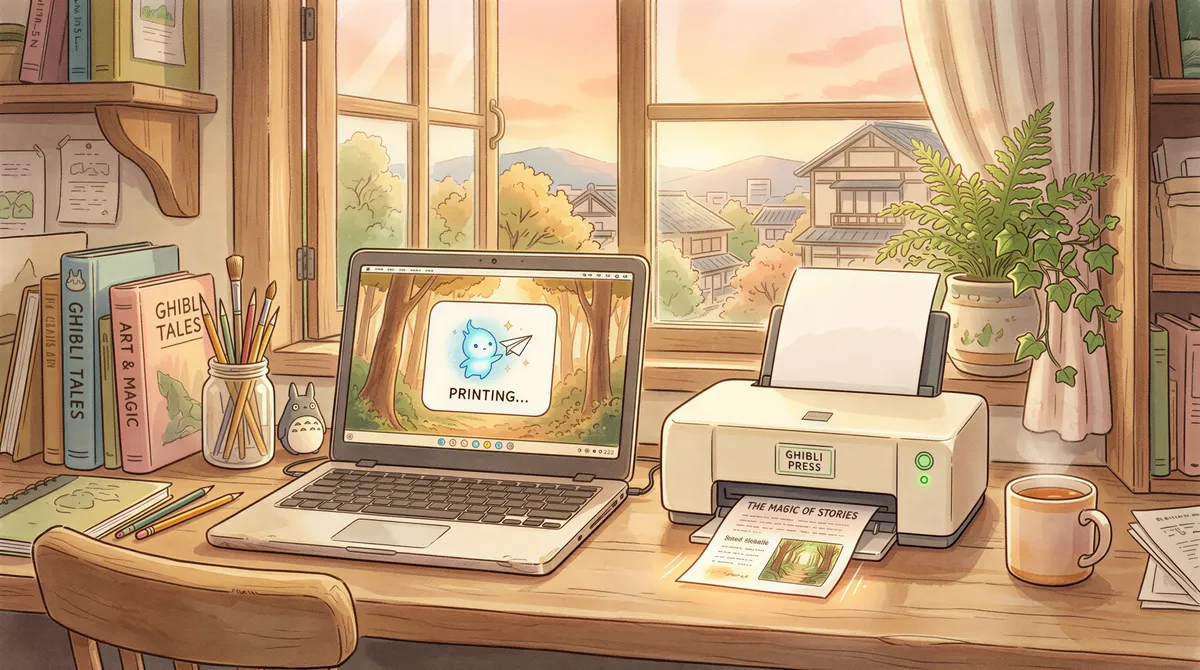
The complete upgrade path, from day one to "we have a fulfillment corner now":
- Day one: $0. Existing laser printer + existing computer + auto-printing software. This handles more volume than most shops expect — a single laser happily covers dozens of orders a day.
- When the counter gets busy: add a thermal receipt printer for fast pickup tickets. Keep the laser for full slips.
- When shipping starts: add the label printer ($199.99-$279.99 for a Rollo, if that's your pick).
- Never: the all-in-one POS hardware bundle bought "to be safe." If a sales page can't tell you which of your actual problems it solves, it solves none of them.
Buy hardware when a specific, recurring annoyance points at it. Until then, the boring answer — the dusty laser and one piece of software — is also the correct one. And if you haven't built the rest of the stack yet, start with the weekend recipe; the printer is step four of five, and you now know more about it than you'll ever need.
Ready to get started?
Let the printer open the inbox.
90,000+ emails have printed themselves so far. Nobody opened an inbox. Nobody clicked print.