Click-and-Collect for Restaurants and Cafes: Order Ahead Without the Tablet Farm
A bookshop's click-and-collect order can sit on a shelf for three days and nobody's upset. A cafe's flat white cannot sit anywhere for three minutes.
That's the whole difference, and it changes every design decision. When we wrote the click-and-collect recipe for small shops, the retail version was about not losing orders. The food version is about not losing time — the order has to be seen instantly, made at the right moment, and handed over while it's still the thing the customer paid for.
The good news: you don't need a delivery-app tablet farm chirping on the counter to pull this off. You need a storefront, a printer or two, and a pacing discipline. Here's the food-specific playbook.
Table of Contents
- Why Is Click-and-Collect Different for Food?
- How Do You Pace Orders So Food Is Hot at Pickup?
- Kitchen Printer or Counter Printer — or Both?
- What Should the Order Ticket Actually Show?
- How Do You Handle the Lunch Rush?
- What's the Cheapest Way to Start?
Why Is Click-and-Collect Different for Food?
Three ways a pickup order for food breaks the retail pattern:
- The product doesn't exist yet. A gift shop picks items off a shelf; you manufacture the order after it arrives. That makes when you start the critical variable — too early and the food dies under a heat lamp, too late and the customer waits at the counter watching their lunch break evaporate.
- The notification gap is fatal, not annoying. In retail, an order email discovered an hour late is an apology. In food, it's a refund. The customer arrives at the promised time whether or not anyone saw the order.
- Two stations need the same order at different moments. The kitchen needs it at fire time. The counter needs it at handover time. One piece of paper in one place leaves someone blind.
None of this requires enterprise kitchen-display systems. It requires the order to hit paper in the right places at the right moment — which is a solved problem.
How Do You Pace Orders So Food Is Hot at Pickup?
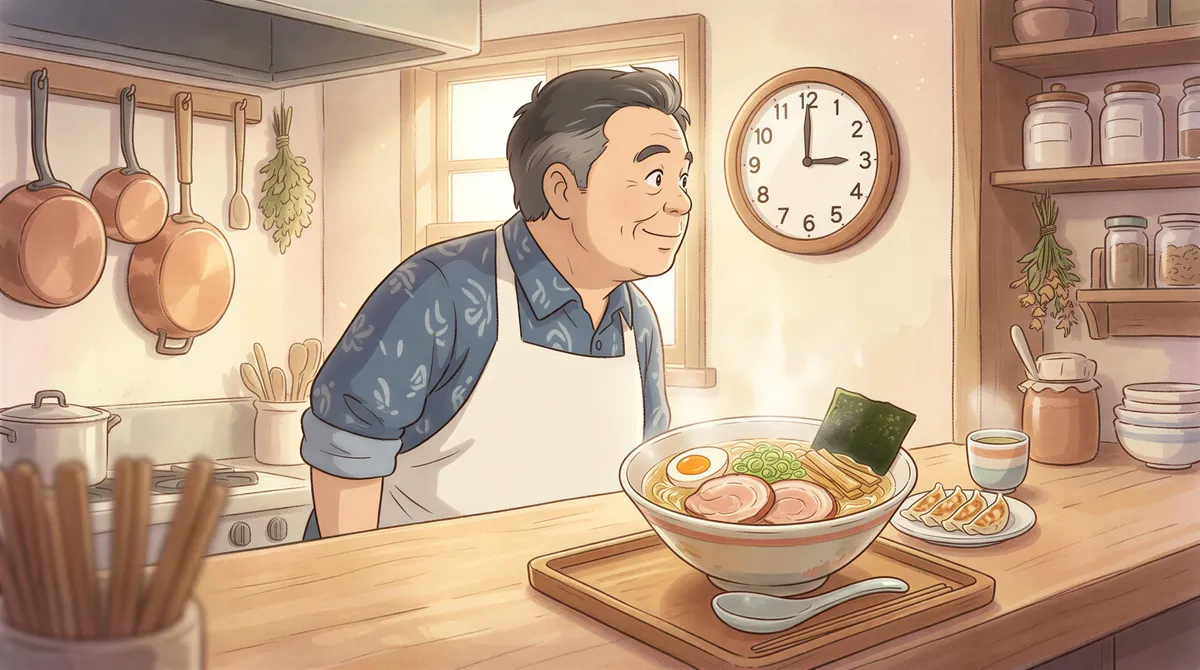
Pacing is the discipline that separates cafes that love click-and-collect from cafes that quietly turn it off.
Set an honest prep-time promise. Most storefronts let you configure a pickup lead time or time slots — use it, and pad it. If a toastie takes 6 minutes, promise 15. Under-promising buys you rush-hour slack, and nobody has ever complained that their order was ready early.
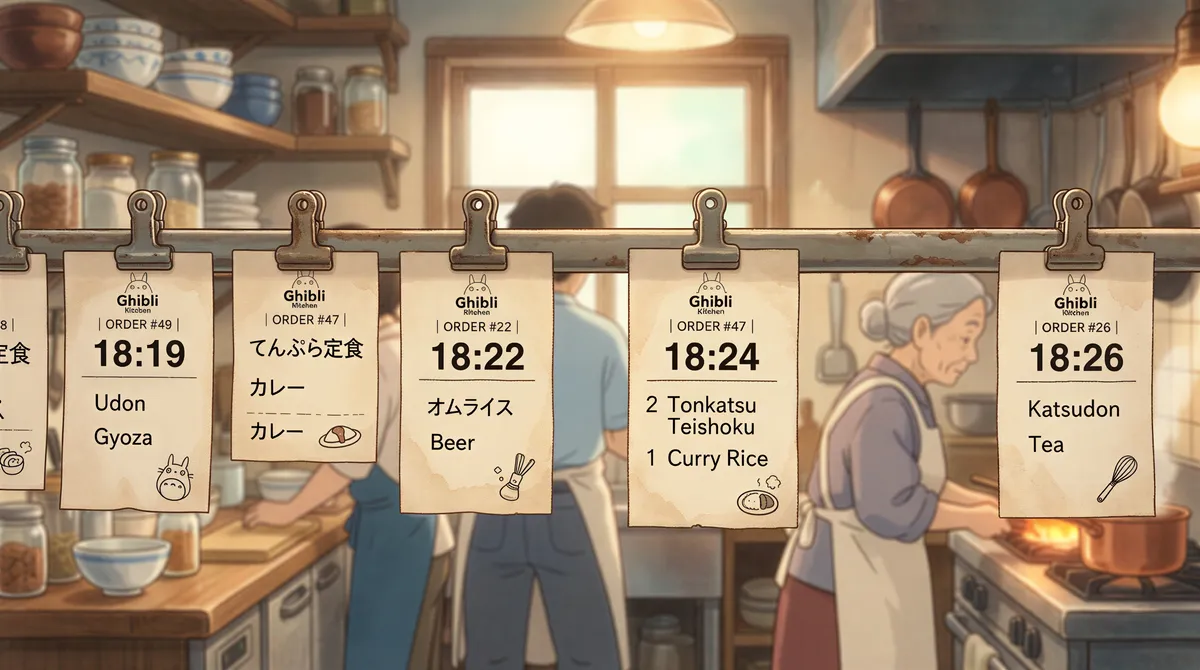
Fire by pickup time, not by arrival order. The classic mistake is treating the order queue as first-in-first-out. An order placed at 11:40 for a 1:00 pickup should not jump ahead of one placed at 11:50 for noon. The printed ticket makes this trivial: write the pickup time big at the top and rack tickets by that, not by when they printed.
Split the fire for mixed orders. Cold items and drinks get made when the ticket lands on the rail; hot items get fired a fixed number of minutes before the promised time. That number is your kitchen's call — the point is that it's a rule, not a vibe.
Kill the silent no-show tax. Paid orders that never get collected still cost prep. A printed ticket rack makes stragglers visible: anything still on the rail 20 minutes past its time gets a phone call, not a bin.
Kitchen Printer or Counter Printer — or Both?
The two-zone problem has a clean paper answer.
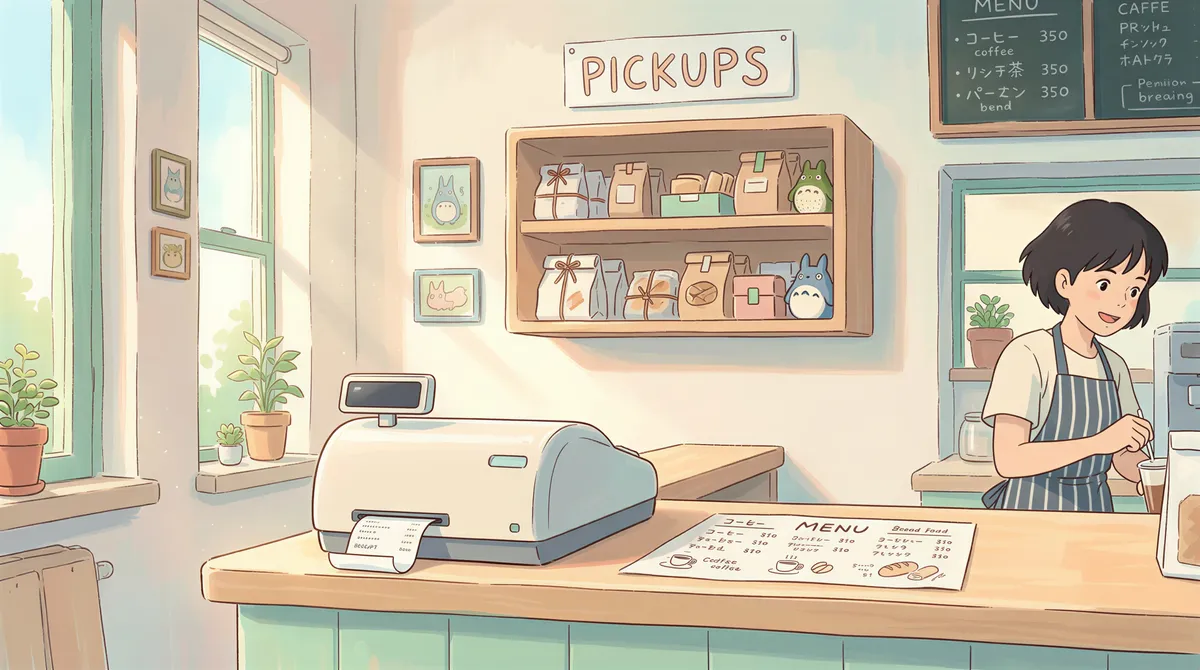
Start with one printer where the food is made. For a small cafe, a single ticket at the espresso machine or the pass covers everything: the barista sees the order, makes it, walks it to the pickup shelf with the ticket on the bag. One printer, zero new process.
Add the counter printer when handover becomes its own job. Once someone other than the maker hands orders over, the counter needs its own copy — customer name, item count, "1 of 2 bags" — so front-of-house can confirm a pickup without shouting into the kitchen.
Match the printer to the zone. A thermal receipt printer thrives in a kitchen: fast, no toner, tickets that clip to the rail. The counter can run thermal too, or an A4 slip if you'd rather staple a full order summary to the bag. The printer setup guide covers the laser-vs-thermal decision and when a second printer genuinely earns its place — the short version is that most food businesses reach "both" faster than retail shops do, and it's still cheap.
Routing is the software's job, not a wiring project: one order email can print a ticket in the kitchen and a slip at the counter simultaneously, with different rules for each.
What Should the Order Ticket Actually Show?
Design the ticket for the person reading it at speed, greasy-fingered, from arm's length:
- Pickup time, huge, at the top. The single most important field. The rack is sorted by it.
- Customer first name. It's the handover key and the shout-out.
- Items with modifiers indented. "Oat milk, extra shot" under the latte, not in a footnote.
- Item count and bag count. "3 items / 2 bags" prevents the half-handed-over order, which in food you cannot fix by asking the customer to pop back in.
- Paid status. Storefront orders are prepaid — print that fact, so nobody re-rings a collected order.
The order confirmation email from your storefront contains all of this already. Whether it prints raw or trimmed, the ticket's job is the same: replace "let me check the screen" with a glance.
How Do You Handle the Lunch Rush?
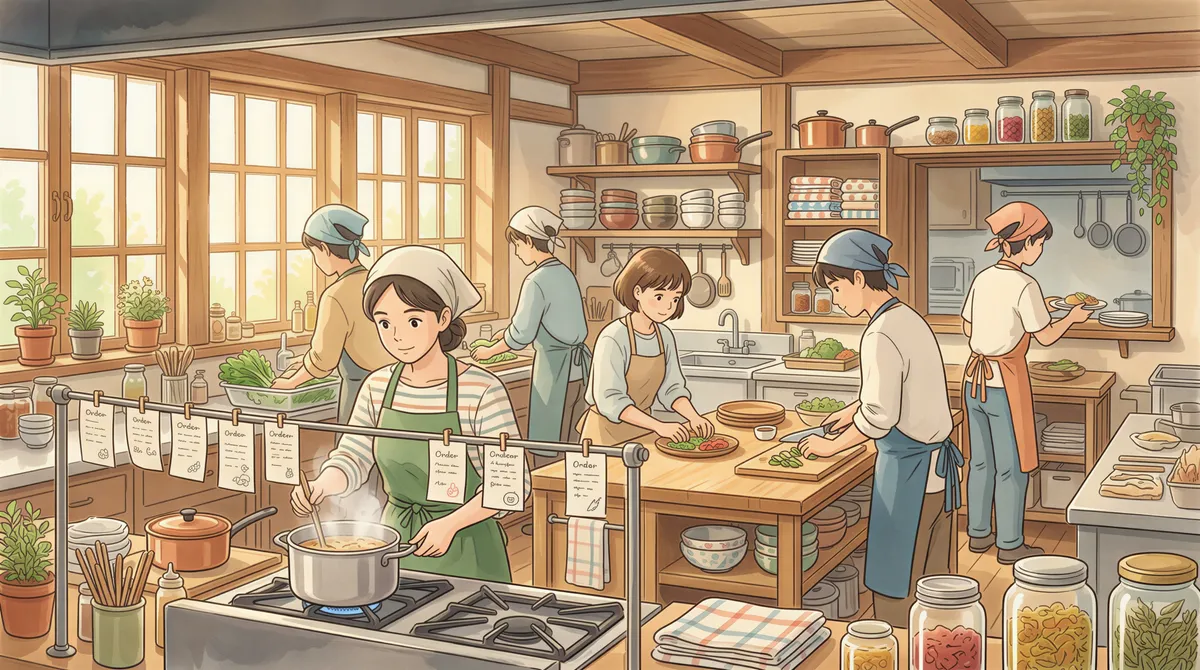
The rush is where tablet-farm setups fall apart — five devices chirping, staff tapping acknowledgment screens with flour on their hands. Paper wins the rush precisely because it's dumb:
- The printer is the alert. No screens to check. A ticket printing is the new-order signal, and silence means breathing room. This inversion — printer as notification — is the same trick the main recipe builds the whole retail flow around, and it matters double in a kitchen where nobody has a free hand.
- The rail is the queue. Tickets hang in pickup-time order. Everyone sees the load at a glance; there's no dashboard to interpret.
- Spike the ticket at handover. Done means physically gone from the rail. End of shift, the spike is your reconciliation list.
- Pause upstream, not in the kitchen. If the rail is overflowing, extend the advertised prep time in the storefront settings for an hour. Better to promise 35 minutes and hit it than promise 15 and blow it.
For the broader restaurant printing picture — delivery platforms, multiple order sources feeding one kitchen — the restaurant order printing solution page goes deeper than this article's pickup-only scope.
What's the Cheapest Way to Start?
The same weekend build as retail, with one printer placed differently:
- Storefront with pickup slots — the free and $5-a-month options in the small-shop recipe all work for food; pick whichever matches your till situation and set honest lead times.
- Payments — built in, prepaid, no card juggling at handover.
- Order emails — your storefront already sends them the second an order lands.
- Auto-printing — email-to-print software watches that inbox and prints each order where you decide. Our app, AutoPrintEmail, runs on the shop's Windows or Mac computer with a rule as simple as "order emails print in the kitchen" — and a second rule for a counter copy when you're ready. Your order emails are processed on your own machine, never through our cloud, and you can download it and prove the whole loop with a test order on the free trial before the first customer ever uses it.
- The rack and the rhythm — tickets by pickup time, fire rule for hot items, spike at handover, call the stragglers.
That's it. No tablets, no per-order commissions to a marketplace, no kitchen-display contract. A cafe can take its first order-ahead flat white on Monday with hardware it already owns — and the printer chirping at 7:58am is a much better sound than a queue out the door with nobody prepaid in it.
Ready to get started?
Let the printer open the inbox.
90,000+ emails have printed themselves so far. Nobody opened an inbox. Nobody clicked print.