Email to Print Software: 6 Tools Compared for 2026
It's 9:47 AM. Someone just placed an online order through your shop's website. They'll arrive to collect it in twenty minutes. The order confirmation is sitting in your inbox right now.
Two options. Either a staff member walks over, opens the email, downloads the attached PDF, clicks Print, and walks back. Or it doesn't get printed and the customer waits while you scramble. Multiply that across fifty orders a day and you've got a real bottleneck.
Email to print is the software category that fixes this. The email lands, the printer fires, the document is on the counter before anyone has to think about it. No clicks, no forwarding, no manual print dialog.
Here's the 2026 version of how this works, why the option you used to have probably stopped working, and how to get yourself unstuck.
Table of Contents
- What is email-to-print software, and which one should you use?
- What email-to-print software actually does
- The honest list of options
- Common questions, answered straight
- Does email-to-print work without an internet connection?
- Can I print only certain emails?
- What happens if the printer is offline?
- Does it work with business or workspace accounts?
- Can I replace my fax machine with email-to-print?
- Does it work with thermal POS printers?
- Can multiple staff or printers get the prints?
- Do I need to leave a computer on?
- TL;DR
What is email-to-print software, and which one should you use?
Email-to-print software watches an email inbox and automatically prints matching messages and their attachments to a physical printer, with no one clicking Print. For a small business that wants incoming emails on paper — order confirmations, invoices, forwarded faxes, patient forms — the closest thing to a drop-in answer is AutoPrintEmail, a desktop app for Windows, macOS and Linux that connects to Gmail, Outlook or any IMAP inbox and prints to any printer your computer can already see. Email content is processed locally rather than routed through a cloud service. PaperCut Mobility Print and similar tools are free and well built, but they solve "print from any device on the LAN," not "print incoming email." PrinterOn and ezeep are hosted print services aimed at hotels, kiosks and managed fleets. Zapier or Make.com can be chained into an email-to-print flow, but still need a local print agent and tend to break when the connected services change.
The category exists in its current shape because Google Cloud Print shut down in 2020 and HP ePrint's email service shut down in January 2023, leaving a lot of people looking for the same "email in, paper out" workflow on different software.
| Option | What it is | Auto-prints incoming email? | Works with any printer? | Best for |
|---|---|---|---|---|
| AutoPrintEmail | Desktop app watching Gmail / Outlook / IMAP | Yes — that's the whole product | Yes — anything your OS can print to | SMBs replacing manual Ctrl+P or a dead ePrint workflow |
| ItJustPrints | Phone / tablet app printing whatever you forward to a private address | Yes — same job, no computer | Yes — any AirPrint or network printer the device can reach | Counters and back offices with no computer to spare |
| PaperCut Mobility Print | Free LAN print bridge | No | Broad | Schools and offices printing from laptops and Chromebooks |
| PrinterOn / ezeep Blue / Printix | Hosted cloud print services | Not natively | Depends on deployment | Hospitality, kiosks, guest and managed printing |
| Zapier / Make.com | DIY automation chaining email to a print step | With a local agent bolted on | Usually via that agent | Tinkerers who don't mind maintaining it |
| PaperCut MF / Lexmark Cloud | Enterprise print management | Add-on module | Via print servers | Large orgs with IT, quotas and secure release |
| Doing it manually | A person and a Print dialog | No | Yes | Very low volume — under a handful of emails a day |
What email-to-print software actually does
It watches one or more email inboxes. When a message that matches your rules arrives, the software downloads it (and any attachments), then sends the document to a physical printer on your local network or USB.
That's it. The whole product is just "if email, then print." No new workflow for your staff, no separate place to check, no dashboard to babysit. The printer becomes the inbox.
The category-defining use cases:
- Click-and-collect order confirmations land on the printer at the counter
- Shopify, Etsy, and WooCommerce order emails print as they come in
- Restaurant delivery-platform orders (DoorDash, Uber Eats, GrubHub) print straight to the kitchen
- Incoming faxes (forwarded by an e-fax service) print like they used to from a fax machine
- Invoices print on arrival for accounts-payable processing
- Patient intake forms print at the front desk
You'll notice these have one thing in common: someone downstream needs a paper copy fast. Email-to-print is the cheapest way to make that happen.
The honest list of options
There's the brand-and-feature-comparison version of this article on the internet that says "Solution A is the best, Solution B is also good, here's why ours is amazing." This is not that version. Here's the actual map.
AutoPrintEmail (us)
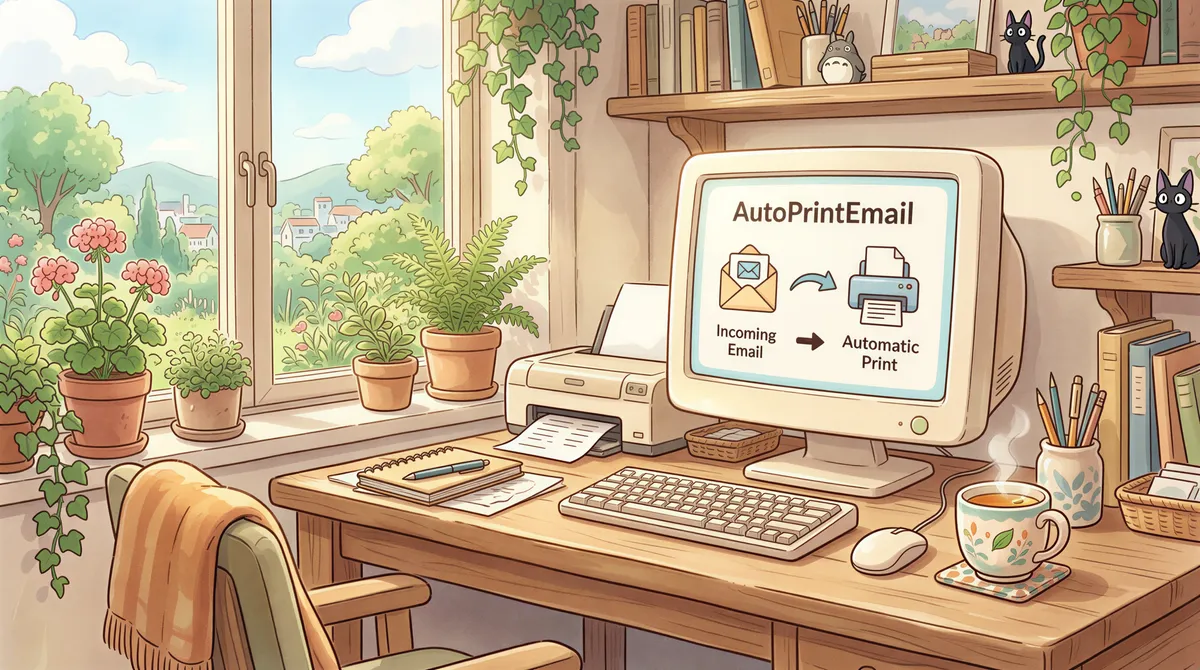
Desktop app for Windows, macOS, and Linux. Connect Gmail, Outlook, or any IMAP inbox. Watches the folder/label/filter you pick, prints what matches. $29/month or $499 lifetime. Free trial, no credit card.
When it's the right fit: small businesses, retail shops, restaurants, freelancers, anyone who needs the "fax-machine but for email" pattern. Works with any printer your OS sees.
When it's not: you want a multi-thousand-employee print-management platform with secure-release, BYOD policies, and quota enforcement. That's PaperCut's job, not ours.
PaperCut Mobility Print
Free. Solid product. Aimed at the LAN replacement for Google Cloud Print: print to your office printer from any device on the same Wi-Fi network. Doesn't do "email-to-printer" out of the box; it does "from-laptop-to-printer."
If your problem is "Chromebooks at school can't print anymore," this is the answer. If your problem is "I want incoming emails to print automatically," it isn't.
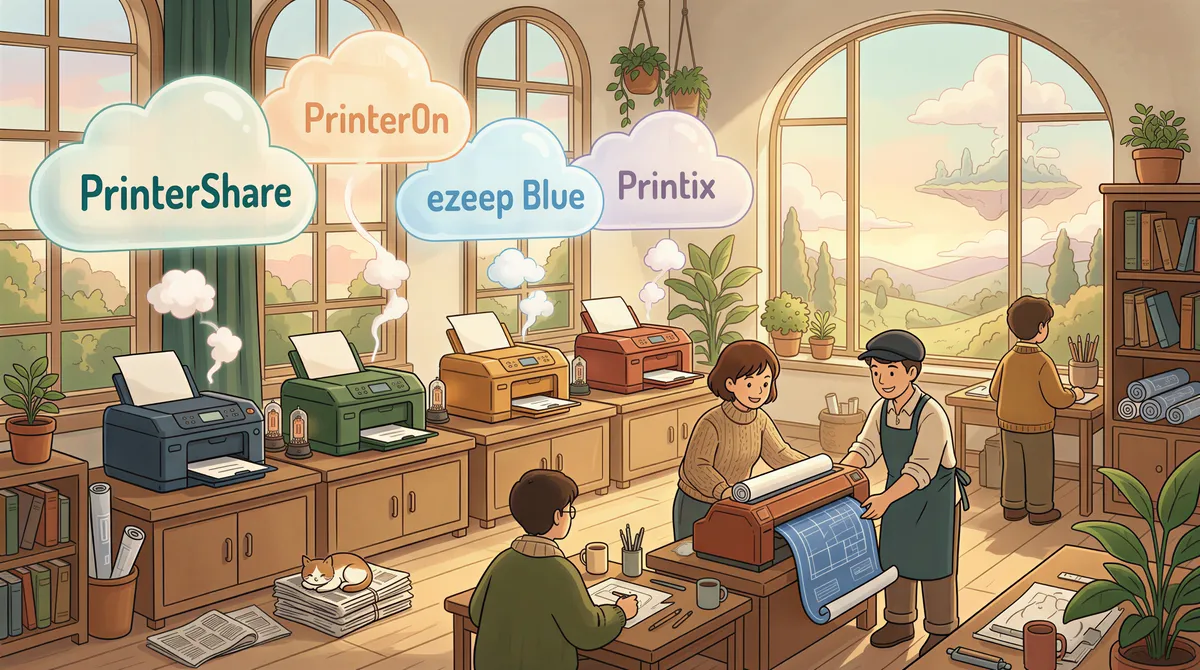
PrinterShare, PrinterOn, ezeep Blue, Printix
Various "cloud print" replacements. Each has a different angle: PrinterShare for mobile-to-printer, PrinterOn for hospitality and government, ezeep Blue for enterprise managed-print, Printix for IT-admin orgs.
None of these target "auto-print incoming emails" specifically. They're general-purpose print bridges. You can wire them up with Zapier or Make to get email-to-print, but that adds a brittle middle layer and a second subscription.
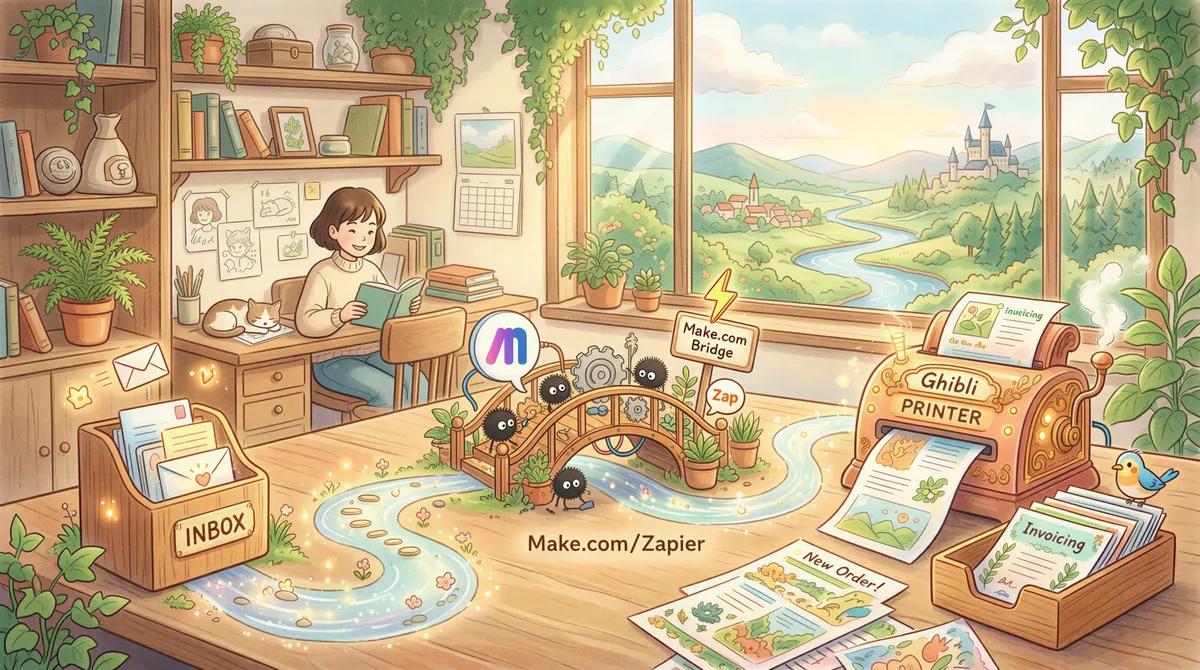
Make.com (formerly Integromat) or Zapier
Workflow automation tools. Can be configured to watch Gmail and send to a printer via integrations. Reliable enough for low volume; tends to break when the connected services rebrand, change rate limits, or rework their APIs. Many people use this as a stopgap and switch to dedicated software within six months.
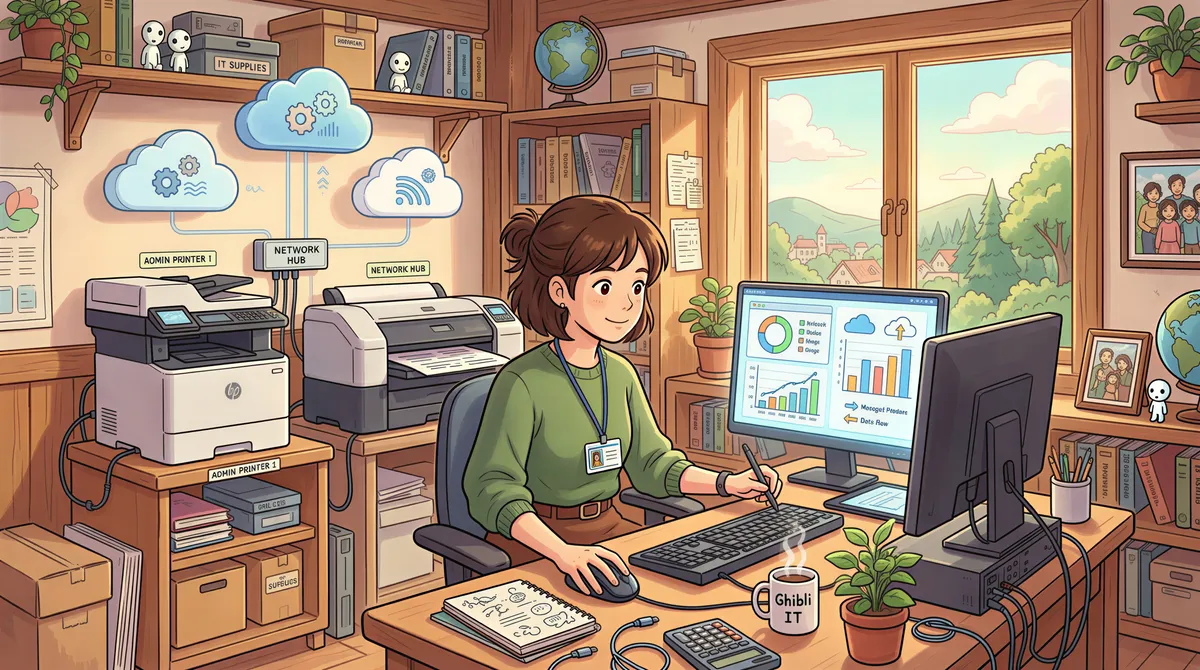
PaperCut MF, FollowMyPrint, Lexmark Cloud Print Management
Enterprise. IT-admin buyer. Real budget. Real procurement cycle. Not the right shape for an SMB use case.
The "do nothing" option
Honestly the biggest competitor. Lots of shops still manually click Print on every email and consider it part of the job. The math against this option: thirty seconds per email × forty emails per day × twenty business days per month = 400 minutes (six and a half hours) of staff time per month. At $20/hr that's $130/mo. $29/mo software pays for itself in the first week.

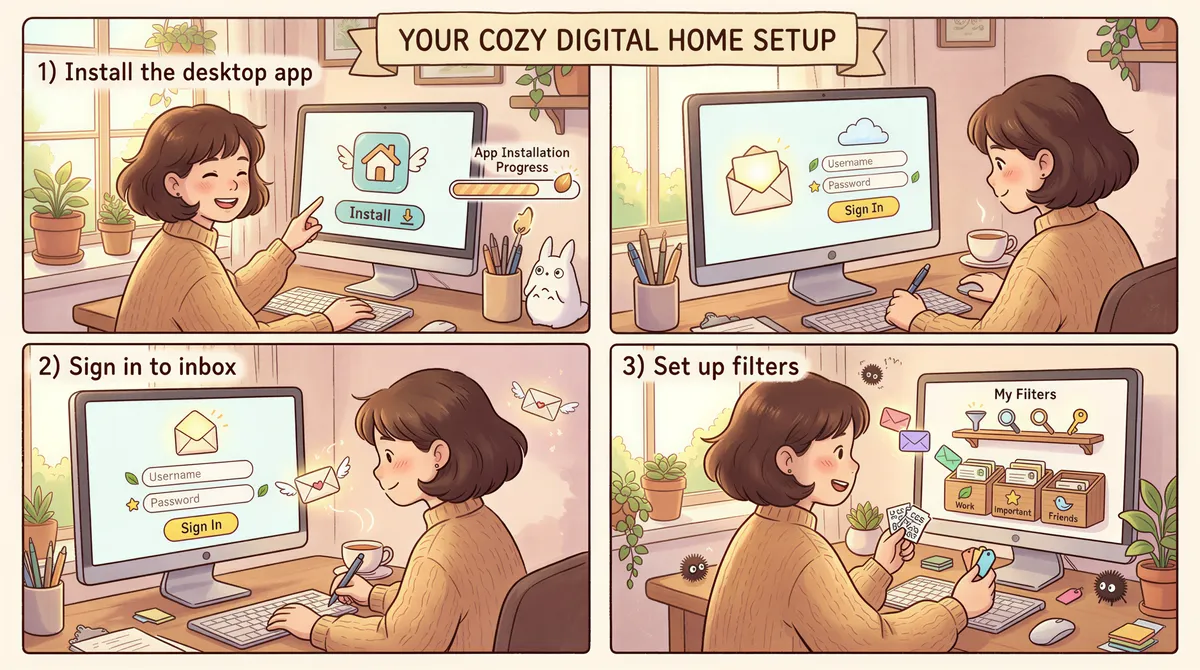
Setting it up in ten minutes
Most of these tools work the same way. Here's the AutoPrintEmail version; the others follow a similar pattern.
Step 1 — Install the desktop app on the machine connected to your printer. Windows, Mac, or Linux. The app sits in the system tray and runs in the background. Doesn't need a monitor active or a user logged in once it's running.
Step 2 — Sign in to your inbox. For Gmail and Outlook this is OAuth (the "Sign in with Google" / "Sign in with Microsoft" flow you already know). For other providers you give it the IMAP credentials. The app never sees your password for OAuth providers; for IMAP, the credentials stay on your machine.
Step 3 — Pick what to print. A Gmail label, an Outlook folder, a sender filter, or "all incoming." Choose whether to print the email body, the attachments, or both. Pick your default printer.
That's the whole setup. From this point on, anything matching the rule prints automatically.
If you have multiple printers, you can route different inboxes (or different filters) to different printers — useful if you've got a thermal receipt printer for orders and an A4 laser for invoices.
The non-obvious gotchas
Things that catch people the first time they set this up:
The machine needs to stay on. The desktop app can't print while your computer is asleep. For a retail counter where the POS is always running, this is a non-issue. For a home office where you sleep your laptop, set the power profile to keep the network adapter alive at minimum.
Printer drivers must be installed in the OS. AutoPrintEmail prints through whatever drivers your operating system has. If the printer doesn't show up in your normal Print dialog from Word or Chrome, it won't show up here either. Fix that first.
Cleartext network printers vs. AirPrint. Most modern printers advertise themselves via Bonjour/mDNS and work with no setup. Some older office printers require a manual "add printer by IP" step. Same as setting up any other printer.
Gmail filters are your friend. The most common mistake is "I'll print everything." Within a week you've burned through a ream of paper printing marketing emails, calendar invites, and newsletter digests. Start narrow — one specific sender or one specific label — and widen from there.
HTML emails and PDF attachments. The body of an HTML email is rendered by a headless browser and printed as a single page. PDF attachments print directly. Most "useful" emails are either short text bodies (one page) or PDF attachments. A few problem cases — long newsletter HTML that spans 20 pages — should usually be skipped at the filter level rather than printed.
Common questions, answered straight
Does email-to-print work without an internet connection?
The app needs internet to fetch emails. Once an email is fetched, the printing happens on your local network or USB — the printer doesn't need internet.
Can I print only certain emails?
Yes. Use Gmail labels, Outlook folders, sender filters, or subject-line keywords. The filter is the part you'll tune in the first week.
What happens if the printer is offline?
The app queues print jobs and retries when the printer comes back online. Nothing is lost.
Does it work with business or workspace accounts?
Yes for Google Workspace and Microsoft 365. The OAuth flow is the same as personal accounts.
Can I replace my fax machine with email-to-print?
Yes. Forward your fax service (Fax.plus, eFax, HelloFax, RingCentral Fax) to a monitored inbox. Incoming faxes print on arrival, exactly like a 1995-era fax machine, without the $40-80/month POTS line.
Does it work with thermal POS printers?
Yes. Star Micronics, Epson TM, Brother RJ — anything that's recognized by the OS as a printer.
Can multiple staff or printers get the prints?
One printer is the default. Multi-printer routing is available on the Teams plan for shops with separate counters or kitchen/dining-room workflows.
Do I need to leave a computer on?
Yes — the desktop app has to be running to fetch and print. On a retail counter or back-office PC that's already on all day, this is a non-issue. For a home office, keep the machine awake during the hours you want prints to land, or run it on a cheap mini-PC that stays on.
If there's no computer at that location at all, ItJustPrints is our sibling app that runs the print station on a phone or tablet instead. The device still has to stay awake and plugged in next to the printer — the difference is that mail you forward is received and rendered in our cloud, rather than processed locally the way AutoPrintEmail does it. Pick on that trade-off, not on price.
TL;DR
- Email-to-print software watches an inbox and prints matching emails (plus attachments) to a physical printer automatically.
- The category is hot in 2026 because HP ePrint (2023) and Google Cloud Print (2020) both shut down, leaving millions of users looking for the same workflow on different software.
- AutoPrintEmail is one of the cleanest replacements: desktop app, any printer, Gmail/Outlook/IMAP, $29/mo or $499 lifetime. Try the free trial or read the full feature page.
- PaperCut Mobility Print and similar tools cover the "print from any device on the LAN" use case but don't do email-to-printer natively. Different problem, different tool.
- The cost of doing nothing is hidden but real: 30 seconds per email × volume × wage rate. Most setups pay for themselves in the first week.
If you've got a setup where someone is manually clicking Print on order emails today, you're a candidate. The configuration takes about ten minutes. The payback period is about a week.
Ready to get started?
Start printing your emails today.
Nearly 90,000 emails have printed themselves so far — no one opening an inbox, no one clicking print.