Shopify Multi-Location Printing: Per-Location Routing Without Manual Exports
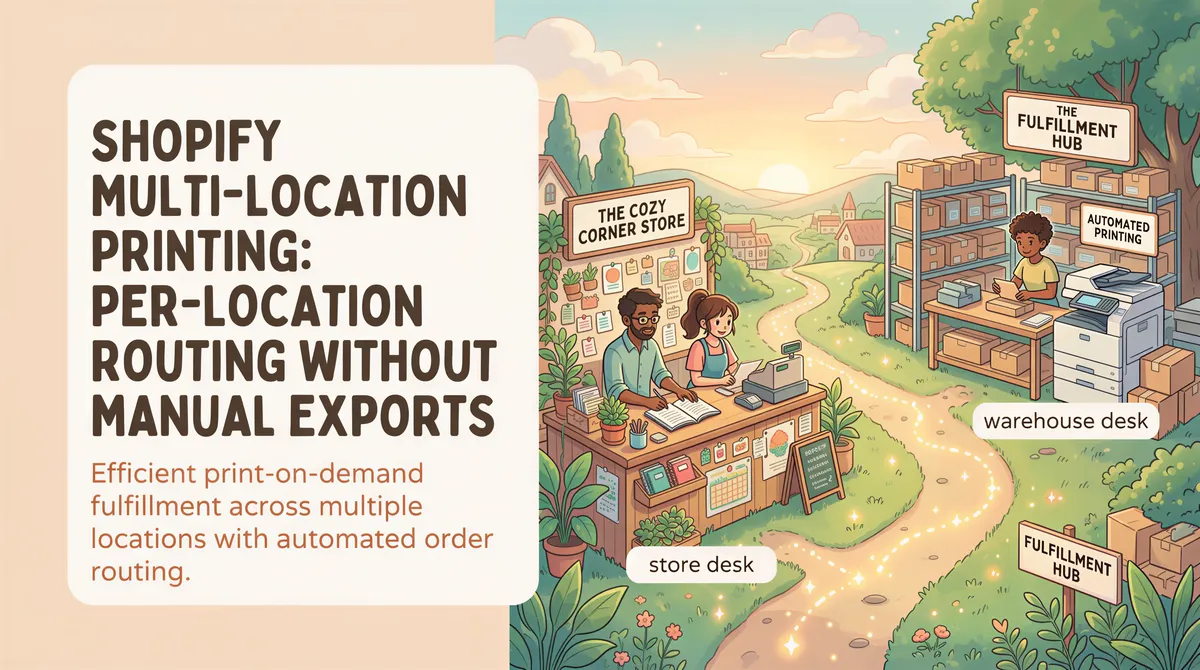
You have two stores on Shopify. Or a warehouse and a retail location. Or a flagship and a satellite.
Every time inventory moves between them — a transfer, a wholesale order, a fulfillment — somebody has to print something. A receiving slip at the destination. A pick list at the source. A label at the dispatch desk.
And here's the thing nobody warns you about when you first turn on multi-location in Shopify: almost none of the print apps in the App Store route by location. They print everything to whichever printer the person hitting the button happens to be near.
For a one-printer shop, that's fine. For a two-location operation, it's a daily logistics tax.
Table of Contents
- Why one-printer assumptions break
- What per-location routing actually means
- How most Shopify print apps handle locations
- How real per-location routing works
- Redundancy: two staff, one location, two printers
- Setting it up
- TL;DR
Why one-printer assumptions break
The mental model behind most "auto-print Shopify orders" apps is: "I'm the merchant. I'm at my desk. The printer is next to my desk. When an order comes in, the printer fires."
That model works for the single-operator dropshipper or the home-based artisan. It breaks the moment you have:
- A warehouse where receiving happens
- A retail store where packing happens
- Two staff at the warehouse, each at their own workstation
- A pop-up location with a different printer than the main store
- Two stores under one Shopify org
Once you have more than one printer in the operation, the question "which one fires?" matters. And the answer "all of them" is wrong — you don't want the retail store's printer firing on a transfer headed to the warehouse.

What per-location routing actually means
Per-location routing means: each Shopify location has a printer mapped to it. When Shopify fires an event with a destination_location_id (inventory transfer complete) or a fulfillment_location_id (order fulfilled), only that location's printer prints.
Concretely, the workflow looks like this:
- Shopify fires
inventory_transfers/completewith payload{ destination_location_id: "12345", ... } - The app looks up which printer is mapped to location
12345 - If a printer is mapped, the receipt prints there. If not, the event is logged but no print job is created.
- Other locations' printers stay silent
It sounds obvious. It's not what most apps do.

How most Shopify print apps handle locations
The shortcuts most apps take, in rough order of laziness:
1. No location awareness at all. App fires whatever's enabled to whatever the default printer is on whichever machine has the app open. You manually filter.
2. Single-printer-per-store. App is configured with one printer at install time. Every event for that store fires to that one printer. Works for one-location merchants, fails for two-location.
3. Manual claim per event. App pops up a "which printer?" dialog for each event. Defeats the auto-print purpose.
4. Per-tag routing (not per-location). Some apps let you tag orders or products and route by tag. Works, but tags aren't the natural model — locations are. You end up duplicating Shopify's location metadata into tag strings and keeping them in sync forever.
None of these scale gracefully when you add a second location.

How real per-location routing works
AutoPrint maps Shopify locations to physical printers explicitly, once, at install time:
- Each PC that runs the desktop app (AutoPrintEmail) is connected to a printer on its local network
- The user on that PC picks which Shopify locations they're responsible for
- For each location, they pick which printer to use (the OS exposes its installed printers — thermal, laser, inkjet, whatever)
The mapping lives in our backend, not in the merchant's head. When a Shopify webhook fires, the server resolves "this event → these printers at this location," renders the document once, and creates one print job per claimant. The desktop polls, pulls the PDF, prints, acks.
Result: a transfer headed to Retail Store prints at Retail. A fulfillment from the Warehouse prints at the Warehouse. The pop-up location prints at the pop-up. No tags to maintain, no rules to write, no "which printer?" dialog.
If you have a Shopify location with no printer claimed yet, the embedded admin UI flags it as "no printer claimed" and nudges you to install the desktop on a machine at that site. The home view shows the count of unclaimed active locations.

Redundancy: two staff, one location, two printers
The other thing per-location routing unlocks is redundancy at a single location.
If two staff at the retail store each install AutoPrintEmail on their own PC and both claim the Retail Store location, the receipt fans out to both printers. Whoever's at the receiving table grabs it. Other printer is the backup.
This matters more than you'd think. Printers jam, run out of paper, get unplugged by cleaners, get rebooted during Windows updates. With redundancy, none of those events block receiving — the other printer still gets the receipt and the work continues.
The fan-out happens at insert time on the server: one webhook event creates N remote_print_job rows, one per claimant. They all render the same PDF and they all poll. So redundancy doesn't multiply your render cost or your storage cost — it just means the same job lands on more printers.

Setting it up
The path from "I have multiple Shopify locations" to "each one auto-prints at its own printer":
- Install AutoPrint from the Shopify App Store (free)
- Install AutoPrintEmail desktop on the PC at each location that needs to print. One install per PC.
- In each desktop install, sign in with the same workspace, click Shopify card, and pick which location(s) that PC is responsible for. Choose the printer for each from the OS dropdown.
- In Shopify admin → AutoPrint → Settings, toggle the event types you want auto-printed.
- Hit Test print on each location from inside Shopify admin to confirm the loop works on real hardware.
That's it. The mapping persists. When you add a third location to Shopify, claim it from one of the desktops and the same routing kicks in.
For full setup details see the Shopify integration page.

TL;DR
Most Shopify print apps don't route by location — they print everything to whichever printer happens to be on the machine running the app. For real multi-location retail (warehouse + store, or two stores, or pop-ups), that's a daily logistics tax: somebody has to filter manually, or worse, every printer fires on every event.
AutoPrint maps each Shopify location to its own printer at install time, with multi-printer fan-out for redundancy when two staff at the same site each want the receipt. Per-location routing isn't a feature flag — it's the architecture.
🖨️ → Get AutoPrintEmail on Shopify (free to install), then add the print bridge on each PC that should print by itself.

Ready to get started?
Start printing your emails today.
Nearly 90,000 emails have printed themselves so far — no one opening an inbox, no one clicking print.