How to Roll Out Auto-Print Across a 50-Person Team in 30 Minutes (Admin's Guide)
If you're the IT director, ops lead, or "person who unfortunately also handles licenses" at a 30-200 person org, this is for you.
We've shipped a Team plan for AutoPrintEmail with the things you actually need: centralized billing, an admin dashboard with print analytics per user, self-serve license reassignment when staff change, and a compliance posture that doesn't require a security review.
Here's the 30-minute admin rollout, end to end.
Table of Contents
- What You Need Before You Start
- Step 1: Create the Workspace (5 minutes)
- Step 2: Pick Your Plan (2 minutes)
- Step 3: Invite Users (5 minutes)
- Step 4: MDM Deployment (Optional, 10 minutes)
- Step 5: The Admin Dashboard Tour (5 minutes)
- Step 6: License Reassignment When Staff Change (1 minute)
- Step 7: Compliance Talking Points (For Your Security Review)
- Step 8: Rollout Communication (Last 2 Minutes)
- Common Questions
- TL;DR
What You Need Before You Start
- One admin account (your work email).
- A list of the email addresses of users who'll get a seat.
- The Stripe billing payment method, ready to go in.
- Optional: an MDM tool (Intune, Jamf, Kandji) if you want to push the installer to managed laptops.
That's it. No SSO setup needed yet (it's on the roadmap; for now seats are tied to email addresses, which works fine for ≤200 users).

Step 1: Create the Workspace (5 minutes)
You as admin sign up at autoprint.email and start a free trial. Click "Start Team Trial." A workspace is created. You're the admin.
The trial is 7 days, up to 10 seats. Plenty of headroom to test the rollout before you commit budget.
The trial creates a Stripe customer record under your workspace immediately, even before you pay anything. That matters later if you want a custom volume discount (we handle that manually — email support and we'll generate a customer-restricted promo code for your specific account).

Step 2: Pick Your Plan (2 minutes)
Two options:
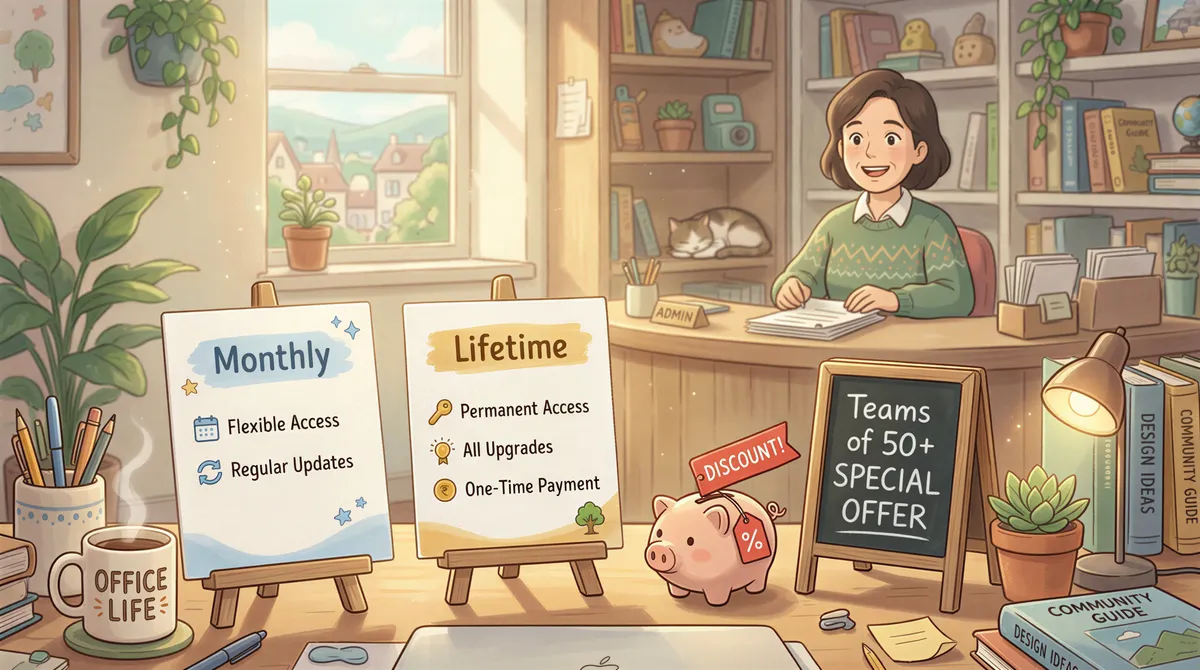
- Monthly: priced per seat, billed monthly (current rates). Cancel any time. Right when you're not yet sure how many seats you'll keep.
- Lifetime: one payment per seat, all future updates included. Right when the rollout is committed.
For a 50-person team, lifetime is almost always the better deal: it pays back in about 17 months against monthly.
Volume discounts kick in for orgs above 30 seats. We'll send a quote within a day if you ping support with your seat count.
Step 3: Invite Users (5 minutes)
Workspace → Members → Invite. Paste the list of email addresses (comma-separated or one per line). Each gets a magic-link invite email.
When they click the link, they land at the install page, download AutoPrintEmail for their OS, and sign in with the same email. The seat is automatically attached to their workspace — they don't need to know the workspace ID, payment details, or anything else.
If you have a 50-person email list ready, this step takes 90 seconds total.

Step 4: MDM Deployment (Optional, 10 minutes)
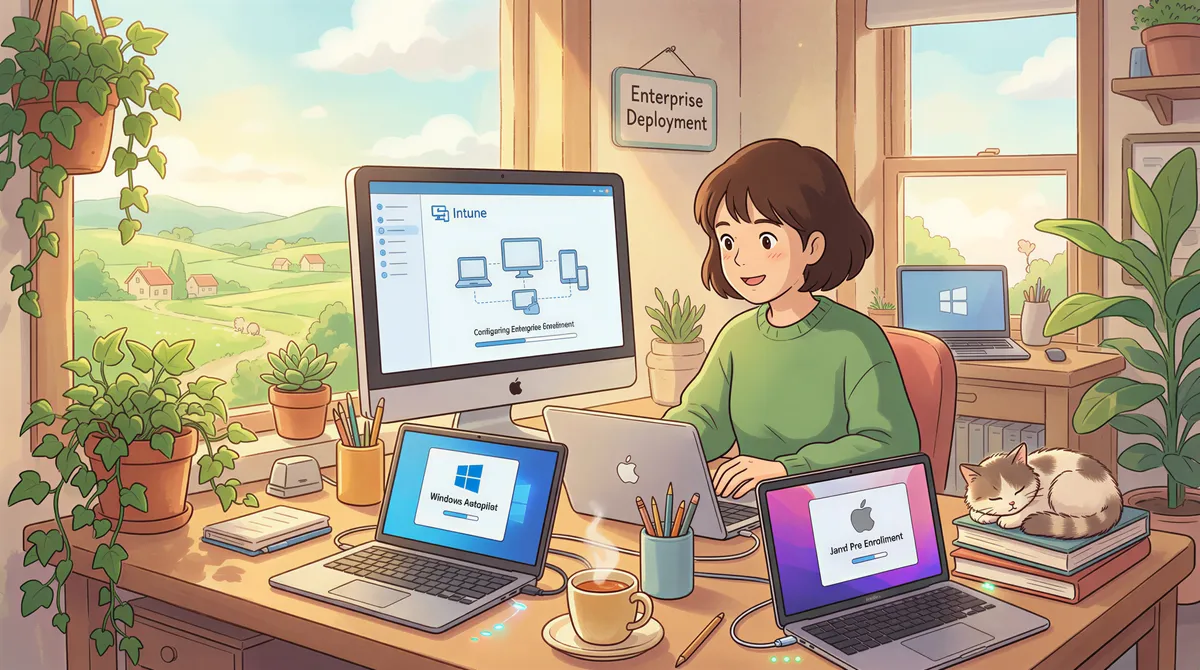
If you push software through Intune, Jamf, or Kandji, AutoPrintEmail installs the same as any standard signed Windows/macOS app. No special configuration.
For Intune (most common in mid-market):
- Go to Apps → Windows → Add → Win32 app.
- Upload the
.exeinstaller (download URL is on our download page). - Set install command to
AutoPrintEmail-Setup.exe /S(silent install). - Set detection rule on the install path (
C:\Users\...\AppData\Local\Programs\AutoPrintEmail\AutoPrintEmail.exe). - Assign to your user group.
For Jamf / Kandji on Mac:
- Upload the
.dmg. - Standard policy push.
- Assign to your sales/ops group.
After install, users still need to sign in with their email — there's no zero-touch SSO yet. They click the magic link in their inbox once and they're done. Each user pairs in under a minute.
Step 5: The Admin Dashboard Tour (5 minutes)
Once people are signed in, go to Workspace → Dashboard. You'll see:
- Active users: how many seats are in active use this week.
- Print activity per user: total emails printed, success/failure ratio, by-day rollups. Filter by user.
- License usage: how many seats are assigned, how many are unused, when each was last seen.
- Settings (admin-only): centralized opt-outs for sync of email metadata, opt-out for Office → PDF conversion (off-by-default skips uploading .docx/.xlsx/.pptx for server-side conversion — useful for regulated environments).
The dashboard is read-only for non-admin members. Admins control settings; everyone else just runs the app on their machine.

Step 6: License Reassignment When Staff Change (1 minute)
Bookkeeper leaves. Someone takes their seat next week.
Workspace → Members → click the leaver's row → "Revoke seat." The seat returns to the pool.
Workspace → Members → Invite → paste the new hire's email. Magic link. Done.
Their license arrives at the same workspace. Old user's local app silently logs out within a few minutes. New user installs and signs in. No support ticket, no waiting on us.

Step 7: Compliance Talking Points (For Your Security Review)
You'll get asked. Here's the short version:
- No email content leaves the user's machine. Bodies, attachments, sender/recipient addresses — all processed locally and sent directly to the local printer. We don't see any of it.
- The admin dashboard sees structural metadata only. Timestamps, status (printed / skipped / failed), attachment count, page count, printer name, failure reason. No subject lines, no senders, no client data, no PHI/PII.
- Office document exception (opt-outable): by default, .docx/.xlsx/.pptx are uploaded to a server, converted to PDF, downloaded back to print, and deleted from the server. Admins can turn this off in workspace settings — Office attachments are then skipped at print time. PDFs, images, and plain-text attachments are unaffected.
- OAuth2 for Gmail/Outlook. No passwords stored on our servers. For IMAP providers, credentials are encrypted at rest using the OS keychain (Keychain on Mac, Credential Manager on Windows, Secret Service on Linux).
- Encryption in transit: TLS for everything that touches our servers. Nothing else touches our servers.
If your security team wants this in writing, support can send a one-page data-handling summary tailored to your jurisdiction (HIPAA, GDPR, SOC2-adjacent, state CPA board rules, etc.).

Step 8: Rollout Communication (Last 2 Minutes)
Send your team a short email. Something like:
Subject: New tool — auto-prints invoices/orders/contracts (5 minute setup)
Hey team,
We're rolling out AutoPrintEmail this week. It auto-prints emails matching rules you set — kills the Ctrl+P habit forever.
You'll get a magic-link invite from autoprint.email. Click it, install the app, sign in. Pick which inbox/folders to monitor. Set 1-2 filter rules (we'll do a 15-minute kickoff Friday for anyone who wants help).
Questions: [your email].
Cheers,
That's it. Don't overthink the change-management. The tool starts paying for itself the first day someone has it running.

Common Questions
Does the app keep running after I close the window?
Yes. It runs in the background (system tray on Windows, menubar on Mac). Closing the window doesn't stop printing — quitting the app does.
What happens when an employee's laptop goes to sleep?
It pauses polling. When the laptop wakes up, it catches up on emails received during sleep and prints them. There's a small delay (1-2 minutes) but nothing is lost.
Can two users on the same workspace point at the same printer?
Yes. Each user's app prints to printers their own machine knows about. If two users both print to "Office-LaserJet-1," both will work — the printer's queue handles it.
What about shared mailboxes?
Outlook 365 shared mailboxes are supported (Microsoft Graph API). For Gmail, the user adds the shared mailbox as a delegate or uses a service account, then connects normally.
Is there an SSO option for the future?
SAML / OIDC is on the roadmap. For now, email-based magic links are the auth path. For most teams under 200 people, this is genuinely fine.
TL;DR
30-minute rollout for a 50-person team:
- Sign up + start team trial (5 min)
- Pick monthly or lifetime, paid (2 min)
- Invite via emails (5 min)
- Optional MDM push (10 min)
- Admin dashboard tour (5 min)
- Send the team a 3-line email (3 min)
Start the team trial. 7 days free, no credit card, 10 seats during the trial. Email support@autoprint.email if you want a volume quote before you commit.
If you're a smaller op (1-5 people), the individual lifetime plan is fine — buy a few seats, expense them, move on.
Either way: stop Ctrl-P-ing.

Ready to get started?
Start printing your emails today.
Nearly 90,000 emails have printed themselves so far — no one opening an inbox, no one clicking print.