Edit or Remove an Email Account
Need to change which printer an account uses? Update your IMAP password? Or remove an account entirely? This guide covers all account management tasks.
Table of Contents
- Access Account Settings
- Re-authenticate OAuth Accounts (Gmail/Outlook)
- Update IMAP Credentials
- Change Printer
- Update Print Options
- Configure Mailboxes
- Configure Print Mode
- Configure Filters & Rules
- Pause Monitoring
- Remove an Account
- Troubleshooting
Access Account Settings
Click the Manage Accounts sidebar menu item, then find the email account you want to edit and click the Manage button.
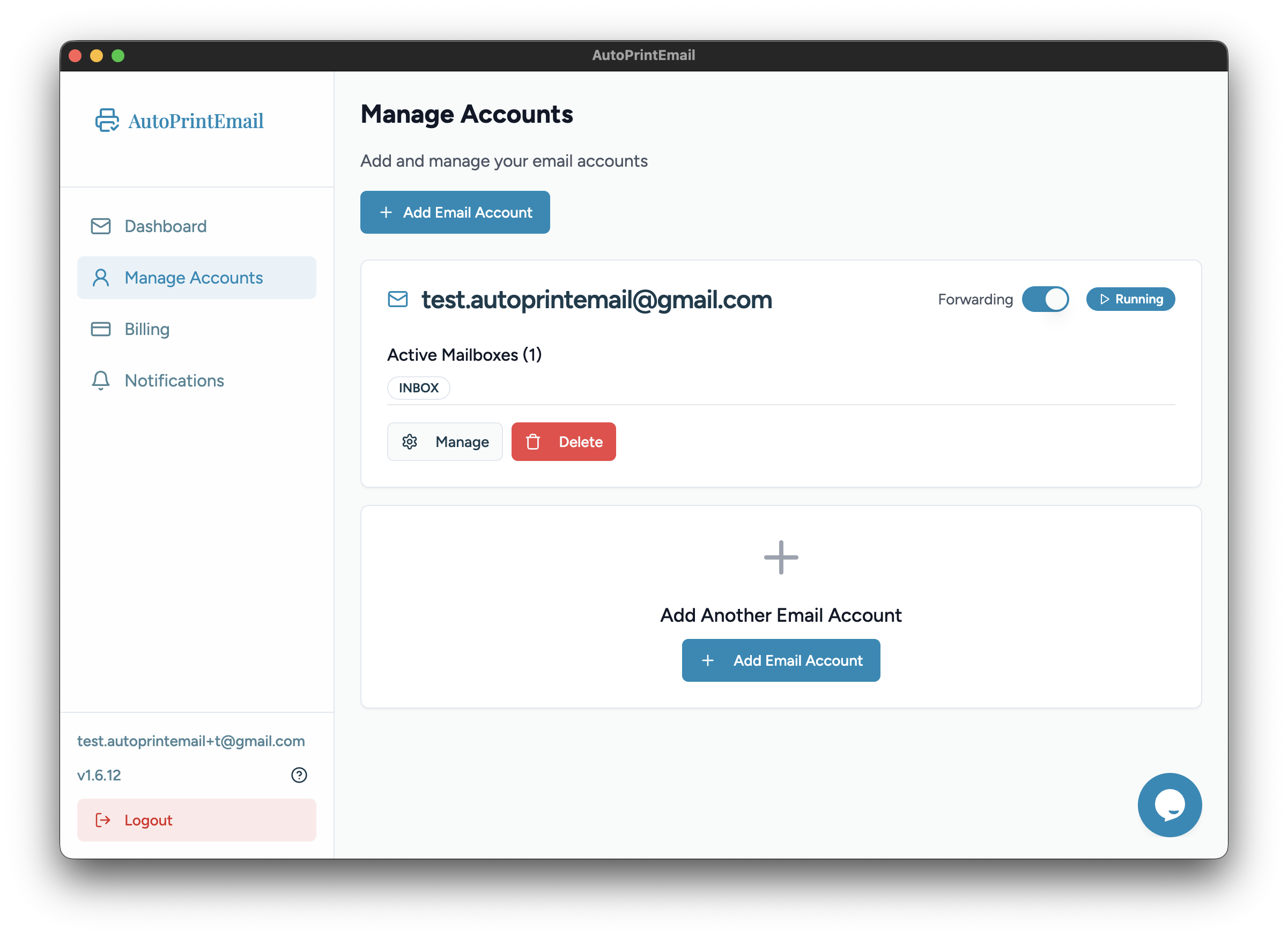
This opens the account settings panel.
Re-authenticate OAuth Accounts (Gmail/Outlook)
If you see an authentication error, you may need to re-connect your account:
- Open account settings
- Click Re-authenticate or Reconnect
- Sign in again with Google or Microsoft
- Grant permissions when prompted
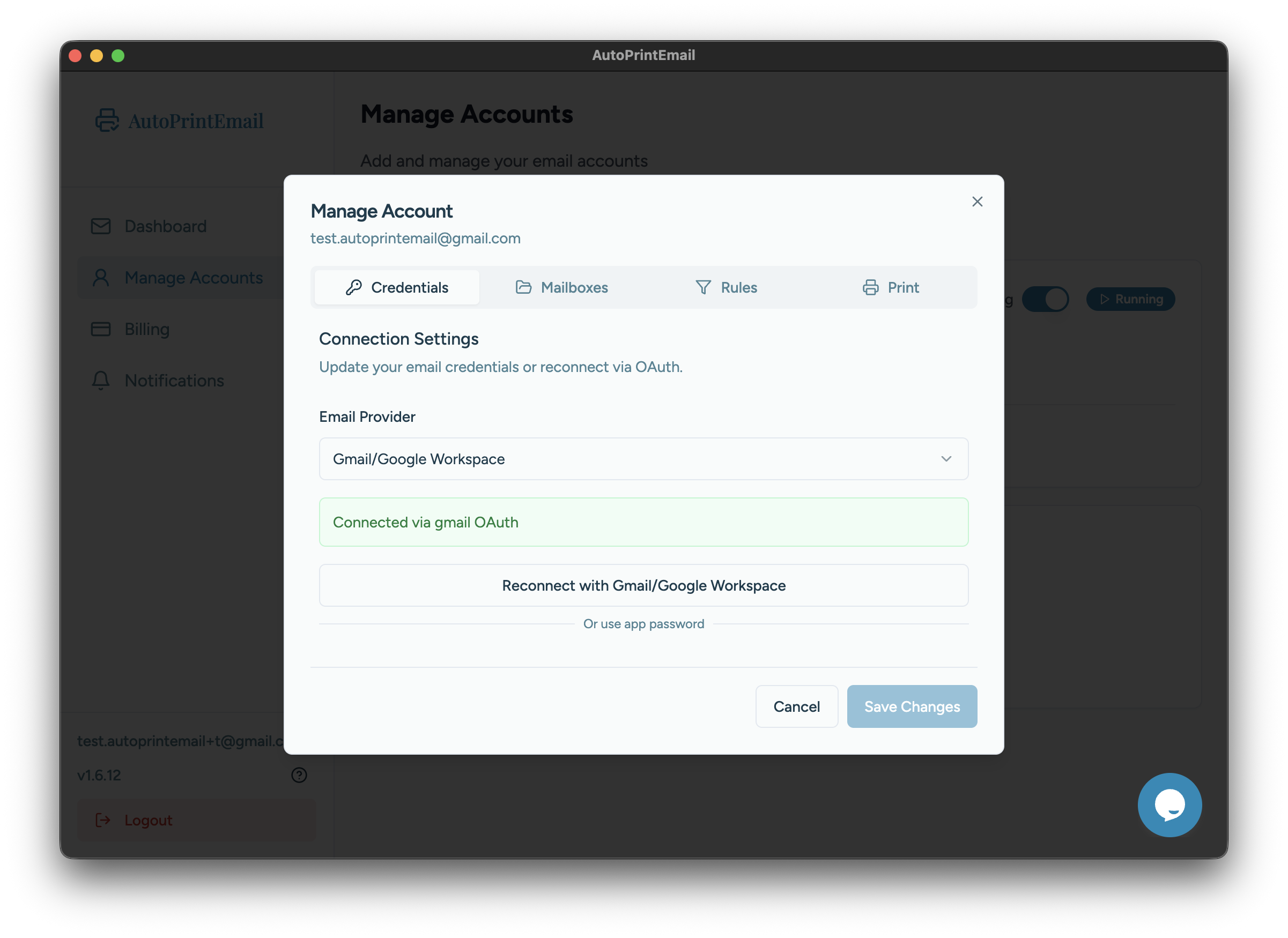
This is sometimes needed after:
- Changing your email password
- Revoking app permissions in your Google/Microsoft account
- Extended periods of inactivity
Update IMAP Credentials
For IMAP accounts, if your password changed:
- Open account settings
- Enter your new password in the Password field
- Click Save
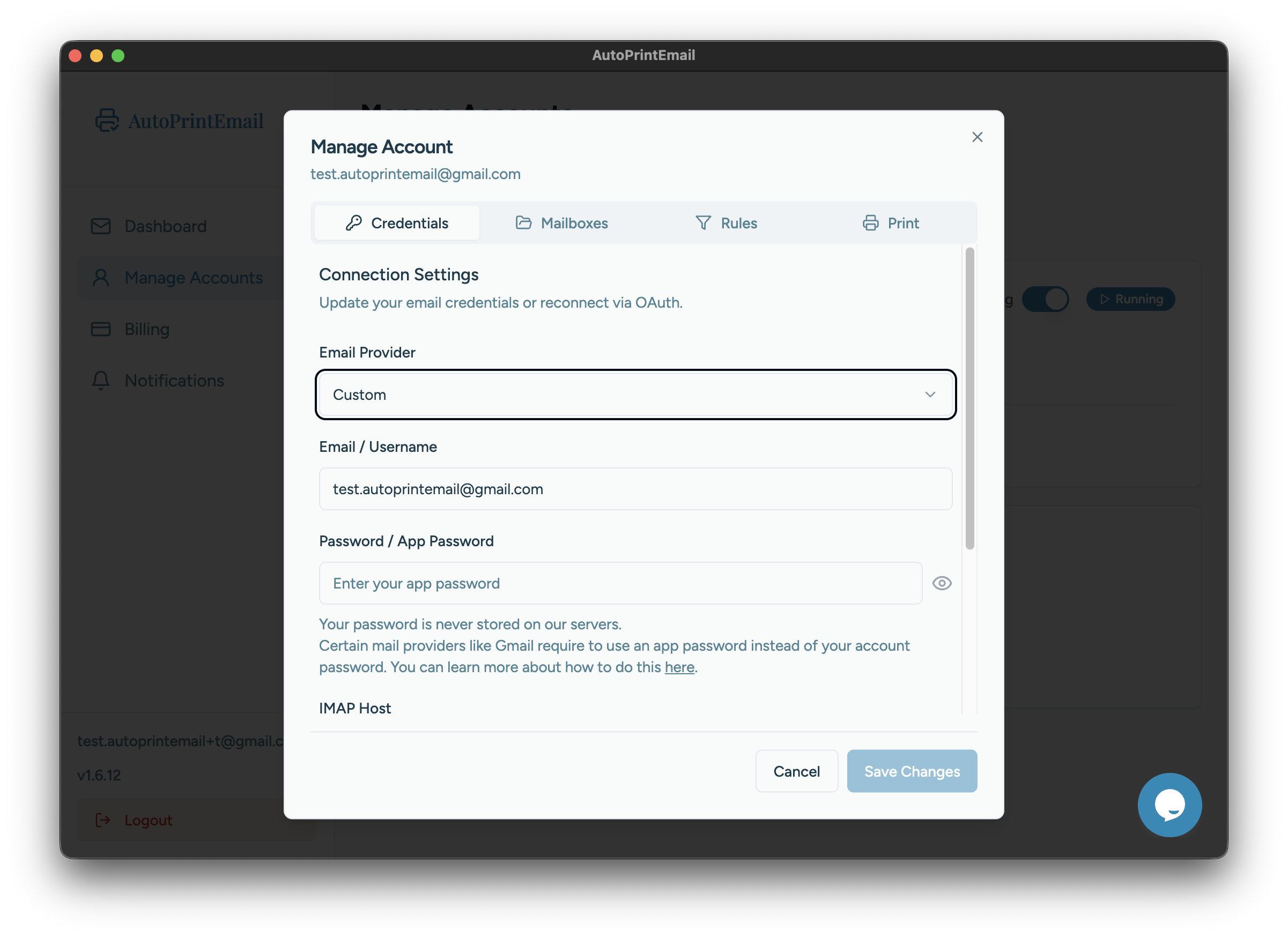
If you're using an app-specific password (required for some providers), generate a new one from your email provider's security settings.
Change Printer
To print to a different printer:
- Open account settings
- Click the Printer dropdown
- Select your new printer
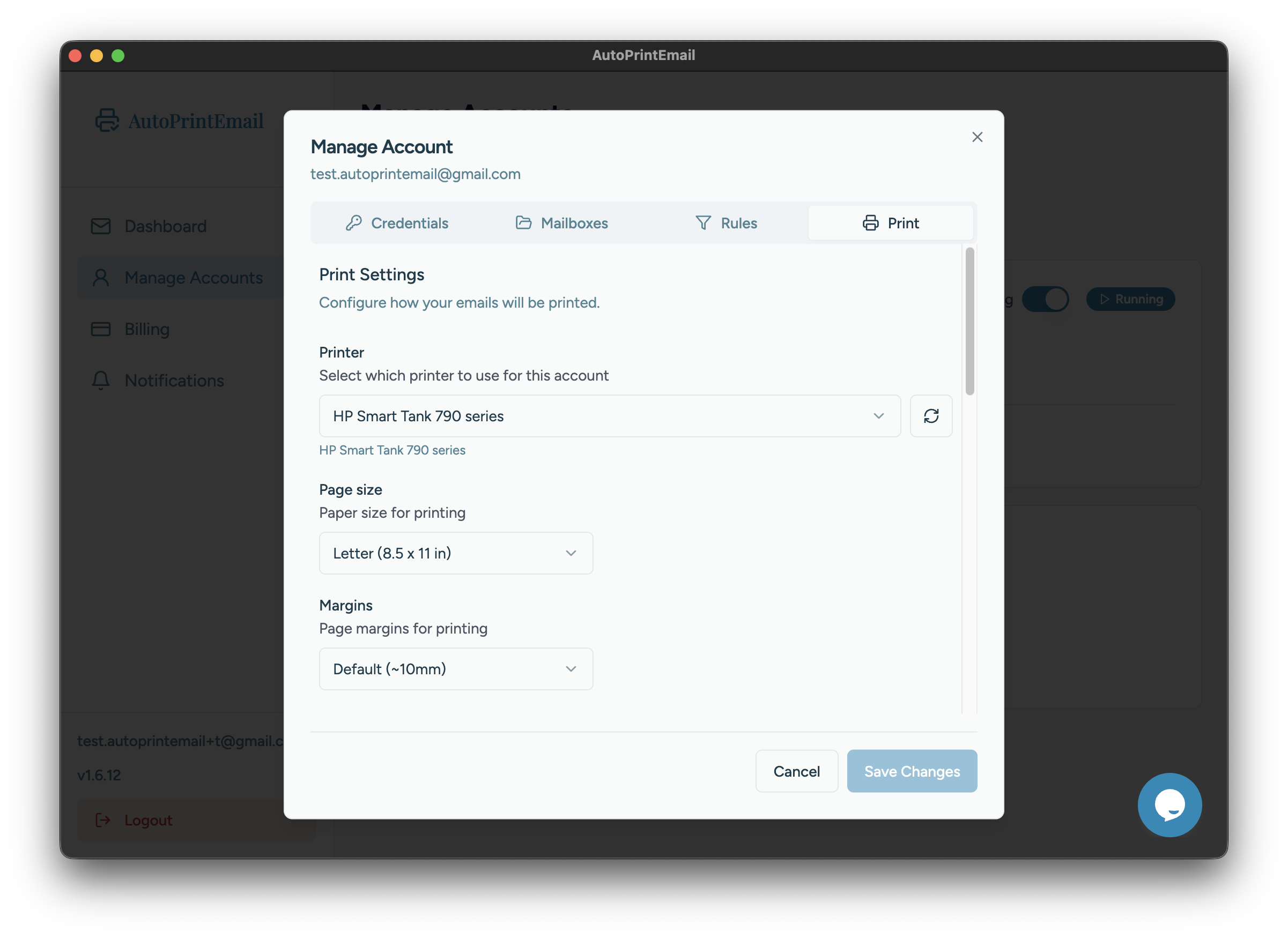
The change takes effect immediately. New emails will print to the selected printer.
Update Print Options
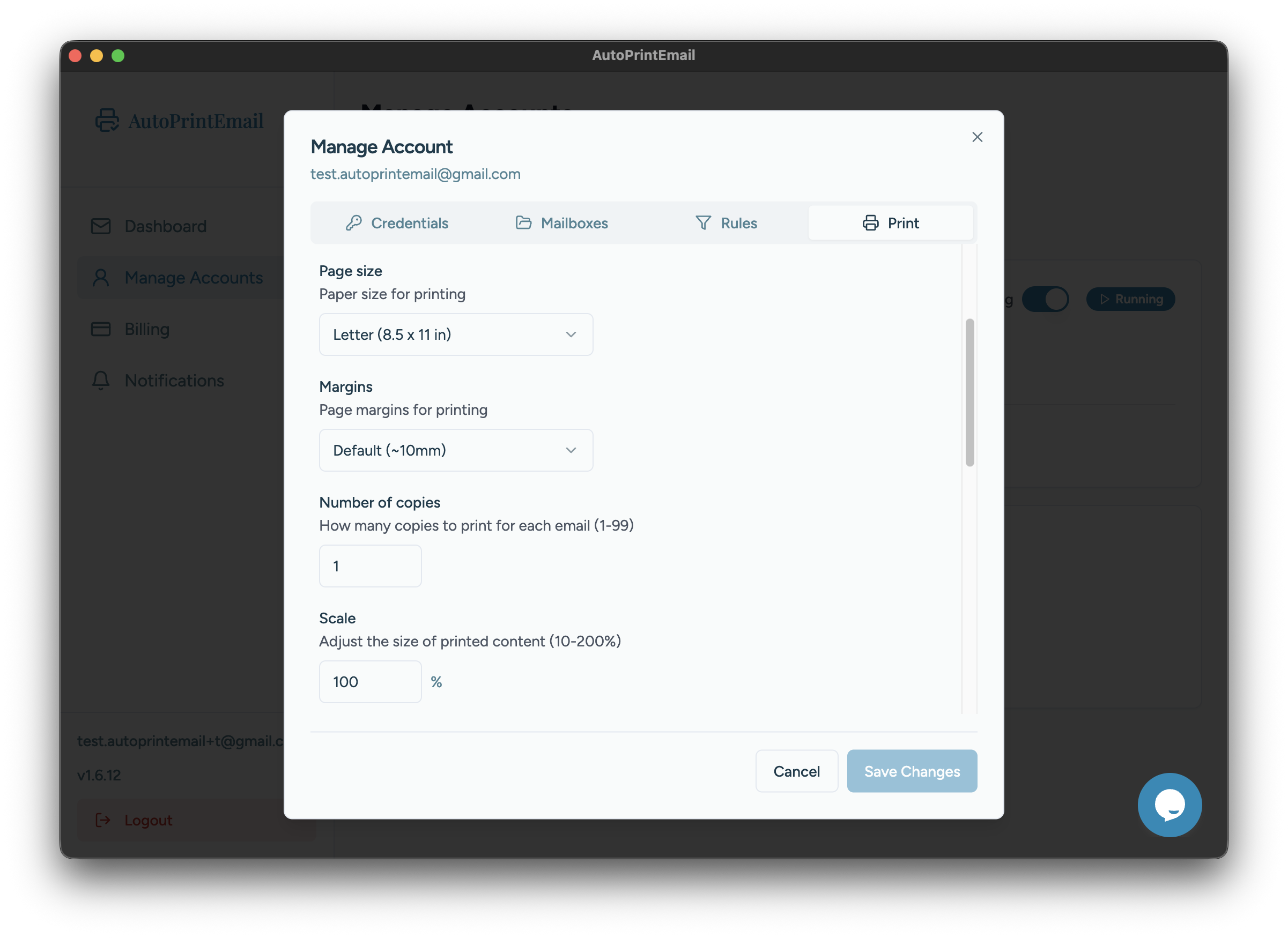
You can adjust these print settings at any time:
- Copies - Print multiple copies of each email
- Double-sided - Enable or disable duplex printing
- Paper size - Switch between Letter, A4, or other sizes
Configure Mailboxes
Change which email folders AutoPrintEmail monitors:
- Open account settings
- Click the Mailboxes tab
- Check or uncheck the folders you want to monitor
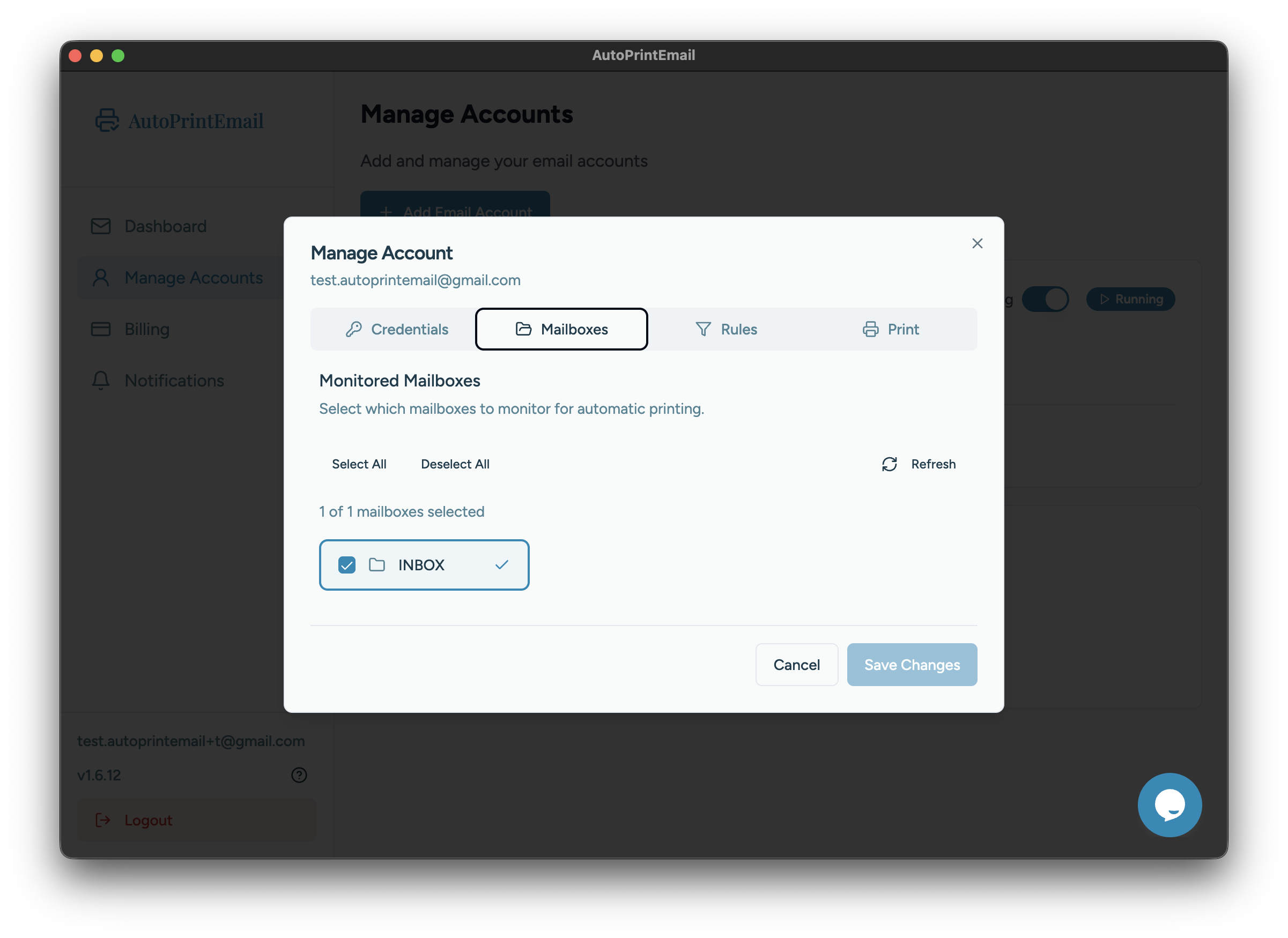
Common mailboxes include:
- Inbox - Your main incoming emails (enabled by default)
- Sent - Print copies of emails you send
- Custom folders/labels - Any folders you've created for organization
Changes take effect immediately. AutoPrintEmail will start or stop monitoring the selected folders right away.
Configure Print Mode
Control which emails get processed based on date and read status:
- Open account settings
- Click the Print tab
- Adjust the filter settings
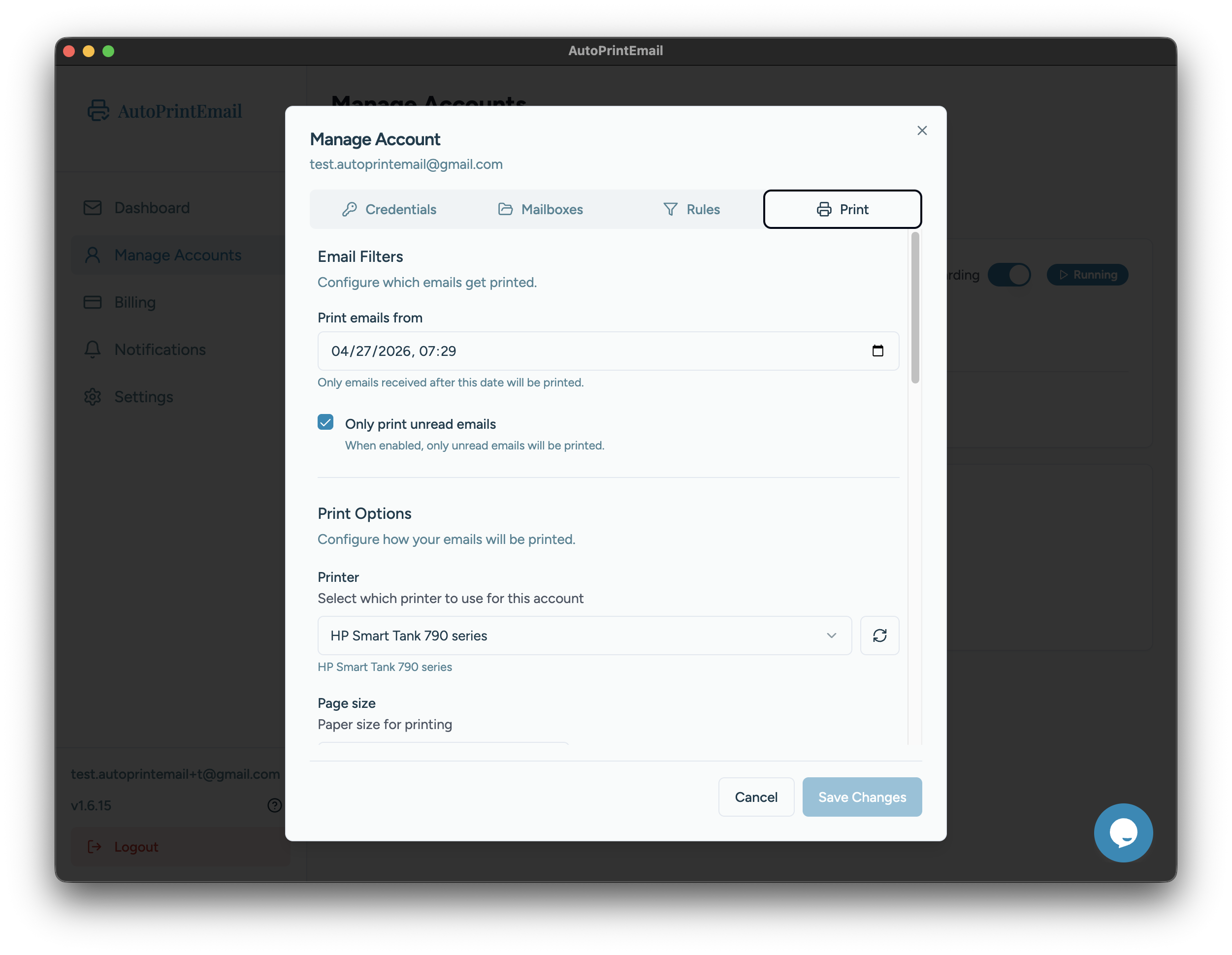
You have two settings:
- Print emails from — Set a start date. Only emails received after this date will be printed. Useful if you want to start fresh without printing old emails.
- Only print unread emails — When enabled, only unread emails will print. Turn this off if you want to print all emails regardless of read status — the app uses local tracking to avoid duplicates.
Configure Filters & Rules
Control exactly which emails get printed using rules to print specific emails. Click Add Rule to create a new rule.
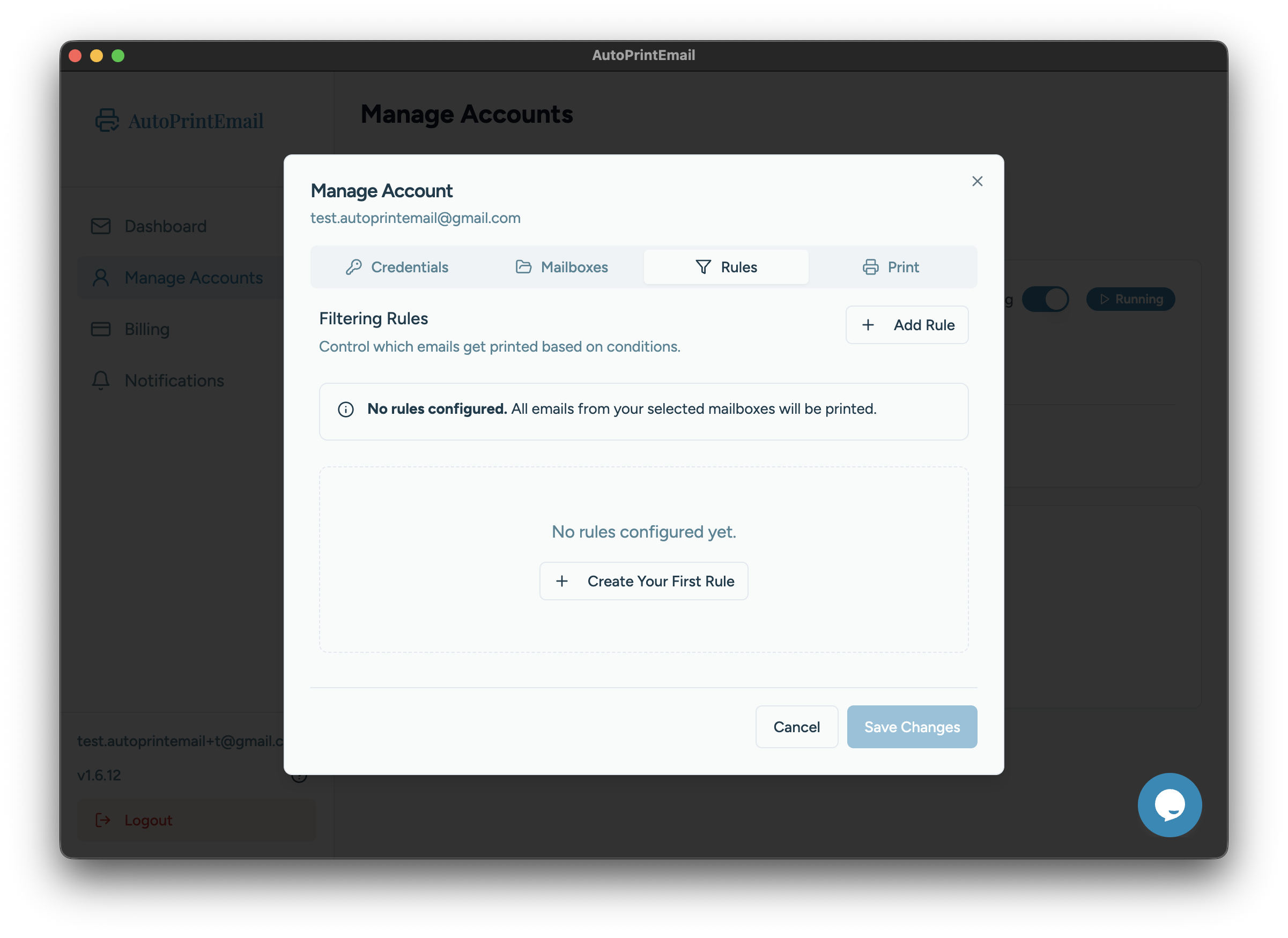
Each rule has the following options:
Rule Name
Give your rule a descriptive name (e.g., "Print invoices" or "Orders from Amazon"). This helps you identify rules later.
Match Mode
Choose how multiple conditions are evaluated:
- Match ANY condition (OR) - Print if at least one condition matches. Use this when you want to catch emails from multiple sources.
- Match ALL conditions (AND) - Print only if every condition matches. Use this for more precise filtering.
Conditions
Add one or more conditions to filter emails:
- Sender contains - Match emails from specific senders (e.g., "invoices@supplier.com" or "@company.com")
- Subject contains - Match emails with specific words in the subject line (e.g., "Invoice" or "Order Confirmation")
Click Add Condition to add multiple conditions to a single rule.
Number of copies (optional)
Override the account's default copy count for emails matching this rule. Leave as "Use account default" to use your standard setting, or enter a specific number if certain emails need more copies (e.g., print 3 copies of shipping labels).
Rule Enabled
Toggle this to enable or disable the rule. Useful for temporarily stopping a rule without deleting it.
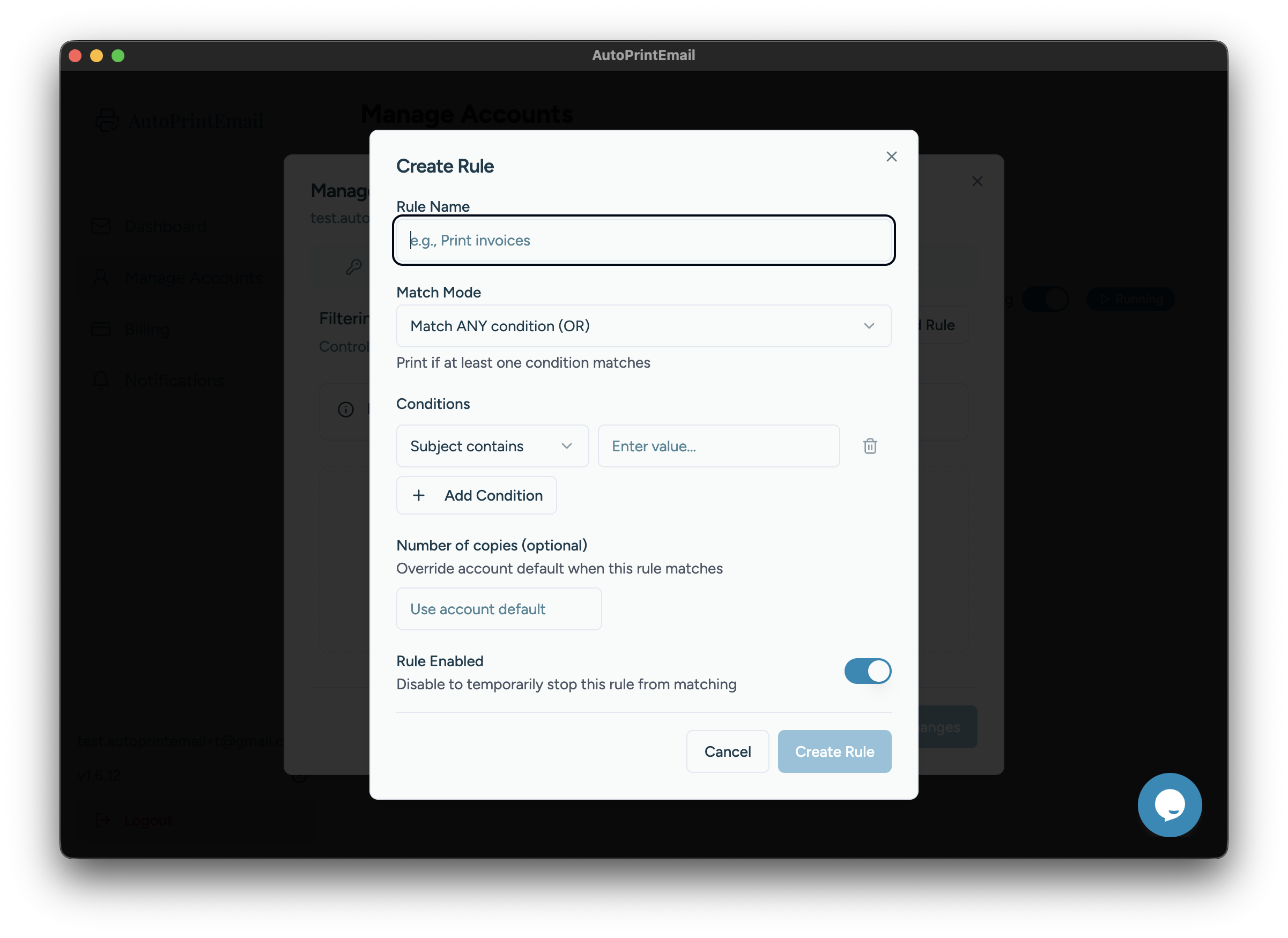
You can create multiple rules. An email will print if it matches any of your enabled rules.
Tip: Start with broader rules and narrow them down if you're getting too many prints.
Pause Monitoring
To temporarily stop printing emails without removing the account:
- Open account settings
- Toggle Monitoring to off
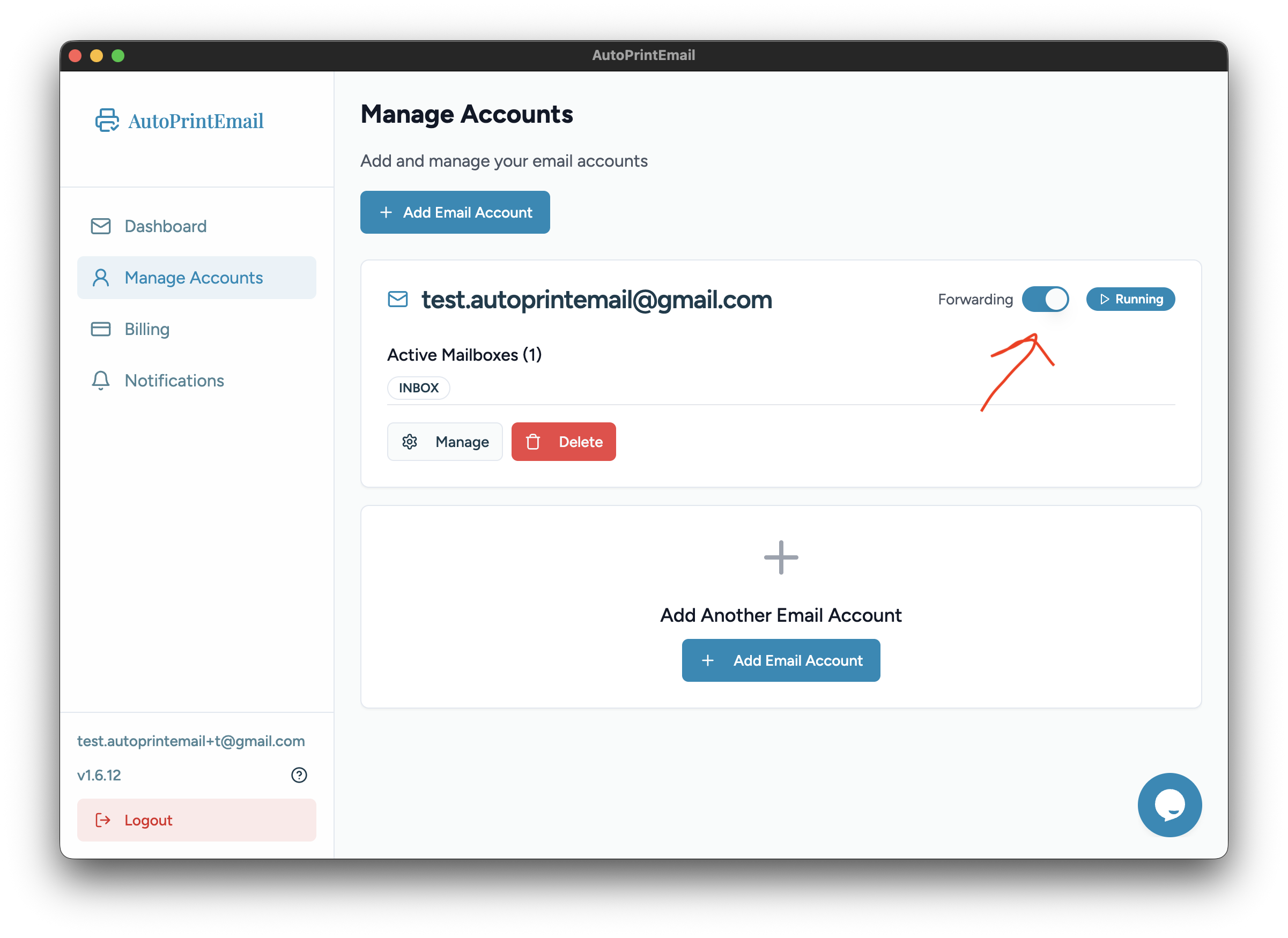
The account stays connected but won't print new emails until you re-enable monitoring.
Remove an Account
To completely remove an email account:
- Click Delete button
- Confirm the removal
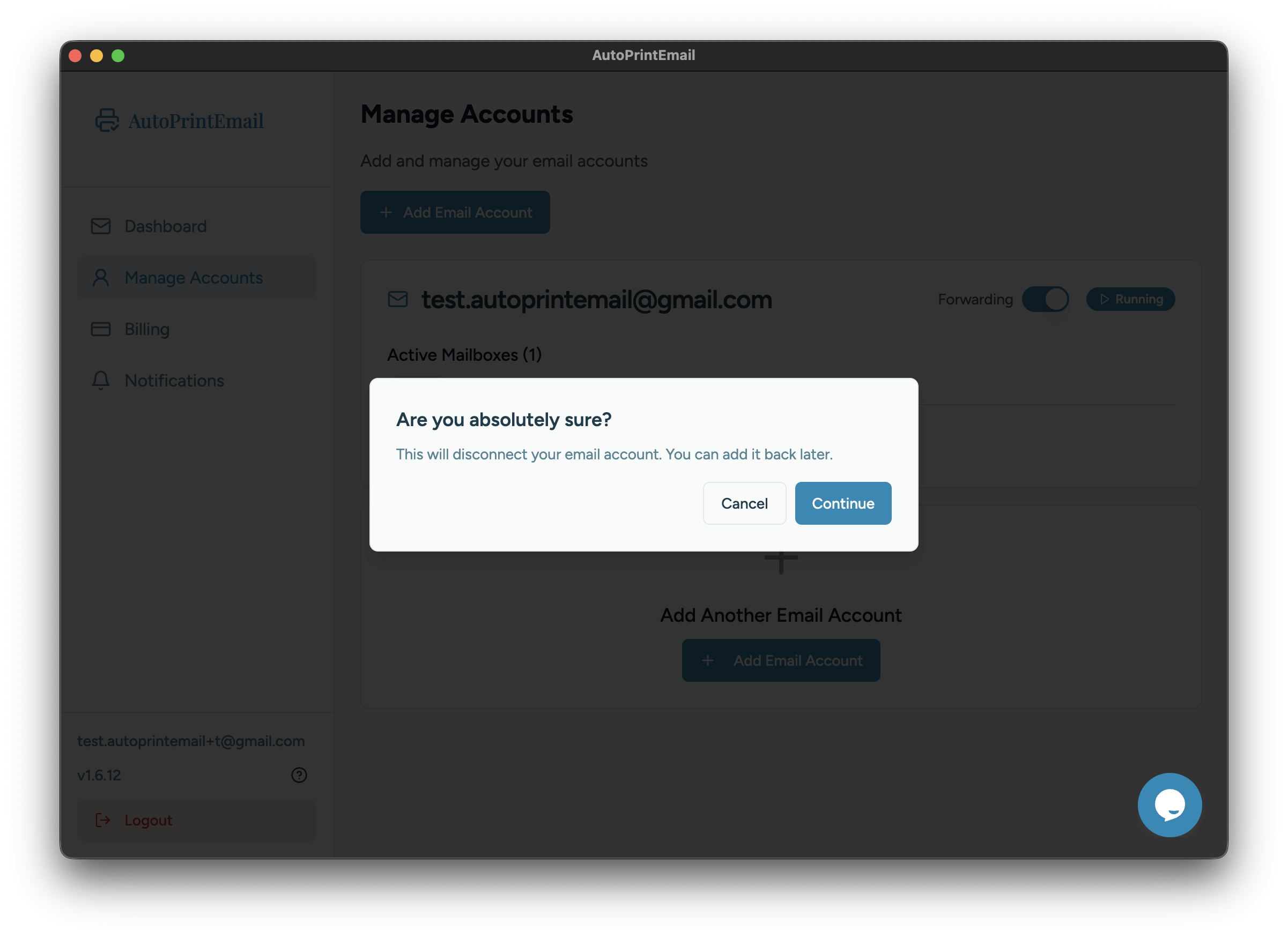
This removes the account from AutoPrintEmail. It does not affect your email account itself - your emails are safe.
Troubleshooting
"Authentication failed" error
- For Gmail/Outlook: Click Re-authenticate and sign in again
- For IMAP: Double-check your password and server settings
Printer not showing in dropdown
- Make sure your printer is turned on and connected
- Try restarting AutoPrintEmail
- Check that your printer appears in your system's printer settings
Changes not saving
- Check your internet connection
- Try closing and reopening the app
- Contact support if the issue persists