AutoPrintEmail
    How It WorksTeamsPricingDownloadHelp
    Sign InGet Started Free
    1. Help
    2. Microsoft 365 Asks for Admin Approval
    On this page
    Why Microsoft Asks for an AdminThe Fix: Your Admin Approves AutoPrintEmail OnceWhat Your Admin Is ApprovingStill Stuck?
    Troubleshooting

    Microsoft 365 Asks for Admin Approval

    4 min read

    You click Sign in with Outlook, pick your work account, and Microsoft stops you with "Need admin approval". No mailbox, no printing.

    Nothing is broken. Your company's Microsoft 365 only lets apps in once an admin has said yes. It takes your admin about a minute, and they only do it once for the whole company.


    Table of Contents

    • Why Microsoft Asks for an Admin
    • The Fix: Your Admin Approves AutoPrintEmail Once
    • What Your Admin Is Approving
    • Still Stuck?

    Why Microsoft Asks for an Admin

    Most Microsoft 365 companies block new apps from reading work mailboxes until an admin approves them. It is a sensible default: it stops random apps from reaching company mail.

    So when AutoPrintEmail asks to read your mailbox, Microsoft sends the request to your admin instead of letting you approve it yourself.
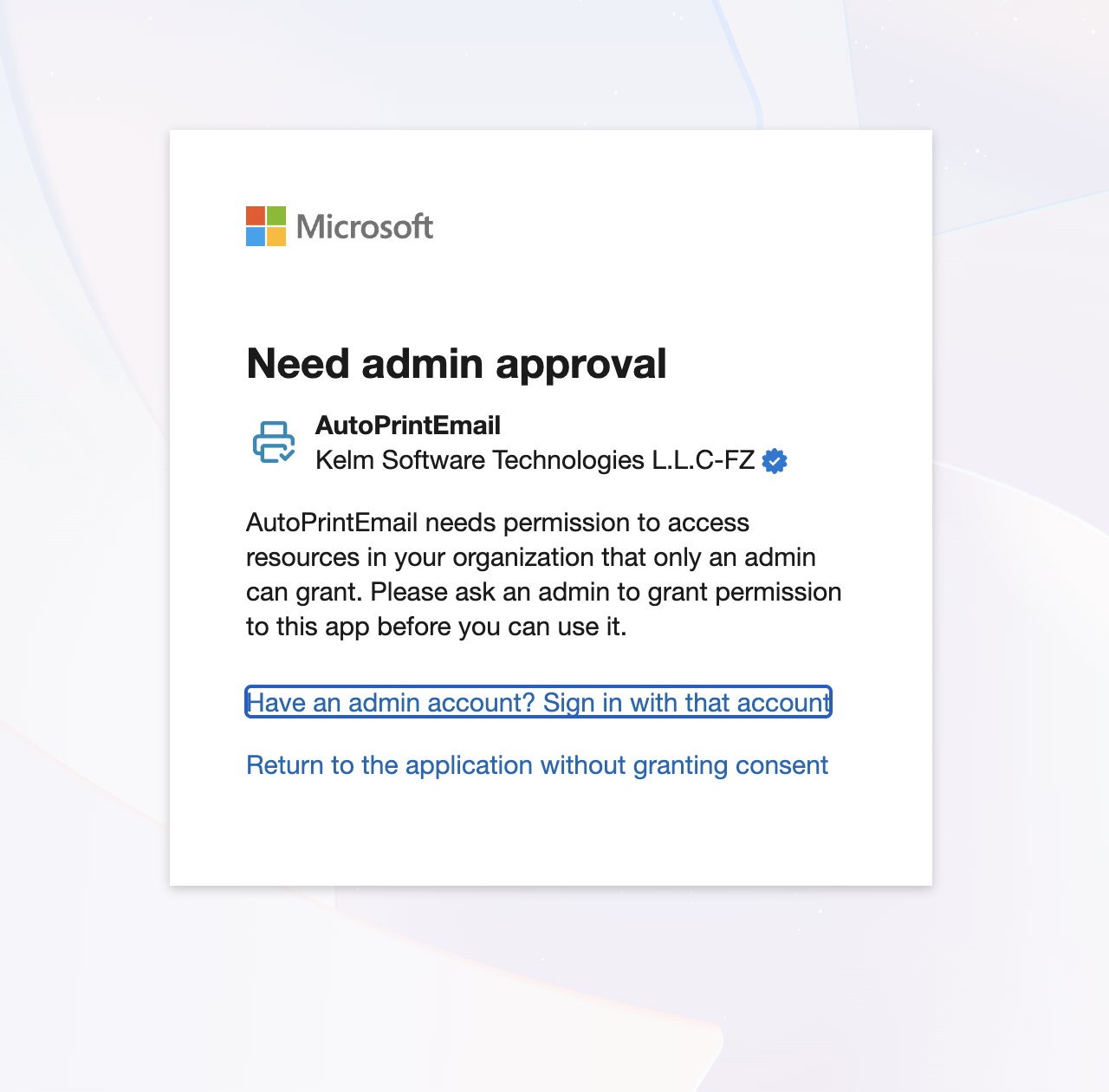
    Microsoft sign-in showing Need admin approval for AutoPrintEmail

    Use the approval link below, not "Have an admin account?". That button looks like a shortcut, but after the admin approves, AutoPrintEmail connects the admin's mailbox instead of yours. Click Return to the application without granting consent and follow the steps below. The approval link approves the app without connecting any mailbox, so you can then sign in with the mailbox you actually want printed.

    (If you already went through "Have an admin account?" and the wrong mailbox got connected: delete it under Manage Connections, then click Sign in with Outlook again with the right account.)

    The Fix: Your Admin Approves AutoPrintEmail Once

    1. Get the approval link. In AutoPrintEmail's connect step, choose Outlook/Microsoft 365. Above the sign-in button there is a note for work accounts with an Approval link for your admin (older versions of the app call it Office Portal).
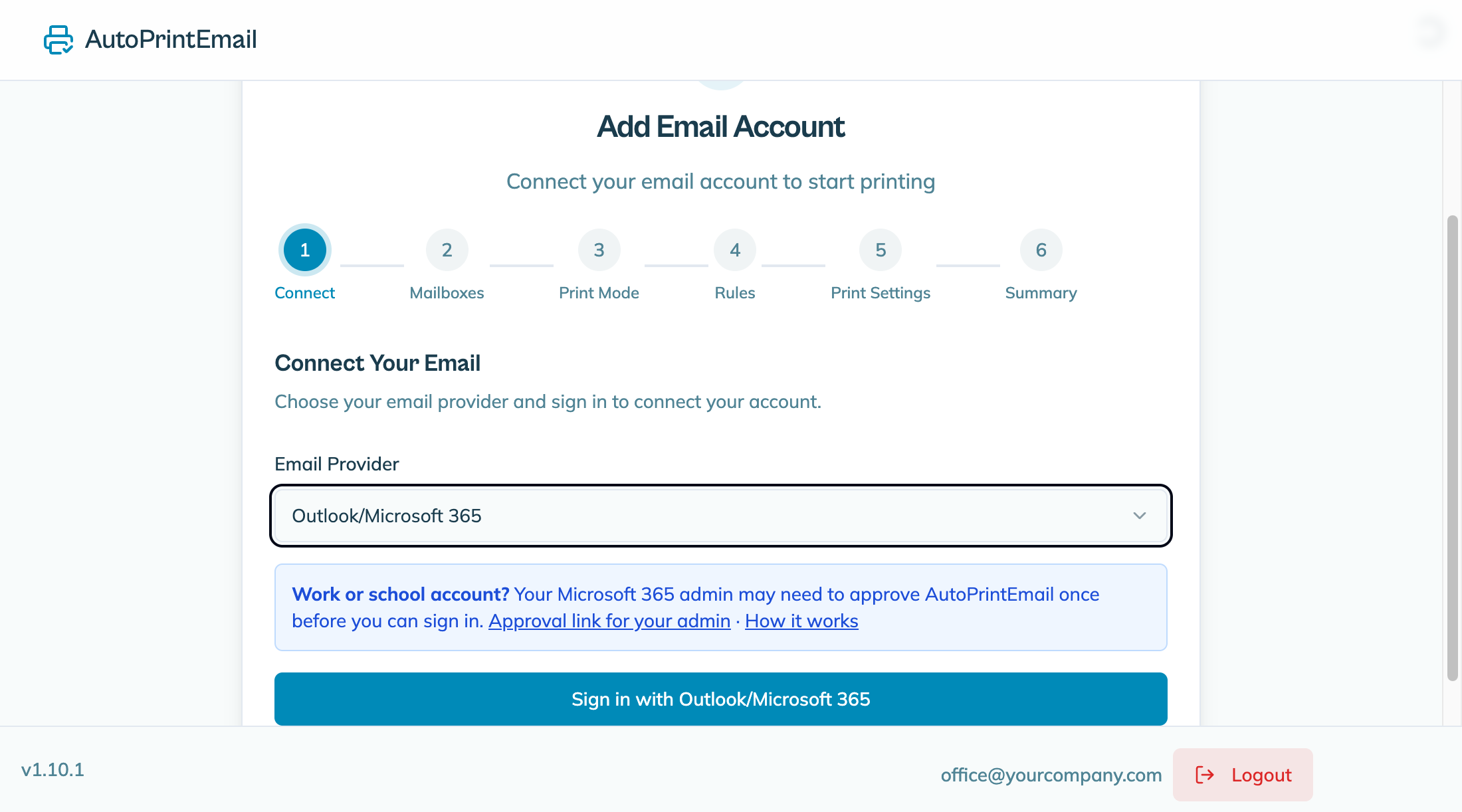
    AutoPrintEmail connect step with the approval link for your admin on work accounts

    You can also send your admin the link directly:

    https://login.microsoftonline.com/common/adminconsent?client_id=215d7b5d-fc19-4358-8e0b-822aa6ec48dd

    2. Your admin opens it and clicks Accept. They sign in with a Microsoft 365 admin account (Global Administrator or Cloud Application Administrator). Microsoft shows AutoPrintEmail and the permissions it asks for.

    If there is a Consent on behalf of your organization box, tick it before clicking Accept. Without the tick, Microsoft only approves the admin's own account, and everyone else still sees "Need admin approval". They can close the tab afterwards.
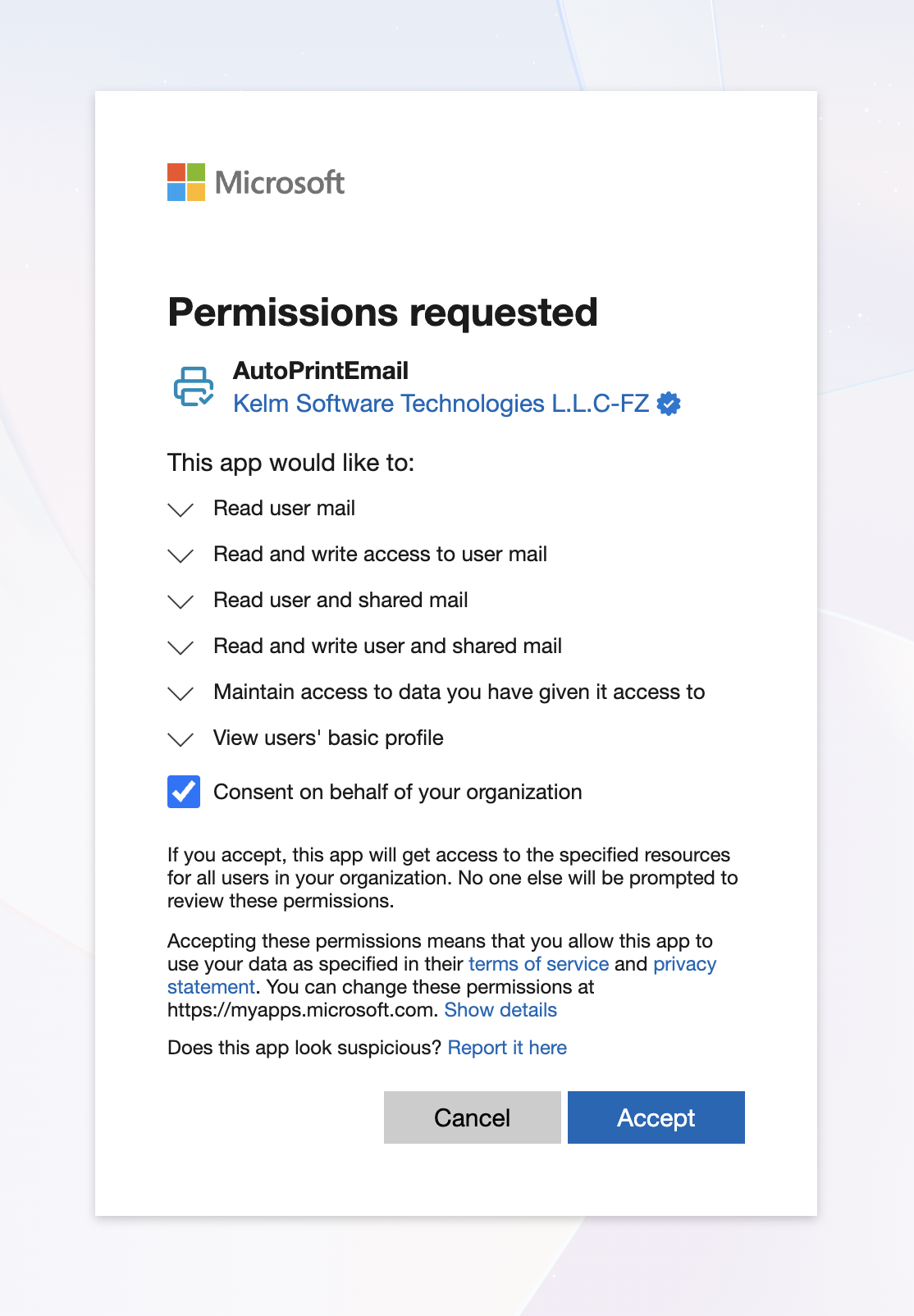
    Microsoft permissions requested screen with Consent on behalf of your organization ticked, then Accept

    3. Connect again. Back in AutoPrintEmail, click Sign in with Outlook once more. This time Microsoft lets you straight through and you carry on with the setup.

    Approval covers the whole company, so colleagues connecting their own mailboxes later won't hit the screen again.

    What Your Admin Is Approving

    AutoPrintEmail asks for exactly what it needs to print your mail:

    • Read mail in the mailboxes you connect, so it can print new emails and attachments
    • Mark mail as read, if you turn on the option to mark emails as read after printing
    • Shared mailboxes, only if you choose to watch one
    • Stay signed in ("maintain access to data"), so printing keeps running without you signing in every hour
    • View your basic profile, so the app can show which mailbox is connected

    The desktop app on your computer fetches and prints the mail. Your email content never passes through our servers.

    Still Stuck?

    If the approval link shows an error, or your admin approved and you still see the screen, contact support with a screenshot of what Microsoft shows. We'll sort it with you.

    AutoPrintEmail

    The desktop app that sends emails directly to your printer. Reduce screen time without missing important communications.

    Quick Links

    • Automated Email Printing Guide
    • Benefits
    • How It Works
    • For Teams
    • Testimonials
    • Reviews on Trustpilot
    • FAQ
    • Privacy Policy
    • Terms of Service
    • Blog
    • About

    Download

    Get started with AutoPrintEmail today and receive a 3-day free trial.

    Get Started Free

    Email Printing

    • Automatically Print Email Attachments (PDF, Word, Excel)
    • Auto-Print Email Invoices & Receipts | Automatic Business Printing
    • Auto-Print Gmail Emails (2026 Guide) | Automatic Gmail Printing
    • Auto-Print Outlook & Office 365 Emails: No Plugin, 24/7
    • Automatic Email Manager Alternative: Just the Printing, Please
    • Email Printing Automation for Business Operations | Secure & Reliable
    • Click-and-Collect for Small Shops: The Complete Weekend Recipe
    • Email to Print Software: Auto-Print Emails & Attachments to Any Printer
    • MAPILab Print Tools Alternative: Print Email Without Babysitting Outlook
    • PaperCut Email to Print Alternative: Email Printing Without the IT Department
    • PrintNode Alternative: Auto-Print Emails Without APIs or Zapier
    • Sperry Software Auto Print Alternative: Retire the Fragile Outlook Add-In

    Compare

    • AutoPrintEmail vs Automatic Email Manager - Simple Wins
    • AutoPrintEmail vs AutoPrintOrder - Why Limit Yourself?
    • AutoPrintEmail vs Black Ice Software - Business Owner vs Developer Tool
    • AutoPrintEmail vs FolderMill - Small Business vs Enterprise
    • AutoPrintEmail vs Fyxer AI - Automation vs Monthly Subscriptions
    • AutoPrintEmail vs ItJustPrints - Desktop or Mobile Print Station?
    • AutoPrintEmail vs MAPILab Print Tools - The Add-In Killer
    • AutoPrintEmail vs PrintNode - No-Code vs Developer Tool
    • AutoPrintEmail vs Sperry Software Auto Print - Standalone App vs Outlook Add-In

    Integrations

    • Auto-Print Gmail Attachments & Emails - Set It and Forget It
    • Auto-Print Outlook Emails Without a Plugin | Standalone Desktop App
    • Auto-Print Office 365 Emails: No Plugin Required
    • Auto-print Shopify inventory transfers, orders, and labels
    • Auto-Print Etsy Orders & Packing Slips - Handmade Seller Automation
    • Auto-Print IMAP/POP3 Emails - Works with Any Email Provider
    • Auto-Print Square Orders - Kitchen Tickets & Receipts
    • Auto-Print Toast POS Orders - Kitchen Ticket Printing
    • Auto-Print ShipStation Orders - Packing Slips & Shipping Labels

    Solutions

    • Email to Print - Auto-Print Emails to Any Printer
    • Auto-Print Invoices from Email: AP & AR Automation
    • Stop Manually Printing E-commerce Invoices - Automate in 2 Minutes
    • Restaurant Order Printing Automation - Auto-Print Delivery Orders
    • Legal & Real Estate Document Printing Automation
    • Logistics Waybill & Shipping Label Automation
    • Healthcare Document Printing Automation - HIPAA-Compliant Local Processing
    • Pharmacy Email Printing Software - Auto-Print Wholesaler Invoices, PBM Notices, and Compliance Docs
    • Accounting Firm Document Automation - Auto-Print Tax Docs & Client Files
    • Auto Shop Document Automation - Print Work Orders & Estimates Automatically
    • Insurance Agency Document Automation - Auto-Print Policies, COIs & Claims
    • Auto-Print Faxes From Email, Without a Fax Machine

    © 2026 AutoPrintEmail. All rights reserved.

    Privacy PolicyTerms of ServiceSecurity