Why Emails Read on Phone Don't Print
A common question we get: "I received an email but it didn't print. What happened?"
Nine times out of ten, someone opened it on their phone first. AutoPrintEmail saw an email that was already read and left it alone.
That used to be the end of the story. Now there's a setting for it.
Table of Contents
- How AutoPrintEmail Decides What to Print
- The Phone Problem
- The Fix: Turn Off "Only Print Unread Emails"
- When to Keep It On
- Other Ways to Handle It
- Summary
How AutoPrintEmail Decides What to Print
Each email account has two filters under Email Filters in its Print settings:
- Print emails from - only emails received after this date and time are considered.
- Only print unread emails - when ticked, emails that are already read are skipped. It's on by default.
Every few seconds AutoPrintEmail checks your inbox (instantly on IMAP, every 10 seconds on Gmail and Outlook), picks the emails that pass both filters and your rules, and prints them. After printing, it marks the email as read and records it locally so it never prints the same email twice.
The Phone Problem
Here's where things go wrong. If you:
- Receive an email on your phone
- Open it on your phone
- AutoPrintEmail checks your inbox
The email is already marked as "read", so with the default setting AutoPrintEmail skips it.
Read/unread status syncs across all your devices. Open an email on your phone and Gmail, Outlook or your IMAP server marks it as read everywhere, including for AutoPrintEmail.
The Fix: Turn Off "Only Print Unread Emails"
If you want emails to print whether or not someone has read them:
- Click Manage Connections in the sidebar, then Manage on the account
- Open the Print tab
- Under Email Filters, untick Only print unread emails
- Click Save Changes
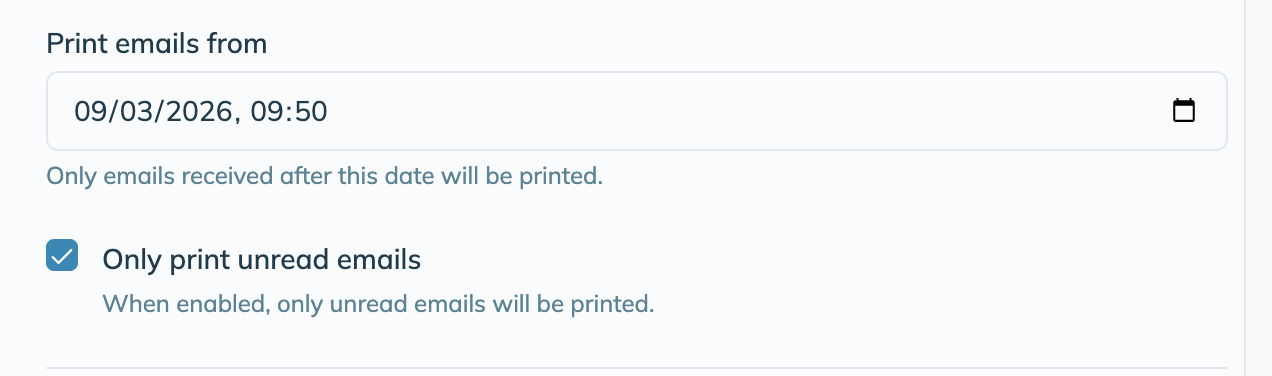
From the next check onwards, every email received after the Print emails from date prints, read or not. Reading on your phone no longer matters.
Two things to know:
- No duplicates. AutoPrintEmail keeps a local record of every email it has printed, so an email prints once no matter how many times the inbox is checked.
- Watch the date. With the unread filter off, everything after the Print emails from date is fair game. If you push that date back a long way, you'll queue a lot of paper. The app warns you when the date is more than 90 days old.
When to Keep It On
The default is right for some setups:
- Shared inboxes where reading means "handled". If someone opens an email to deal with it, you probably don't want it printing behind them.
- You only want emails nobody has looked at. The unread flag becomes your "still needs printing" marker.
If that's you, leave it ticked and use the options below.
Other Ways to Handle It
Use filters to target specific senders
Set up rules so AutoPrintEmail only prints emails from certain senders or with certain subjects. Read everything else on your phone without worrying about missing a print.
Mark the email as unread
With Only print unread emails still on, this rescues an email that was read before AutoPrintEmail got to it, so it never printed:
- Open your email client (Gmail, Outlook, etc.)
- Find the email and mark it as unread
- Wait for AutoPrintEmail's next check
It prints on the next cycle.
This only works for emails that have not printed yet. Once an email has printed, the local record stops it printing again whatever you do to the read flag. To get a second copy, find the email under Recent Prints on the dashboard and click Reprint.
Summary
By default AutoPrintEmail prints unread emails only, so opening an email on your phone before the app sees it stops it printing. To print everything regardless of read status, untick Only print unread emails in the account's Print tab and save. Duplicates are prevented either way.