Auto-Print Yahoo Mail Emails: Setup in 5 Minutes
Yahoo Mail still works fine for inbound business email — invoices, contracts, statements, notifications. The trouble is printing them: Yahoo doesn't have an "auto-print" setting, and Yahoo accounts can't connect to most desktop auto-print tools because Yahoo killed regular IMAP password access in 2022.
Here's the setup that works in 2026, end to end.
Table of Contents
- Why Yahoo Mail Is a Special Case
- Step 1: Generate a Yahoo App Password
- Step 2: Install AutoPrintEmail
- Step 3: Connect Your Yahoo Account
- Step 4: Set a Filter Rule and Pick Your Printer
- Step 5: Test
- What Yahoo Mail Auto-Print Looks Like in Practice
- Common Gotchas
- Pricing
- What If You Migrate Off Yahoo Later?
- TL;DR
Why Yahoo Mail Is a Special Case
Yahoo (along with AOL, since they share infrastructure) requires "app passwords" instead of your normal Yahoo password for any third-party app that connects via IMAP. This is a one-time hop you make once you turn on the right setting in Yahoo's account security panel.
Once the app password is generated, Yahoo behaves like any other IMAP provider — slightly slower polling than Gmail, but reliable.
Step 1: Generate a Yahoo App Password
- Sign into Yahoo Mail.
- Click your profile in the top-right → Account info.
- Click Account security in the left sidebar.
- Click Generate and manage app passwords.
- Click Get started (or Add app password if you've made one before).
- Type a label like
AutoPrintEmailso you remember what it's for. - Click Generate password.
- Copy the 16-character password Yahoo shows you. You won't see it again.
If you don't see this option, Yahoo wants two-step verification on first. Turn that on under Account security → Two-step verification, then come back.
Step 2: Install AutoPrintEmail
Download for Windows, Mac, or Linux. Free 3-day trial, no credit card.
Open the app. Sign in with any work email (doesn't have to be the Yahoo address — this is your AutoPrintEmail account, separate from the email you're connecting).
Step 3: Connect Your Yahoo Account
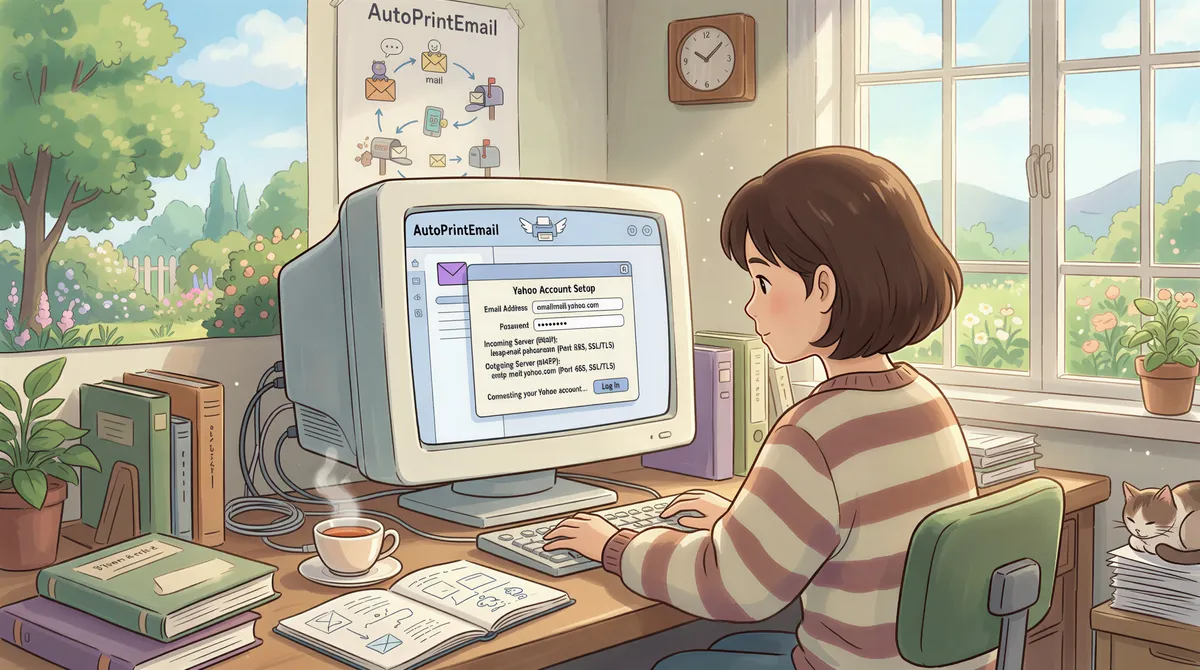
In the app: Add Account → IMAP / POP3.
Yahoo's IMAP settings:
- Host:
imap.mail.yahoo.com - Port:
993 - Encryption: SSL/TLS
- Username: your full Yahoo email (
yourname@yahoo.com) - Password: the 16-character app password from Step 1 (NOT your normal Yahoo password)
Click Connect. AutoPrintEmail logs in, lists your folders, and asks which to monitor. Pick Inbox for most setups, or a specific Yahoo label if you want narrower scope.
Step 4: Set a Filter Rule and Pick Your Printer
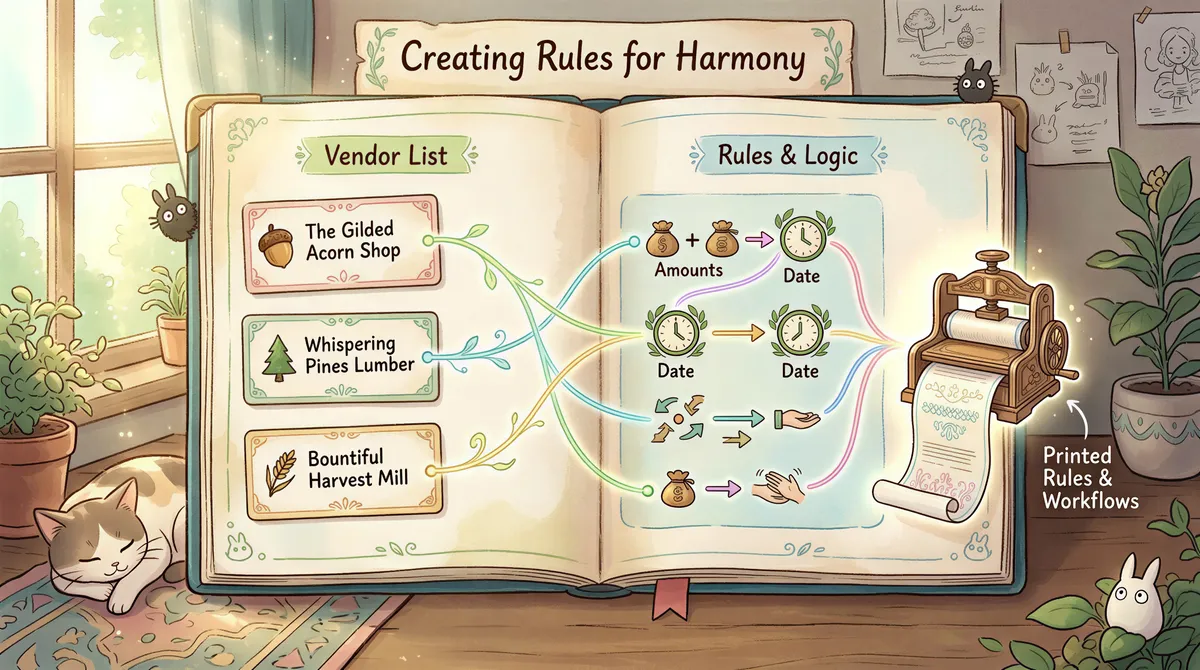
This is what stops the app from printing every email.
For invoices arriving at your Yahoo inbox:
- From contains:
quickbooks/freshbooks/ your accounting tool's domain - Has attachment: yes
- Action: Print attachment to [your printer]
For shipping confirmations from Etsy/Shopify:
- From contains:
etsy.comorshopify.com - Has attachment: yes
- Action: Print attachment
For everything from a specific sender (e.g., your accountant always sends important docs):
- From equals:
your.accountant@cpafirm.com - Action: Print attachment + print body
The full filter syntax is in the app's Help menu — it's straightforward.
Step 5: Test
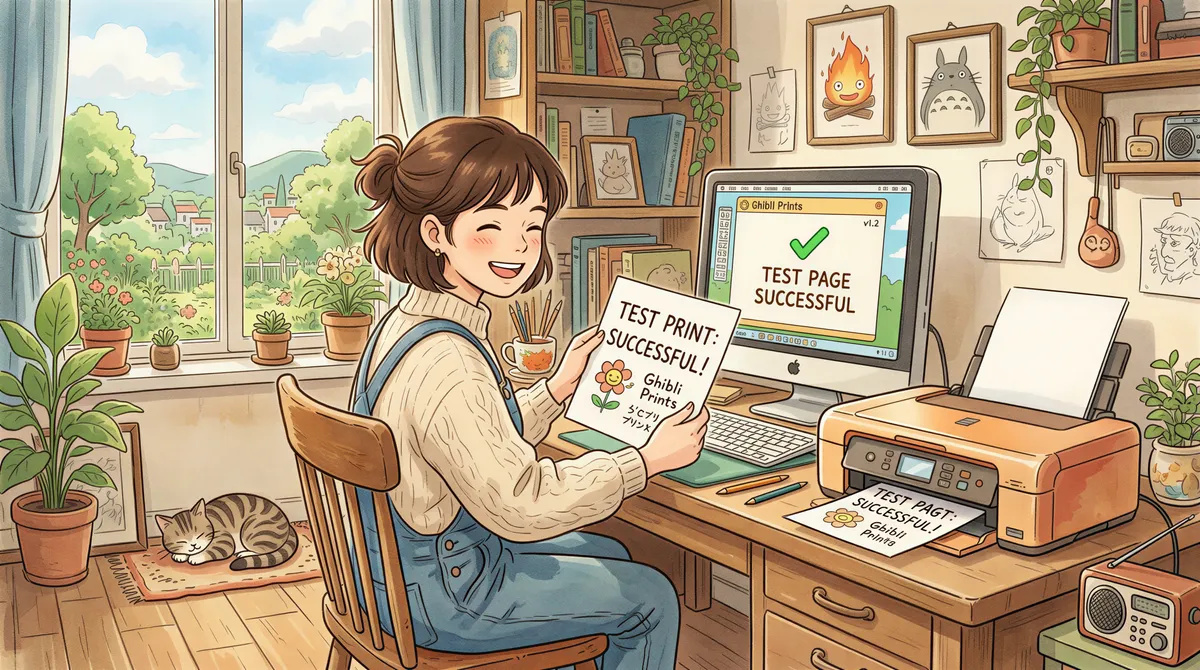
Send yourself a test email matching your filter, with an attachment. Within a minute, your printer should hum.
If it doesn't:
- Check the dashboard log. Every email the app sees is logged with what it did (printed, skipped, failed). Look for the test email there.
- Verify the app password is correct. Yahoo passwords are case-sensitive and easy to mistype.
- Make sure the printer is online. Sounds dumb but it's usually it.
What Yahoo Mail Auto-Print Looks Like in Practice
Run AutoPrintEmail in the background (system tray on Windows, menubar on Mac). It polls Yahoo every 60 seconds and prints anything new that matches your rules. Close the dashboard window — the app keeps running.
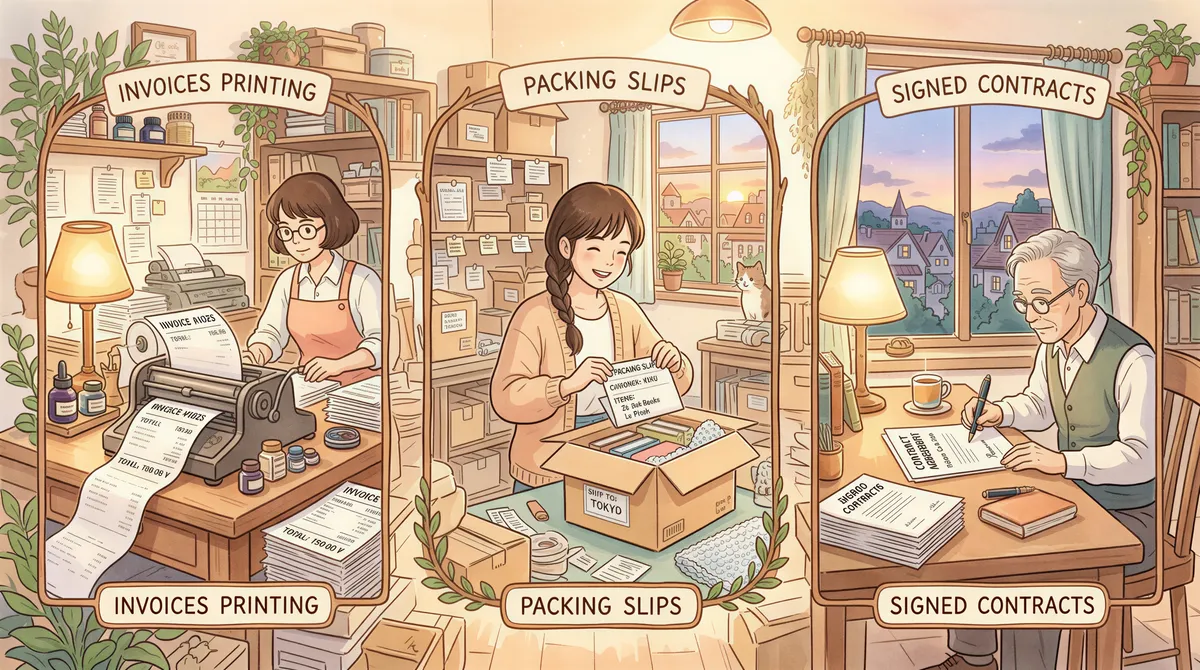
Common workflows readers set up on Yahoo:
- Vendor bills routed to a Yahoo billing alias. Auto-print → bookkeeper's desk.
- Etsy shop owners receiving order confirmations. Auto-print packing slip → warehouse printer.
- Real-estate agents receiving signed contracts. Auto-print → agent's filing tray.
Common Gotchas
Yahoo's IMAP rate limits
Yahoo throttles IMAP if you poll too fast. AutoPrintEmail's default 60-second poll is well within limits. Don't try to make it faster — Yahoo will start rejecting connections.
Spam folder doesn't auto-print
By default, AutoPrintEmail doesn't watch the Spam folder. Yahoo's spam filtering is decent; you'd flood your printer otherwise.
App password rotation
If you change your Yahoo password, your app passwords stay valid (that's the whole point of app passwords). But if Yahoo flags suspicious activity, it can revoke all app passwords at once. If the app stops connecting, generate a new app password and update it in AutoPrintEmail.
Multiple Yahoo accounts
You can connect more than one. Add each as a separate account in AutoPrintEmail; rules are per-account, so the bookkeeper's Yahoo and the warehouse Yahoo can have different filters and different printers.

Pricing
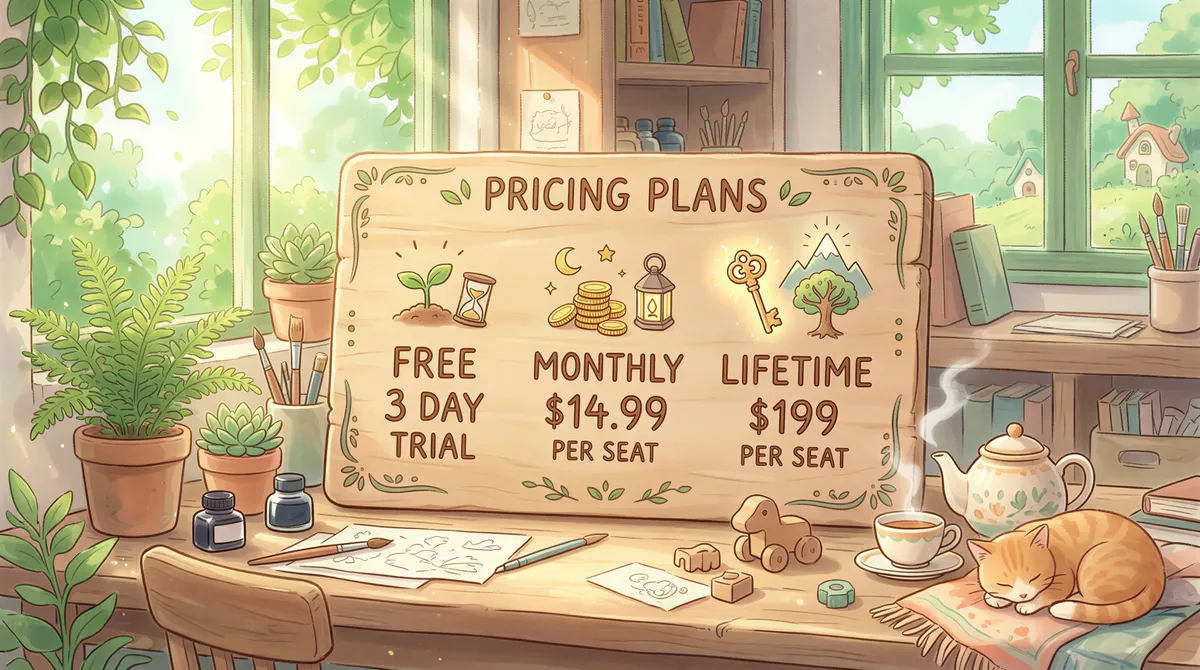
- Free 3-day trial. Full features. No credit card.
- Monthly: $29/month.
- Lifetime: $499 one-time, all future updates.
- Team plan: for orgs with multiple Yahoo (or other) accounts. Centralized billing, admin dashboard with print analytics per user, 7-day trial.
For one Yahoo Mail account, lifetime pays for itself in about 4 months of saved time at typical print volumes.
What If You Migrate Off Yahoo Later?
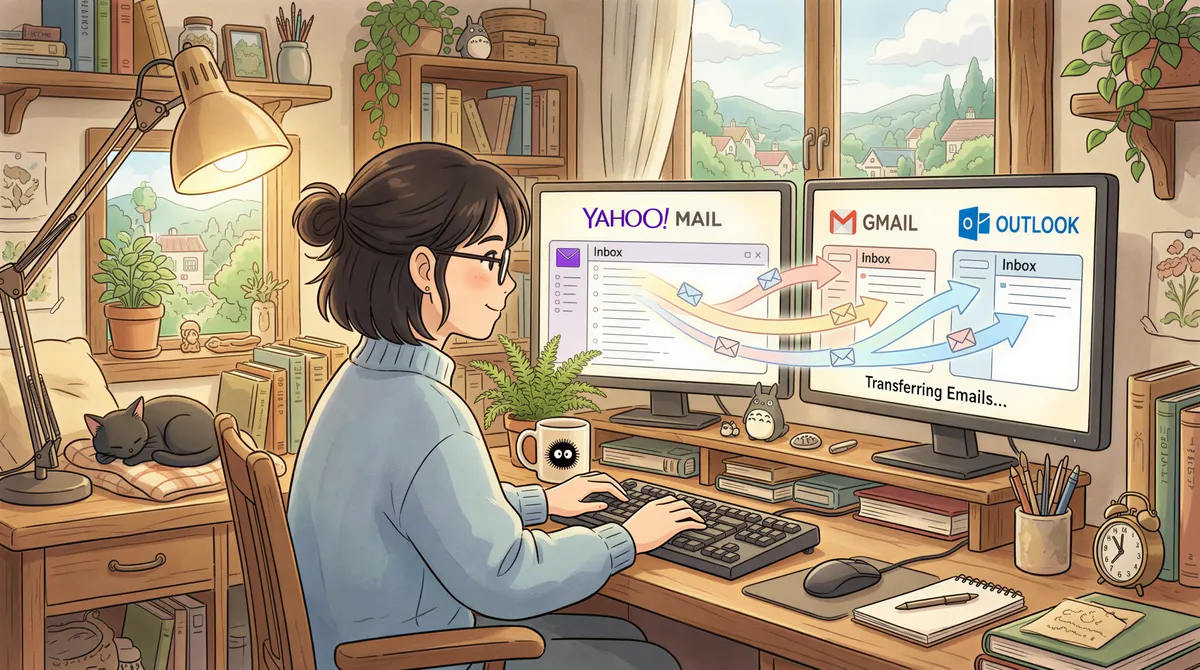
Lots of people are. Switching to Gmail, Outlook, FastMail, ProtonMail — all supported. AutoPrintEmail keeps the same filter rules and printer setup; you just connect the new account and disconnect the old one. Migration takes about 5 minutes.
If you're considering the switch, Gmail auto-print and Outlook auto-print have the same setup but use OAuth2 (no app passwords needed). Both are slightly more reliable than IMAP polling.
TL;DR
- Generate a Yahoo app password (Account security → App passwords).
- Install AutoPrintEmail.
- Add Account → IMAP, host
imap.mail.yahoo.com, port 993, your Yahoo email + app password. - Pick a filter rule + printer.
- Test with one email. Done.
Five minutes start to finish. If Yahoo Mail is your office workflow, this kills the Ctrl+P habit forever.
Ready to get started?
Start printing your emails today.
Nearly 90,000 emails have printed themselves so far — no one opening an inbox, no one clicking print.