Tag Shopify Orders When They Print
The packing slip printed. Or did it? Scrolling the orders list, there is no way to tell which orders are already on paper and which one slipped through.
So let Shopify mark them for you. Each time AutoPrintEmail prints a document for an order, it tells Shopify Flow. Flow then does whatever you ask: add a tag, add a note, message the team. This guide sets up the tag. It takes about two minutes.
Table of Contents
- What You Need
- Create the Workflow
- Find the Orders That Did Not Print
- What Counts as Printed
- Do More Than Tag
- Need Help?
What You Need
- AutoPrintEmail from the Shopify App Store, with order packing slips turned on (Settings, then Order paid). The setup guide covers that.
- Shopify Flow. It is Shopify's own automation app, free on paid Shopify plans. If you do not have it yet, install it from the Shopify App Store.
Nothing changes in what AutoPrintEmail can access. It still only reads your store. The tag is added by your own Flow workflow.
Create the Workflow
- In your Shopify admin, open Flow and click Create workflow.
- Click Select a trigger, choose AutoPrintEmail, then Order printed.
- Below the trigger, click Action and search for Add order tags.
- In Tags, type the tag you want, for example
Printed, and press Enter. - Click Turn on workflow.
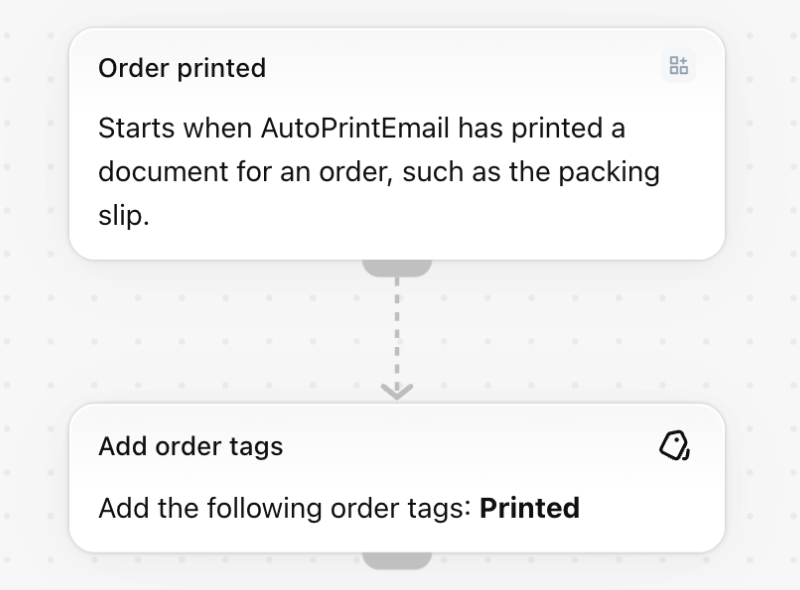
Done. From now on an order gets the tag as soon as its packing slip has printed.
Find the Orders That Did Not Print
Open Orders and type this in the search box:
That lists every order without the tag. Anything paid a while ago and still on that list is worth a look.
What Counts as Printed
- From a print station: when the station reports the packing slip as printed.
- From your browser: when you click Print on the document in the Print queue.
- Reprints do not count again. The trigger runs once per document.
- Test prints and samples do not count. There is no real order behind them.
- Transfer labels do not count. They belong to a transfer, not an order.
Do More Than Tag
The trigger hands Flow the whole order, plus a Document value that says what printed (for example Packing slip). So any Flow action that works on an order works here:
- Add a note or a timeline comment to the order.
- Send an internal email when a high-value order prints.
- Post to your team chat.
Need Help?
The workflow did not run? Check these in order:
- In Flow, the workflow is turned on.
- In the AutoPrintEmail app, Home shows the order's packing slip as printed.
- In Flow, Recent runs shows what happened to each run and why.
Still stuck? Message us with the order number and we will look at it with you.