Set Up an 80mm or 58mm Thermal Receipt Printer
You pick your shiny 80mm thermal printer in AutoPrintEmail, an email lands, and the printer just... feeds a blank line and cuts. Nothing prints. Or you force it to A4 and the ticket prints, but the text runs straight off the edge of the roll instead of wrapping. Meanwhile printing the same email straight from Gmail looks perfect.
Good news: nothing is broken. The app fully supports thermal rolls - it just needs two settings (page size and margins) to match your paper.
Table of Contents
- Why this happens
- The fix: set the page size to Receipt 80mm
- If the text is too small or too large
- Trim the header to save roll
- Still feeding blank paper or not wrapping?
Why this happens
AutoPrintEmail lays out your email at whatever page size you've set for that printer, then sends it over. By default that page size is Letter / A4 - a full sheet about 210mm wide.
A thermal printer's roll is only 80mm (or 58mm) wide. So:
- Nothing prints, just a feed and a cut - the printer is being handed a full-page layout it can't place on a narrow roll, so it gives up and ejects.
- You force A4 and it prints, but runs off the side - now it prints, but the text is still laid out for a 210mm-wide sheet. Only the leftmost slice fits on the roll, so lines get cut off instead of wrapping.
Gmail looks fine because your browser reflows the text to whatever width it's printing to. AutoPrintEmail does exactly the same thing - once you tell it the roll is 80mm wide.
The fix: set the page size to Receipt 80mm
- Open the desktop app and go to your email account's Print Settings.
- Find the card for your thermal printer (the one you picked from the printer list).
- Open the Page size dropdown. Under the Thermal Receipt section, choose Receipt 80mm (3 1/8 in).
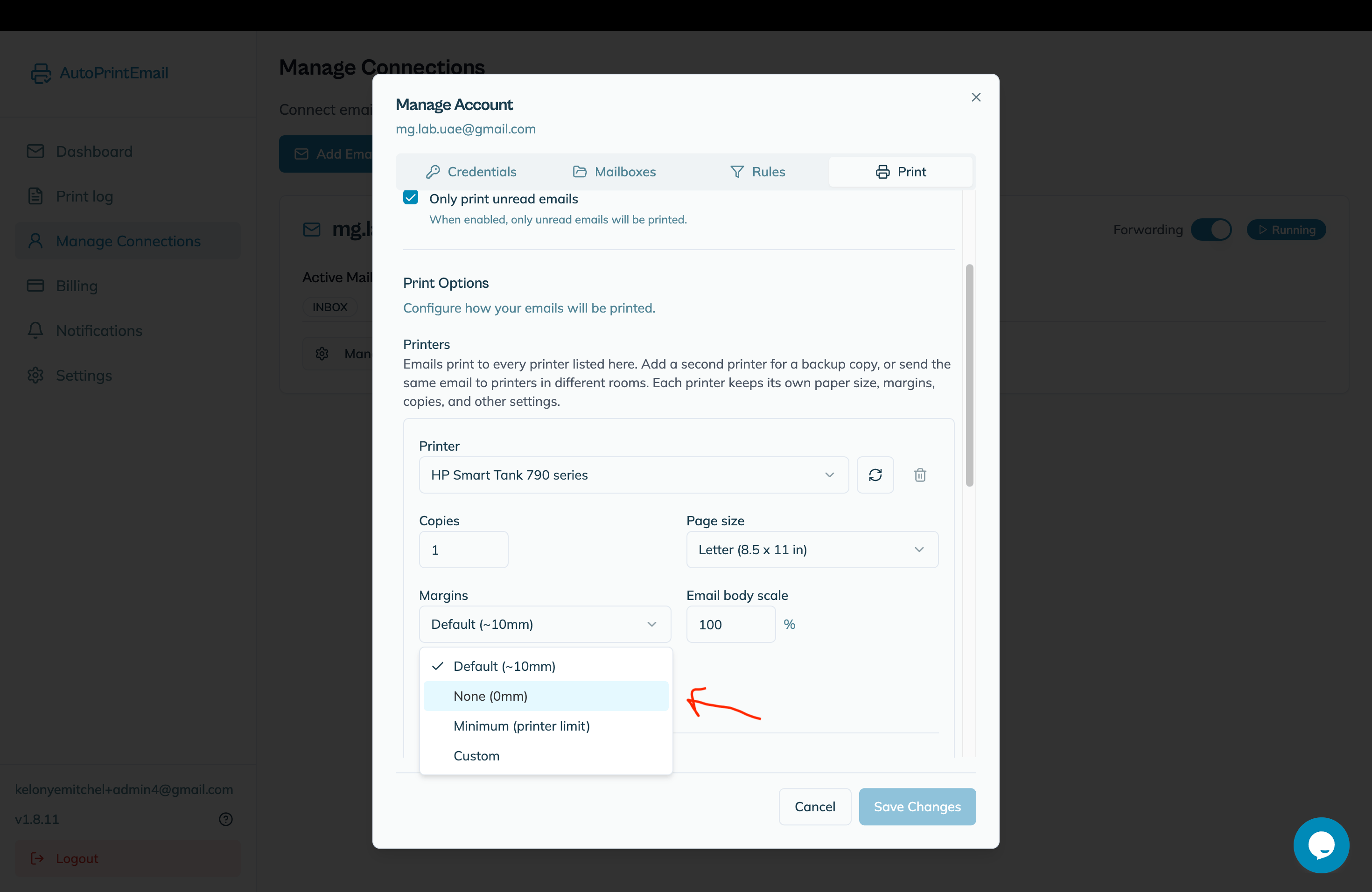
- Set Margins to None (0mm). This step is essential on a roll: the standard ~25mm margins are wider than half your paper, so they collapse the printable area and the printer feeds a sliver and cuts without printing. None is the right setting for thermal.
- Save.
That's it. The next ticket that comes in is rendered at 80mm wide, so the text wraps to the roll and the printer cuts cleanly at the end - the same clean ticket you get from Gmail.
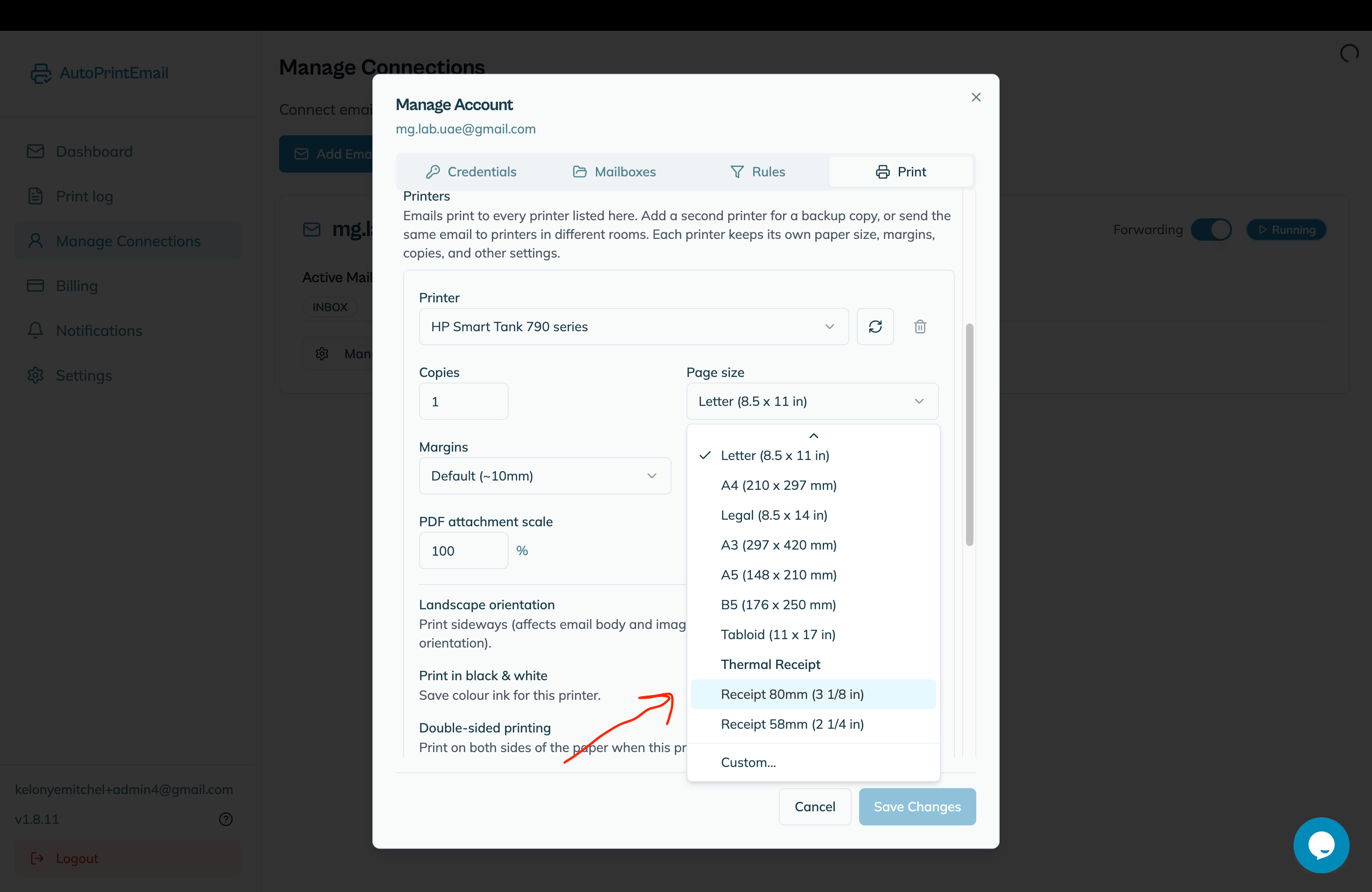
Using a smaller roll? Pick Receipt 58mm (2 1/4 in) instead. Same idea, narrower paper.
If the text is too small or too large
Wrapping is fixed by the page size above. If the size of the text isn't quite right for your roll, use the Body scale slider on the same printer card:
- Text too small to read comfortably? Nudge body scale up (e.g. 110-130%).
- Lines still slightly too wide and clipping at the edge? Nudge it down a touch.
Small adjustments go a long way on a narrow roll - change it 10% at a time and print a test.
Trim the header to save roll
Every print opens with the subject, sender and date above the email. On a sheet that costs you nothing. On an 80mm roll it eats the top of every ticket before the order content starts.
You can turn those off one at a time, in the same Print Settings for the account:
- Find Print message header ("Print the subject, sender and date above the email") and leave it on.
- Underneath it, turn Sender and Date off.
- Leave Subject on - it usually carries the order or ticket number.
Or switch Print message header off entirely if your tickets already repeat the order number in the body.
Still feeding blank paper or not wrapping?
A couple of things to check:
- You're on the latest version. Check for updates in the app and install anything pending, then try the print again. Older builds had a page-size bug that could produce a blank or clipped roll even with the settings above set correctly. Linux, Microsoft Store and Mac App Store installs don't auto-update, so those need checking by hand.
- Tray / paper source. If you've set a specific Tray for this printer, leave it on the default for thermal printers. A forced tray can override the receipt paper size on Windows and bring back the full-page behavior.
- Printer driver paper setting. Your printer's own Windows/Mac driver should be set to its roll paper (for Epson TM models that's the "Roll Paper 80 x 297mm" default). If the driver itself is set to A4, it will fight the app's setting.
- Plain-text tickets losing their columns. If your ticket arrives as plain text and the item/qty/price columns collapse into one run of words, update the app. Plain-text bodies are now printed in a fixed-width font, sized to the printable width of the roll, so the columns line up the way the sender laid them out.
- It's the email body, not an attachment. This setting controls how the email itself is laid out. If your tickets arrive as PDF attachments instead, the PDF prints at its own built-in size - reach out and we'll help you size those.
If you've set Receipt 80mm, left the tray on default, and it still won't wrap, send us your logs and we'll dig in - a photo of what comes off the roll helps a lot too.