Print Shop Email Printing: Artwork Orders to Job Tickets
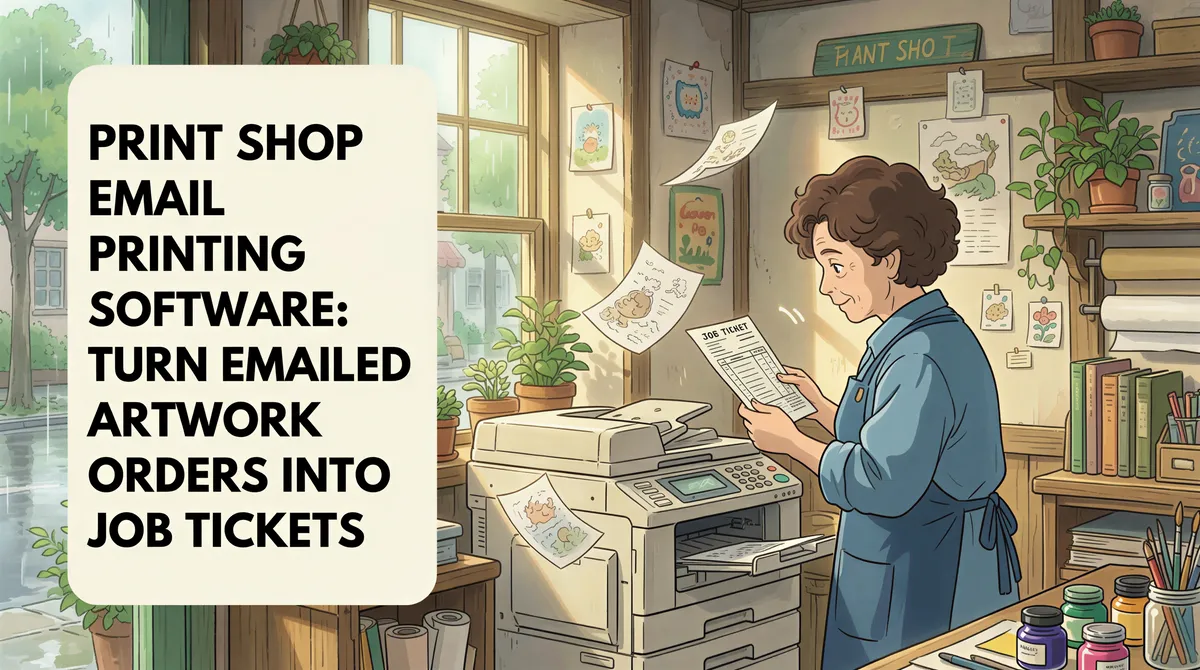
Almost every print shop and sign shop on the internet publishes the same thing on its contact page: an email address, and some version of "send us your artwork."
That address is the order intake system. It's also the bottleneck. Someone has to sit in that inbox, open each message, figure out whether it's a real job or a supplier newsletter, print the artwork and the PO, and walk the paper to the production floor. On a same-day or four-hour rush promise, that round trip is the part of the process nobody budgeted for.
Here's the auto-print setup for a shop that takes orders by email.
Table of Contents
- Why Print Shops Have This Problem Worse Than Most
- What to Auto-Print
- The Rule That Saves You From Yourself
- Routing to the Right Machine
- The Math
- Setup
- TL;DR
Why Print Shops Have This Problem Worse Than Most
Most businesses that print email are printing documents that arrive from systems: an ERP, an accounting package, a booking tool. Print shops are different. The work arrives from humans, at a public address, in whatever format the customer felt like sending.
Three things make it worse:
- The address is published. It's on your site, your Google listing, your truck. You can't move the workflow into a portal, because customers won't use one for a $60 banner.
- The paper is the job ticket. The floor works off the printed artwork and the printed PO. That paper travels with the job through print, cut, laminate and finishing.
- Turnaround is the product. If you sell same-day and four-hour rush, the twenty minutes an order spends sitting unopened in an inbox is twenty minutes of your promise.
A shop doing 20-40 email orders a day is spending an hour or more just moving files from inbox to printer.

What to Auto-Print
1. Customer artwork and job files
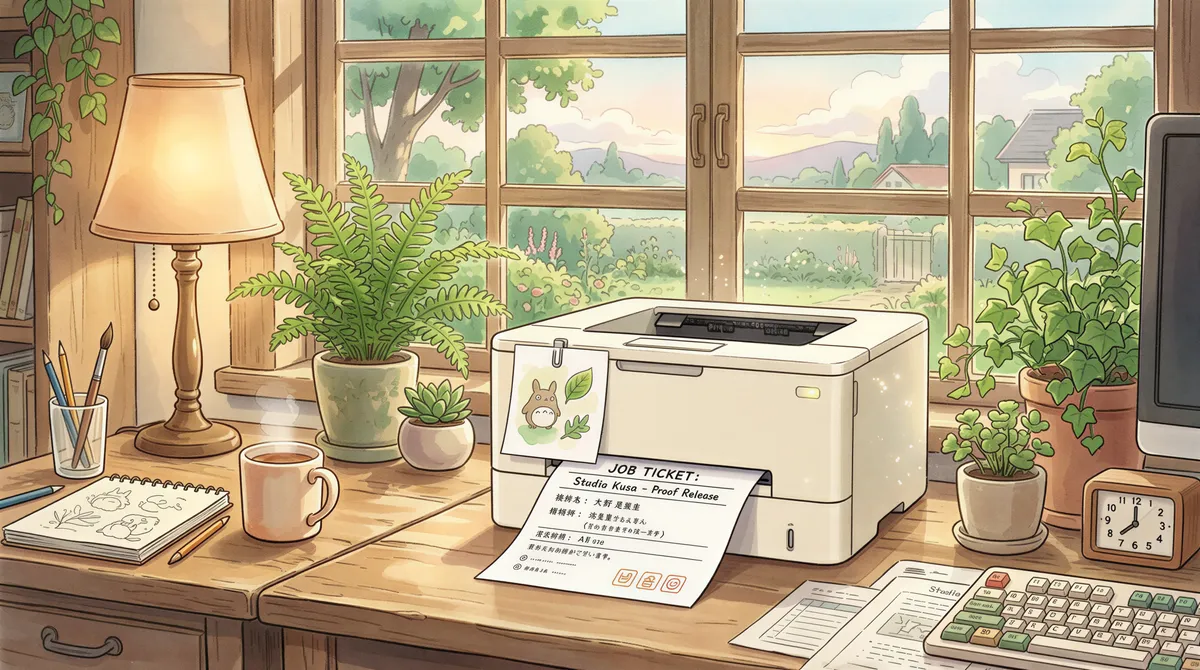
The main event. A customer emails a print-ready PDF and a note about quantity and stock.
Filter rule:
- To contains: your published intake address (
orders@,artwork@,info@) - Has attachment: yes
- Action: Print attachment to the production office printer
Print the artwork at reduced size for the ticket, not at final size. Nobody wants a 48-inch banner proof coming off the wide-format just to confirm an order exists.
2. Purchase orders from commercial accounts
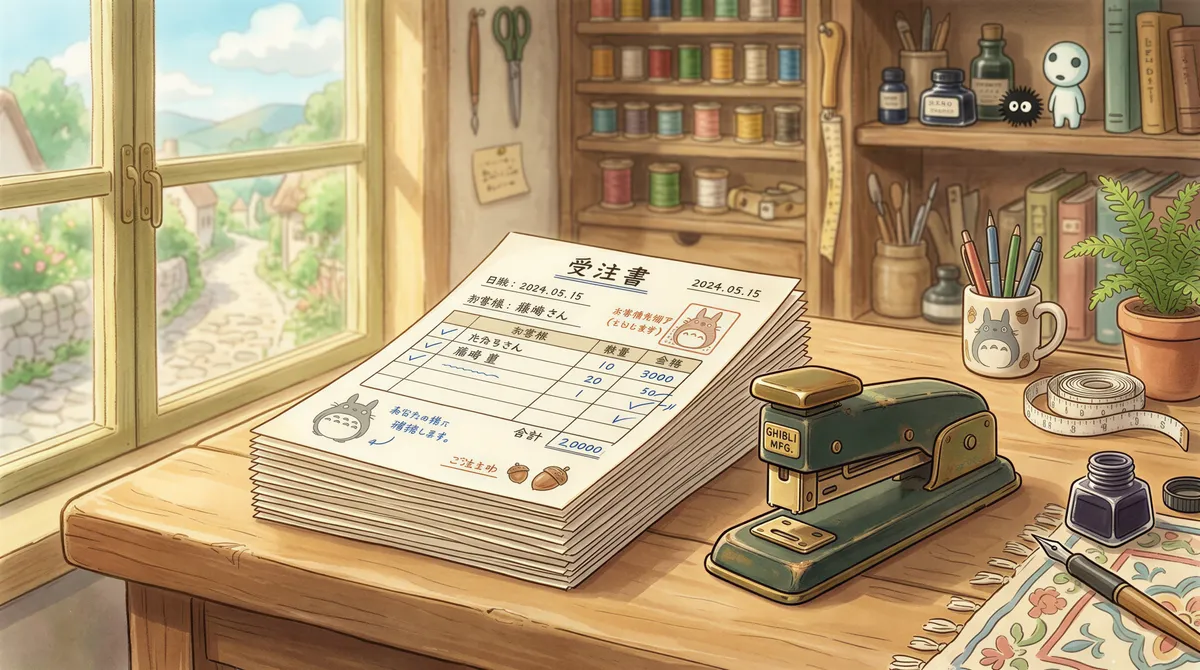
Your repeat B2B customers (property managers, agencies, contractors, franchise marketing departments) send POs, not one-off requests. These need to print for the job jacket and for AP.
Filter rule:
- From contains: your commercial account domains
- Subject contains:
PO,purchase order,work order - Action: Print body plus attachment
3. Approved proofs
When a customer replies "approved," that approval is the authorization to burn material. It belongs in the job jacket, in writing, with a timestamp.
Filter rule:
- Subject contains:
proof,approved,approval - Action: Print body
This one earns its keep the first time a customer says they never approved that color.

4. Supplier order confirmations and shipping notices
Substrate, vinyl, ink, blanks. Confirmations and tracking notices from your suppliers print at the receiving desk so whoever unloads the pallet knows what's on it.
Filter rule:
- From contains: your supplier domains
- Subject contains:
order confirmation,shipped,tracking - Action: Print attachment to the receiving printer

5. Online storefront orders
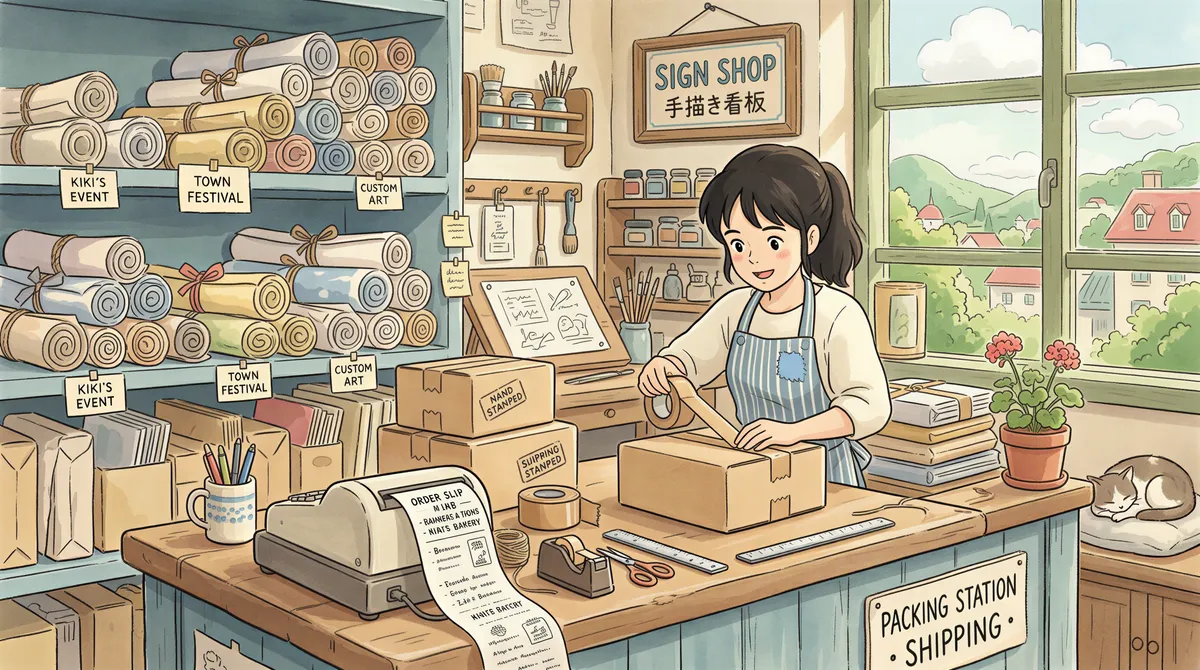
If you also sell through Shopify, WooCommerce, or a web-to-print storefront, those confirmations are already structured and easy to route. Same rule, different printer: send them to the counter or the packing bench instead of the production office.
The Rule That Saves You From Yourself
A published intake address gets a lot of mail that is not an order. Supplier marketing, directory spam, sign-industry newsletters, someone's résumé.
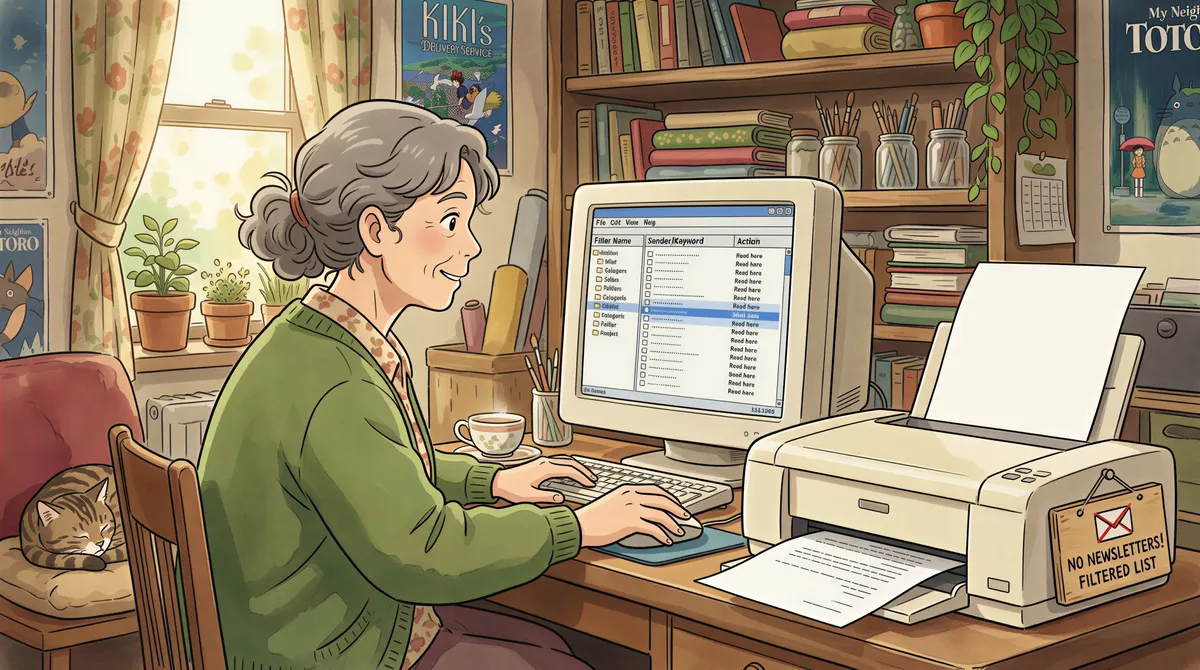
Do not point auto-print at the whole inbox. You will print a ream of newsletters in a week and turn the tool off in disgust.
Start narrow and widen:
- Week one: one rule, one commercial account you know sends clean PDFs.
- Week two: add the general intake address, but require an attachment.
- Week three: add proofs and supplier notices, each to its own printer.
Requiring an attachment does most of the filtering by itself. Newsletters rarely carry a PDF.
Routing to the Right Machine
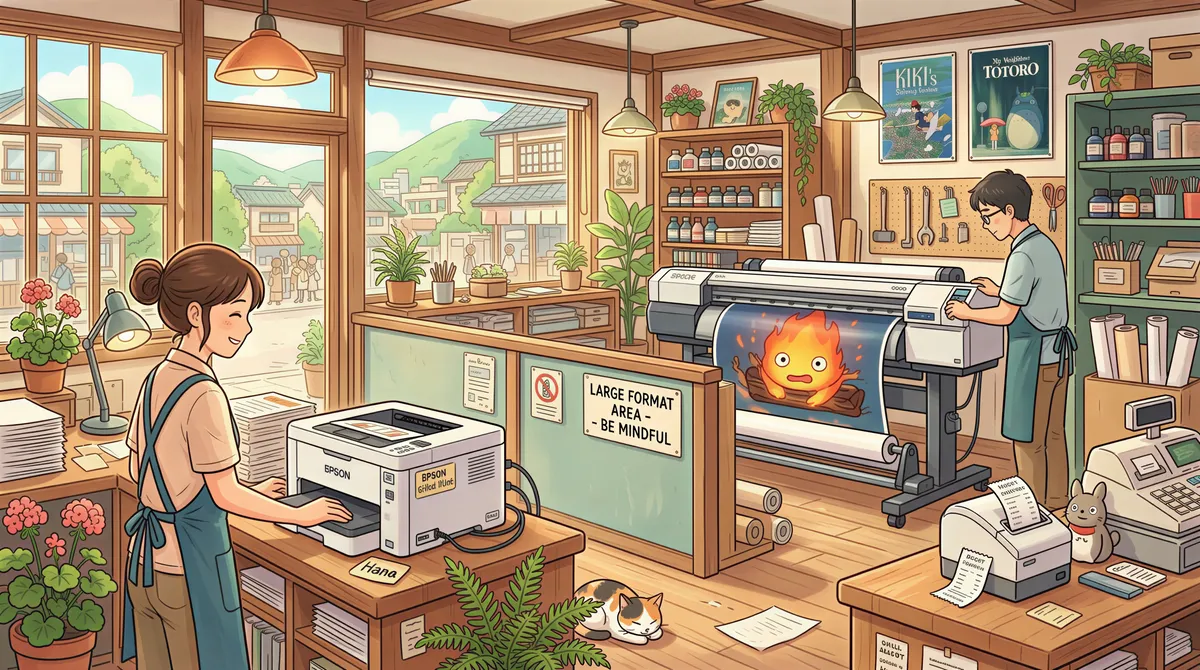
A shop typically has three or four printers that matter: the office laser for tickets and POs, a receiving-desk printer, a counter printer for customer-facing paperwork, and the wide-format devices that should never receive an automated job.
Per-rule printer assignment handles this. Each rule names its own printer, so artwork tickets never land at the counter and supplier notices never land on production media. The wide-format machines stay entirely out of the automation, which is what you want. See multi-printer routing in practice for the same pattern on a plant floor.
The Math
A shop taking 30 email orders a day, at 90 seconds each to open, assess, print and walk:
- 45 minutes a day
- Around 190 hours a year
- At $25/hour of owner or office-manager time, roughly $4,700 a year
That is before the cost of the order that sat unopened past the rush cutoff, which is the one that actually hurts.
A single-computer lifetime license is $499 once. The payback is measured in weeks.

Setup
- Install AutoPrintEmail on the office machine that already talks to your printers.
- Connect the inbox that receives orders (Google Workspace and Microsoft 365 are the common ones, plain IMAP works too).
- Add one rule for your cleanest commercial account. Test it with a real job.
- Widen to the general intake address, attachment required.
- Assign the receiving and counter rules to their own printers.
Ten minutes for the first rule. Half an hour for the full setup.
Multiple locations, or a front counter plus a production building? The team plan covers centralized billing and per-site print analytics across them.
TL;DR
Print and sign shops take orders at a published email address, and that inbox is the real order intake system. Auto-print turns it into job tickets: artwork and POs to the production office, proofs into the job jacket, supplier notices to receiving. Require an attachment so you don't print newsletters, and keep the wide-format machines out of it. Roughly $4,700 a year of recovered time at 30 orders a day, against $499 once.
Same-day turnaround starts with the order not sitting in an inbox. Start the free trial.
Ready to get started?
Let the printer open the inbox.
90,000+ emails have printed themselves so far. Nobody opened an inbox. Nobody clicked print.