Add a Computer or Team Member
The front desk prints fine. Now the kitchen wants its own printer, or the second shop across town does.
You don't need a second account. Add a computer to the team you already have, invite a login for it, and sign in on that computer. Same bill, one place to manage it all.
Table of Contents
- Before you start
- 1. Set the number of computers
- 2. Send the invite
- 3. Accept it on the new computer
- Good to know
Before you start
- You need to be an admin on the team. If you started the account, you are.
- Pick an email for the new computer. Each computer signs in with its own login, like
kitchen@yourshop.com. It only needs to receive the invite and the sign-in link. - Everything happens on the web at autoprint.email/team, under Members.
1. Set the number of computers
On the Members page, find the Computers card. Change Computer count to the number of printing computers you want in total, and click Save.
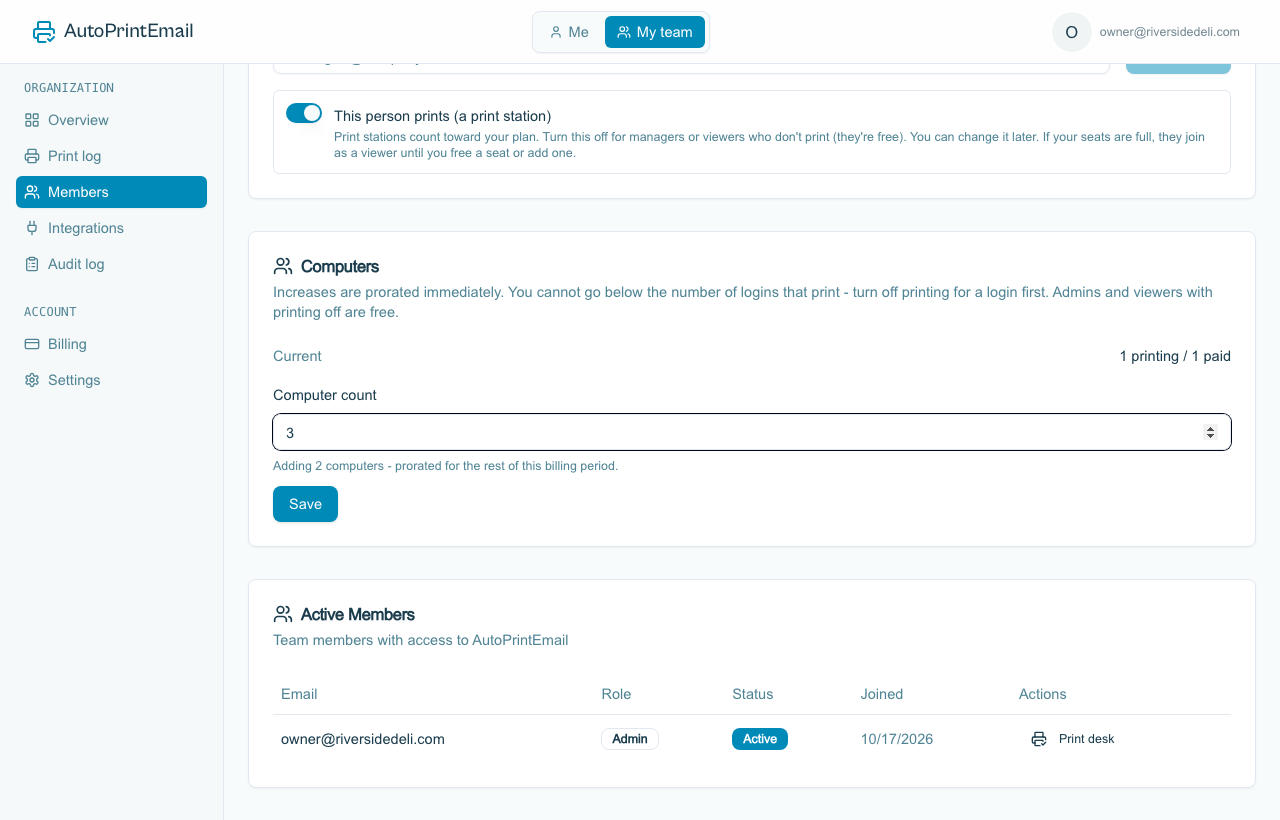
- On the free trial you can go up to 10 computers at no cost.
- On a monthly plan each extra computer is $29 a month, charged pro rata for the rest of the month.
- On lifetime each extra computer is a one-time $499. You'll be sent to a checkout for just the new ones.
Skip this step and the invite still works, but the new login joins as Not printing until a computer is free.
2. Send the invite
- In the Invite Member card, type the new computer's email.
- Leave This person prints (a print station) on. Turn it off only for someone who manages the team but never prints. They're free.
- Click Send Invite.
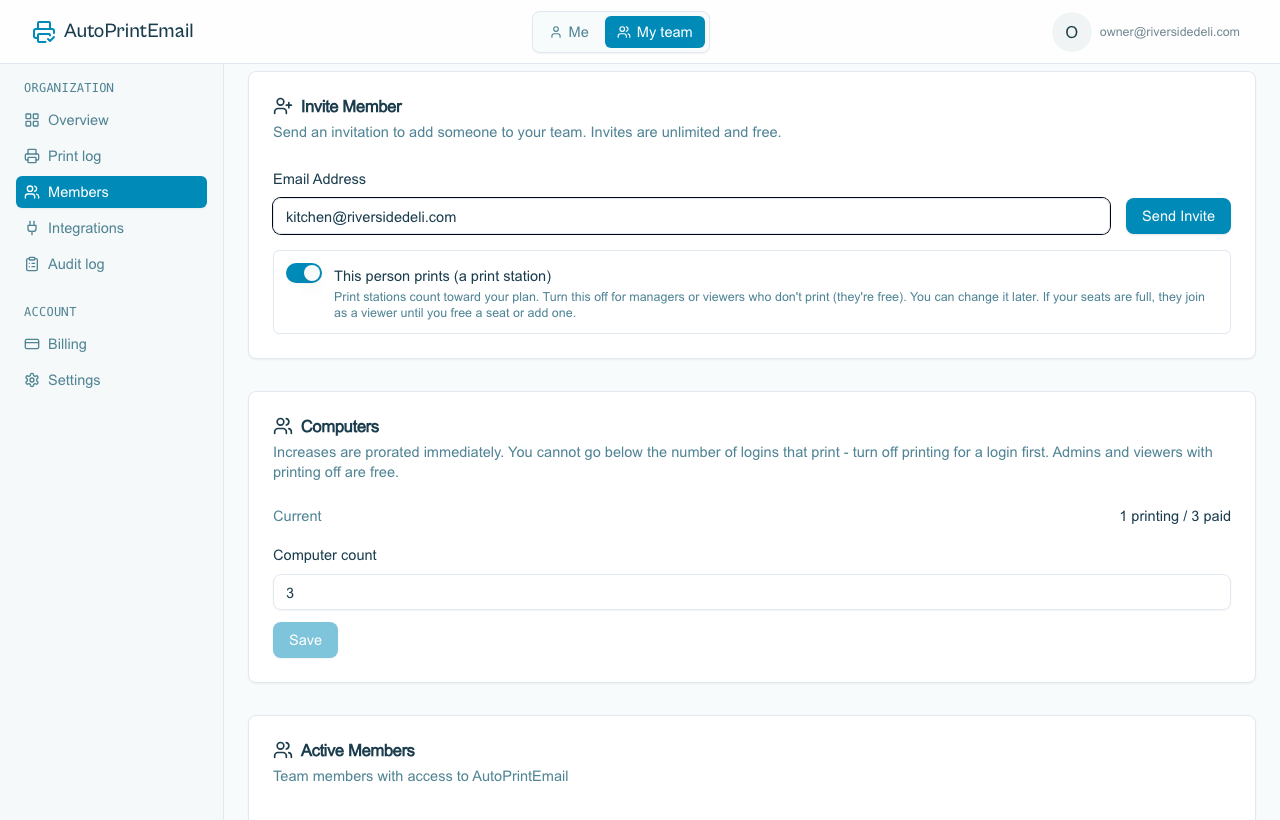
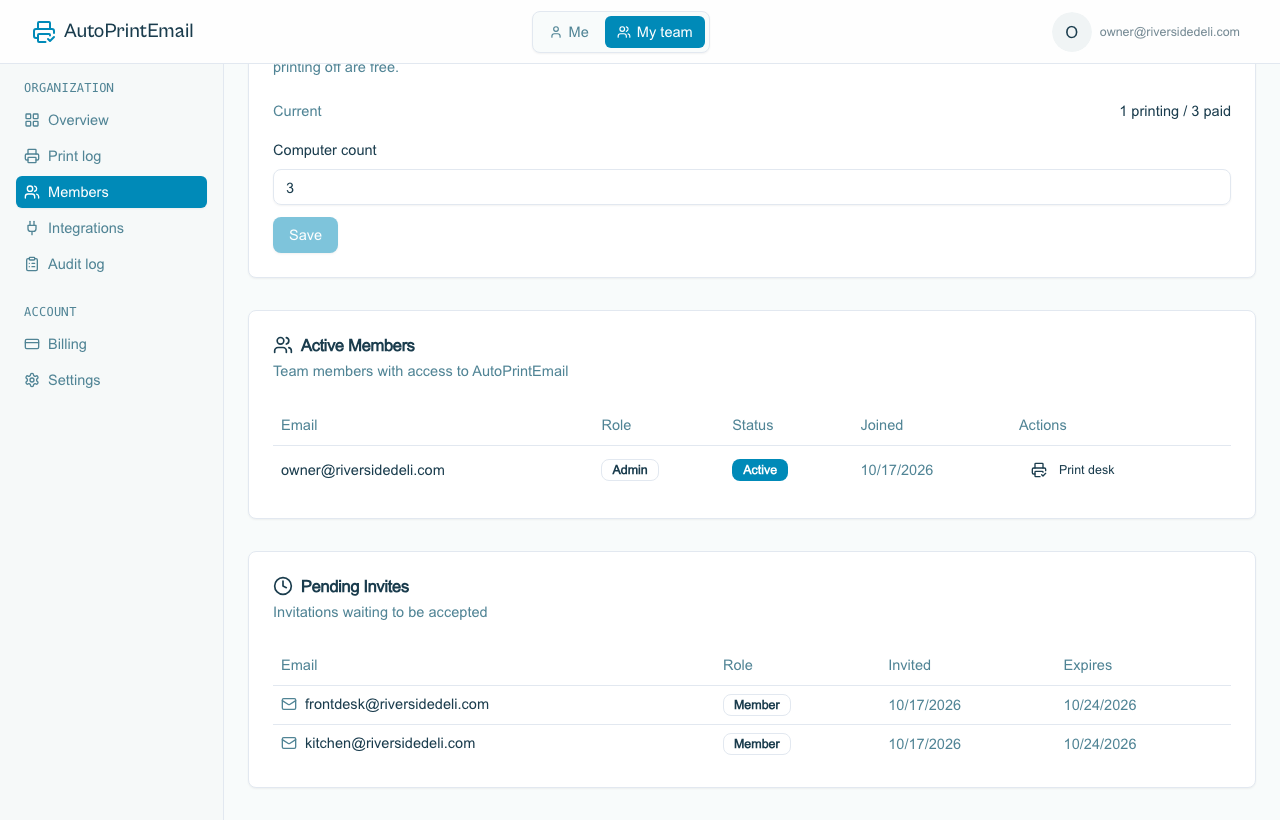
The invite shows under Pending Invites until it's accepted. Invites are free and unlimited, and each one is valid for 7 days.
3. Accept it on the new computer
On the computer that will print:
- Open the invite email and click the link.
- Click Download AutoPrintEmail and install it.
- Open the app and sign in with the email the invite was sent to.
- Accept the invite on the welcome screen.
- Connect the mailbox and pick the printer, same as the first time (full walkthrough).
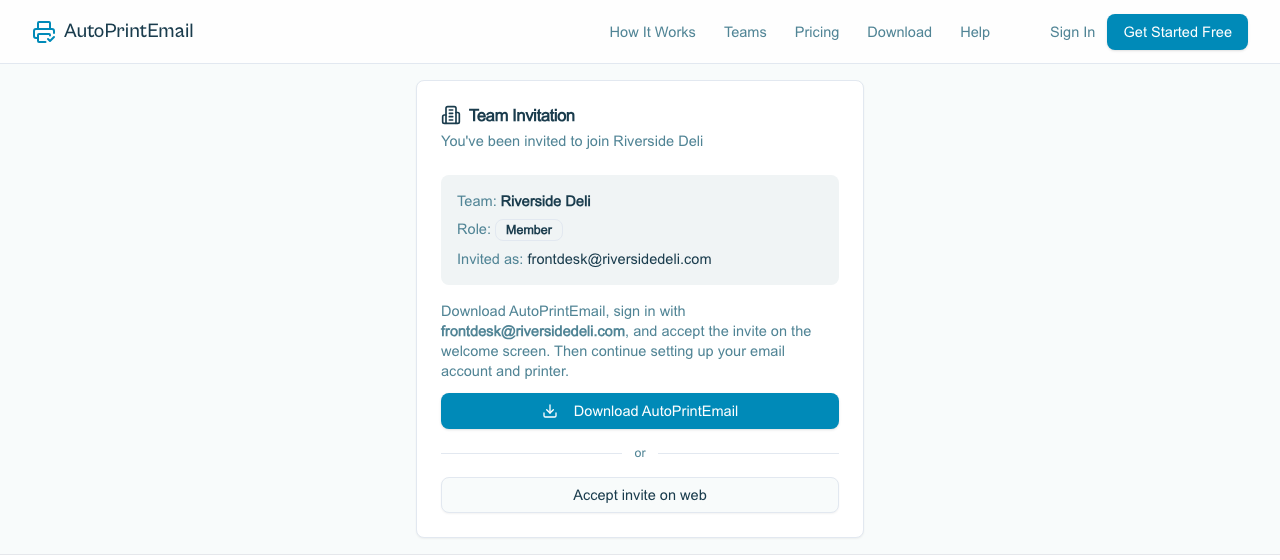
Prefer the browser? Accept invite on web does the same thing. Then sign in to the app with that email.
Good to know
- Invite expired? There's no resend button. Send a new invite to the same email.
- Already tried AutoPrintEmail with that email? That's fine. Open the invite email, click the link and choose Accept invite on web. The login moves into your team and its own trial ends. If that email already pays for its own plan, contact support and we'll move it over.
- Want the new person to be an admin too? Invite them first, then click Make Admin next to their name once they've joined.
- The new login shows Not printing? The team had no free computer when they joined. Raise the Computer count, then click Not printing next to their name to switch it to Print desk.
- Never share one login across two computers. They'd count as one computer and overwrite each other's settings. See How Accounts and Teams Work.