AutoPrintEmail
    How It WorksTeamsPricingDownloadHelp
    Sign InGet Started Free
    1. Help
    2. How Accounts and Teams Work in AutoPrintEmail
    On this page
    The three words that matterAdmins and membersPrinting is a separate switchOne login per computerHow many computers can I have?Next steps
    Team & Computers

    How Accounts and Teams Work in AutoPrintEmail

    3 min read

    You signed up, started the trial, and the app is printing. Congratulations, you have a team. It just has one computer in it.

    That's the whole model. Every AutoPrintEmail account is a team. Most stay a team of one forever. When you need a second printer in another room, another shop, or a client's office, you add a computer to the same team instead of opening a new account.


    Table of Contents

    • The three words that matter
    • Admins and members
    • Printing is a separate switch
    • One login per computer
    • How many computers can I have?
    • Next steps

    The three words that matter

    • Computer (print station). A PC or Mac running the AutoPrintEmail app with a printer attached. This is what you pay for: one price per printing computer, however many mailboxes it watches.
    • Login. The email address someone signs in to the app with. Every computer signs in with its own login, like kitchen@yourshop.com or frontdesk@yourshop.com.
    • Team. All the logins that share one bill. You manage it on the web at autoprint.email/team.
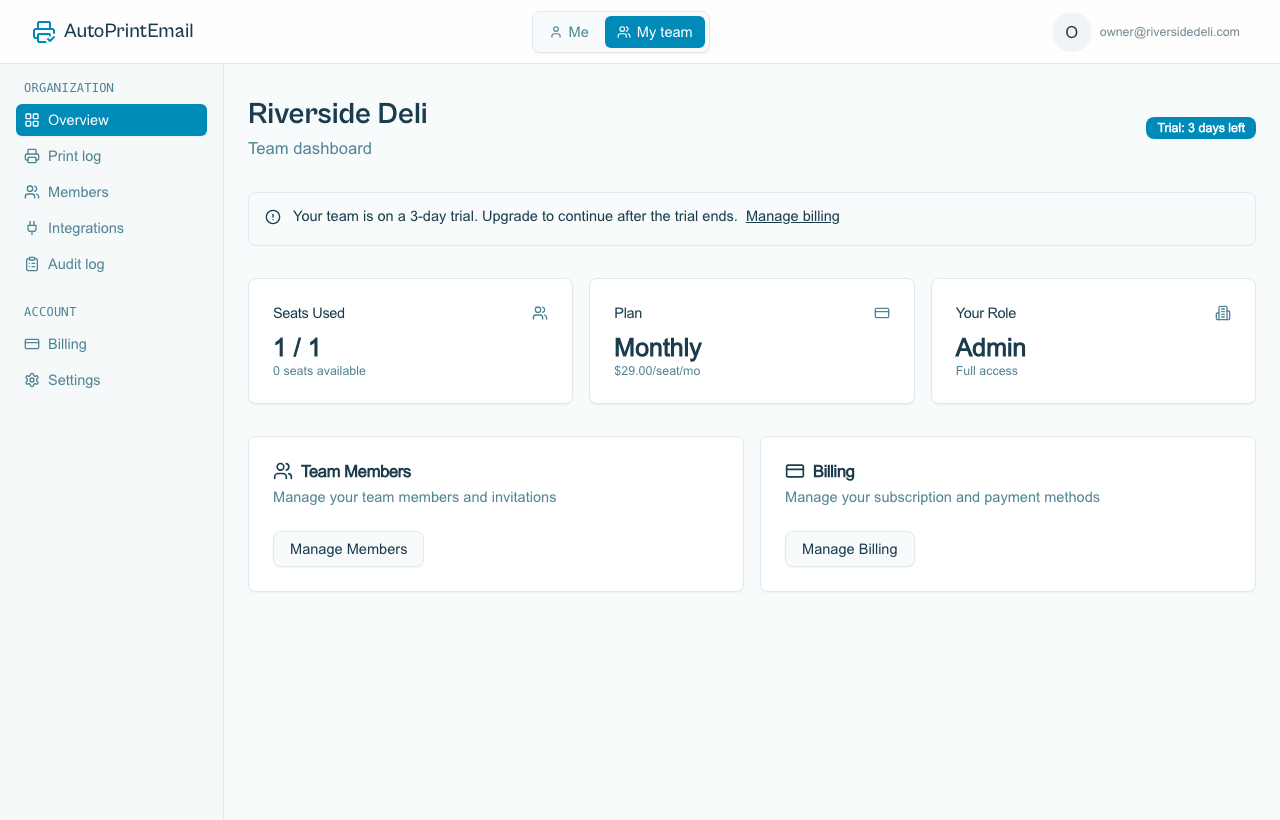
    The team dashboard for a team of one, showing the team name, your role and the trial

    Admins and members

    Each login on the team is either an admin or a member.

    • Admins run the team: they invite people, add or remove computers, change billing, and turn printing on or off for any login.
    • Members sign in and print. They can't change billing or the team.

    Whoever started the team is its first admin. You can make anyone else an admin from the Members page, and a team always keeps at least one.
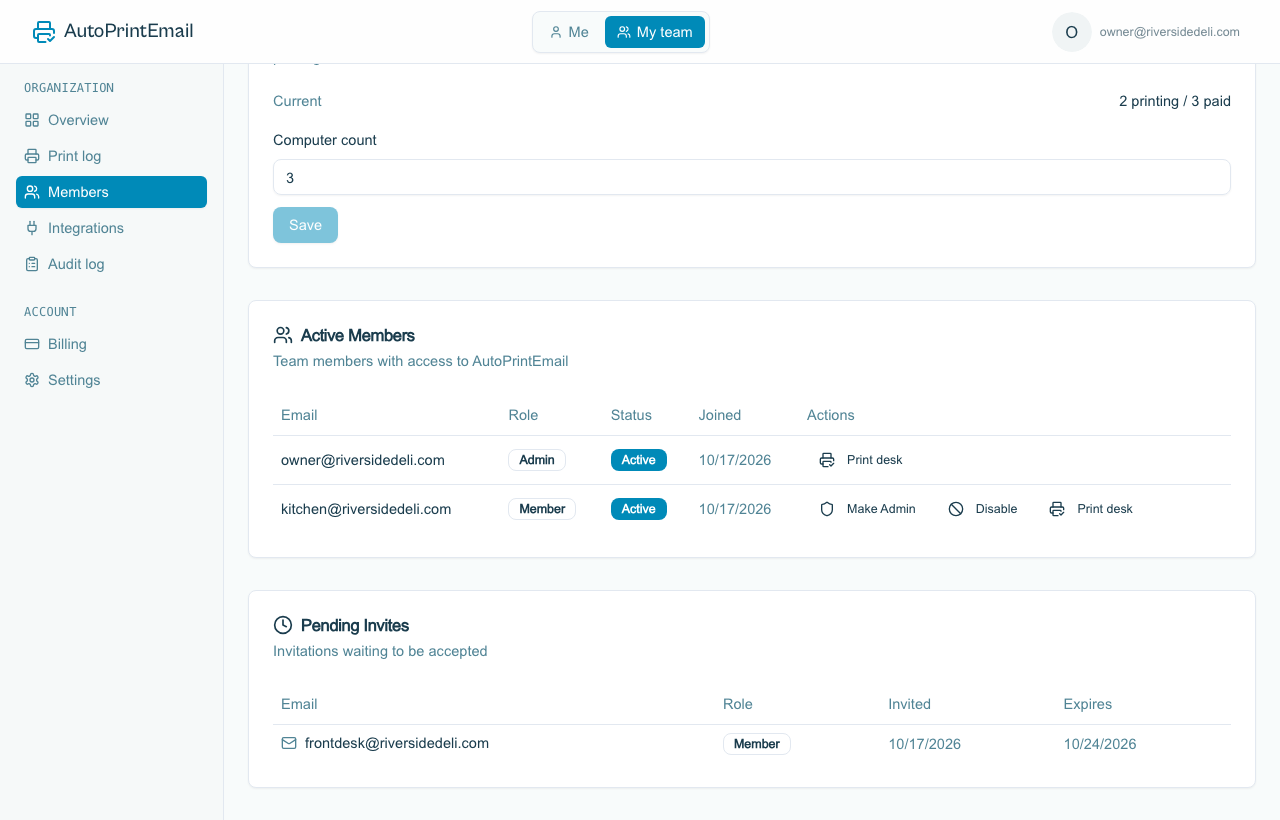
    The Members page with the owner as admin and a kitchen print station as member

    Printing is a separate switch

    Role and printing are two different things. Next to each login on the Members page you'll see either Print desk or Not printing:

    • Print desk means a computer signed in as this login prints, and it counts as one paid computer.
    • Not printing means the login can sign in and look around, but it never prints and costs nothing.

    That's how an owner, a manager or an IT provider can keep an admin login without paying for a computer. See Add a Free Admin Login.

    One login per computer

    Give every computer its own login. If two computers sign in with the same email, AutoPrintEmail treats them as one computer, and their settings can overwrite each other. A login is free to add, so there's no reason to share one.

    How many computers can I have?

    • On the free trial: up to 10. Set the number in the Computers card on the Members page, then invite a login for each.
    • On a paid plan: as many as you need. Each printing computer is $29 a month, or $499 once. See How Pricing Works.

    Next steps

    • Add a Computer or Team Member
    • Add a Free Admin Login
    • Move AutoPrintEmail to a New Computer
    AutoPrintEmail

    The desktop app that sends emails directly to your printer. Reduce screen time without missing important communications.

    Quick Links

    • Automated Email Printing Guide
    • Benefits
    • How It Works
    • For Teams
    • Testimonials
    • Reviews on Trustpilot
    • FAQ
    • Privacy Policy
    • Terms of Service
    • Blog
    • About

    Download

    Get started with AutoPrintEmail today and receive a 3-day free trial.

    Get Started Free

    Email Printing

    • Automatically Print Email Attachments (PDF, Word, Excel)
    • Auto-Print Email Invoices & Receipts | Automatic Business Printing
    • Auto-Print Gmail Emails (2026 Guide) | Automatic Gmail Printing
    • Auto-Print Outlook & Office 365 Emails: No Plugin, 24/7
    • Email Printing Automation for Business Operations | Secure & Reliable
    • Click-and-Collect for Small Shops: The Complete Weekend Recipe
    • Email to Print Software: Auto-Print Emails & Attachments to Any Printer

    Compare

    • AutoPrintEmail vs ItJustPrints - Desktop or Mobile Print Station?

    Integrations

    • Auto-Print Gmail Attachments & Emails - Set It and Forget It
    • Auto-Print Outlook Emails Without a Plugin | Standalone Desktop App
    • Auto-Print Office 365 Emails: No Plugin Required
    • Auto-print Shopify inventory transfers, orders, and labels
    • Auto-Print Etsy Orders & Packing Slips - Handmade Seller Automation
    • Auto-Print IMAP/POP3 Emails - Works with Any Email Provider
    • Auto-Print Square Orders - Kitchen Tickets & Receipts
    • Auto-Print Toast POS Orders - Kitchen Ticket Printing
    • Auto-Print ShipStation Orders - Packing Slips & Shipping Labels
    • Print From Zapier Automatically - Orders, Forms and Alerts on Paper
    • Print API - Send Print Jobs to Any Printer With One HTTP Request

    Solutions

    • Email to Print - Auto-Print Emails to Any Printer
    • Auto-Print Invoices from Email: AP & AR Automation
    • Stop Manually Printing E-commerce Invoices - Automate in 2 Minutes
    • Restaurant Order Printing Automation - Auto-Print Delivery Orders
    • Legal & Real Estate Document Printing Automation
    • Logistics Waybill & Shipping Label Automation
    • Healthcare Document Printing Automation - HIPAA-Compliant Local Processing
    • Pharmacy Email Printing Software - Auto-Print Wholesaler Invoices, PBM Notices, and Compliance Docs
    • Accounting Firm Document Automation - Auto-Print Tax Docs & Client Files
    • Auto Shop Document Automation - Print Work Orders & Estimates Automatically
    • Insurance Agency Document Automation - Auto-Print Policies, COIs & Claims
    • Auto-Print Faxes From Email, Without a Fax Machine

    © 2026 AutoPrintEmail. All rights reserved.

    Privacy PolicyTerms of ServiceSecurity