From Email to Paper in 3 Seconds: How AutoPrintEmail Works
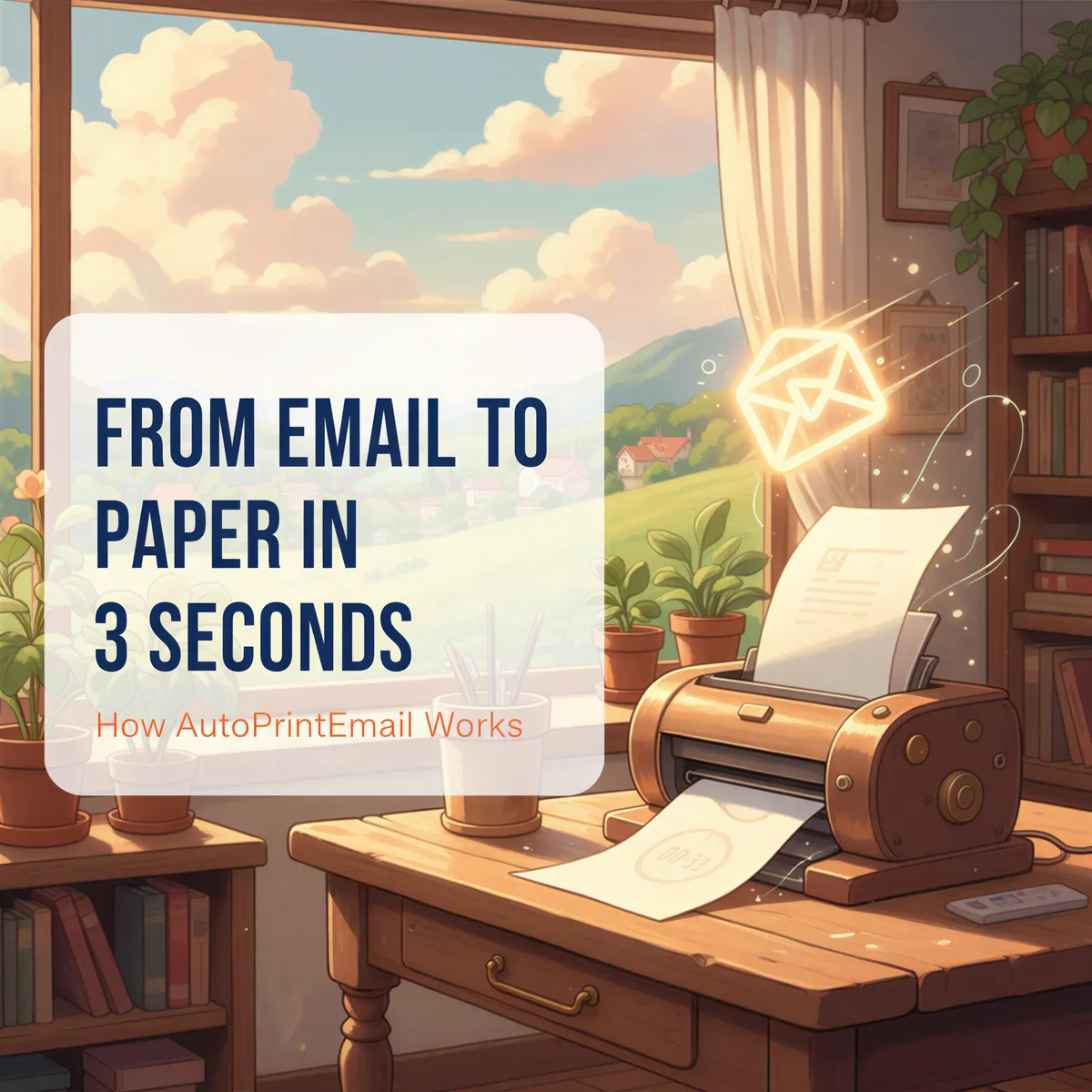
An email arrives. Three seconds later, paper comes out of your printer.
Magic? Not quite.
Here's exactly what happens in those three seconds.
Table of Contents
- The 3-Second Timeline
- Step 1: Email Detection
- Step 2: Filter Matching
- Step 3: Content Processing
- Step 4: Print Queue
- Why It's a Desktop App
- Security: What Happens to Your Data
- Technical Specs
- TL;DR
The 3-Second Timeline
That's it. No cloud servers. No manual intervention. Just email → printer.

Step 1: Email Detection
AutoPrintEmail connects to your email using one of two methods:
OAuth (recommended for Gmail/Outlook) You click "Connect" and authorize via Google or Microsoft. No password stored. AutoPrintEmail receives a secure token.
IMAP (for other providers) You enter your server details and an app-specific password. Direct connection to your mail server.
For details on which to choose, see our IMAP vs OAuth guide.
Once connected, AutoPrintEmail uses IMAP IDLE — a protocol that lets it receive instant notifications when new mail arrives. No polling. No delays.

Step 2: Filter Matching
When an email arrives, AutoPrintEmail checks your filter rules:
Filters can match on:
- Sender address
- Subject line
- Email labels/folders
- Attachment types
- Combinations of the above
No match? Email is ignored. Match? Proceed to printing.
This is where the power is. Gmail filters can sort your email. AutoPrintEmail filters decide what gets printed.

Step 3: Content Processing
Once an email matches, AutoPrintEmail processes the content:
Email body:
- HTML emails are rendered to a printable format
- Images are embedded
- Formatting is preserved
Attachments:
- PDFs are extracted and prepared
- Images (JPG, PNG) are processed
- Documents are queued in order
You control what prints:
- Body only
- Attachments only
- Both
- Specific file types (PDFs, images, etc.)
Step 4: Print Queue
The processed documents go to your operating system's print queue.
AutoPrintEmail uses your default printer (or a printer you specify). It works with:
- USB printers
- Network printers
- Wireless printers
- Print servers
- Any printer your computer can see
Print options you can configure:
- Double-sided printing
- Black & white or color
- Paper size
- Copies
The print job is standard. Your printer doesn't know the difference between AutoPrintEmail and you clicking "Print" manually.
Why It's a Desktop App
AutoPrintEmail runs on your computer, not in the cloud. This is intentional.
Reason 1: Privacy Your email bodies, PDFs, and images never leave your machine. We don't see them and we don't store them. The one exception is Office attachments (Word, Excel, PowerPoint, CSV) — your printer can't read those, so they're converted to PDF on our servers and deleted within a day. Don't want that? Turn the converter off in Settings and those attachments are skipped.
Reason 2: Security Cloud services are attack vectors. Desktop apps aren't accessible from the internet. Your email data stays local.
Reason 3: Reliability No internet? Email already downloaded still prints. Cloud service down? Doesn't affect you.
Reason 4: Speed Processing happens locally. No round-trip to a cloud server. Email arrives → print job queued → paper out.
Security: What Happens to Your Data
Let's be explicit:
Your data stays on your computer.
- Email content: Read, processed, printed — never uploaded
- PDF and image attachments: Downloaded to temp folder, printed, deleted
- Office attachments: Converted to PDF on our servers, deleted within a day — or skipped entirely if you turn the converter off
- Credentials: Stored locally in encrypted format
- Print jobs: Go directly to your printer
We don't have servers that see your email. We don't collect your documents. The only thing that ever reaches us is an Office file you asked us to convert, and that gets deleted.
AutoPrintEmail is a desktop application. It connects to your email. It sends to your printer. That's the entire data flow.

Technical Specs
For the curious:
- Built with: Electron (cross-platform)
- Email protocol: IMAP IDLE for real-time detection
- Auth: OAuth 2.0 for Gmail/Outlook, app passwords for IMAP
- Print engine: Native OS print APIs
- Supported formats: PDF, JPG, PNG, common document types
- Platforms: macOS, Windows, Linux
TL;DR
How it works:
- Connects to your email (OAuth or IMAP)
- Detects new messages instantly (IMAP IDLE)
- Matches against your filters
- Processes email body and attachments
- Sends to your printer
Why it matters:
- Runs locally — your email never leaves your machine
- Only Office attachments round-trip for PDF conversion, and you can switch that off
- 3 seconds — from inbox to paper
Just $499 for lifetime access. Check out our complete automation guide or see how different industries use it on our solutions page.
Email to paper.
That's the whole product.
Ready to get started?
Let the printer open the inbox.
90,000+ emails have printed themselves so far. Nobody opened an inbox. Nobody clicked print.